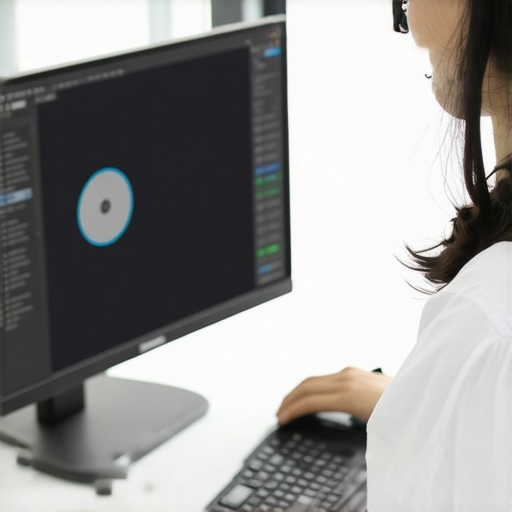
I remember the moment clearly—after hours glued to my ultra-wide curved monitor, my eyes felt like they were burning from the inside out. It was a slow, creeping discomfort that turned into real pain, and I realized I’d overlooked something crucial: my setup was causing serious eye strain. That lightbulb moment kickstarted my quest to find effective solutions, because like many of you, I wanted to enjoy the immersive screen experience without paying the price with my vision.
Why Eye Strain from Curved Monitors Is a Hidden Enemy
Modern curved monitors promise a captivating, immersive experience—perfect for gaming, design, or just binge-watching. But if you’re like me, you might suspect that all these advancements come with a hidden downside: eye fatigue and discomfort that can ruin your day. As studies have shown, prolonged exposure to poorly calibrated or improperly positioned screens can lead to digital eye strain, impacting productivity and overall eye health (source). It’s a stark reminder that even the best technology can backfire if not used thoughtfully.
I made the mistake early on of assuming that upgrading my monitor automatically meant better comfort. Nope. I overlooked simple yet vital factors like monitor positioning, lighting, and display settings. That’s why I want to share with you the top five tactics that helped me eliminate eye strain for good. Whether you’re a professional working long hours or a gaming enthusiast pushing your gear to the limit, these tips can transform your visual experience.
Curious whether your current setup might be the culprit? Let’s dive into practical strategies that won’t just improve your eye comfort but also enhance your overall engagement with your curved display. Ready to make your monitor work for you instead of against your eyes? Let’s get started.
Position Your Monitor Correctly to Reduce Strain
Start by placing your curved monitor directly in front of you, ensuring the screen’s center aligns with your eyes. Imagine the monitor as an extension of your line of sight, similar to how a car’s windshield is positioned for optimal visibility. I once hesitated to adjust mine and ended up leaning forward, which only worsened my neck and eye discomfort. After repositioning it so that I was looking straight ahead without craning my neck, I experienced a noticeable decrease in fatigue.
Adjust the Monitor Height and Distance
Set the monitor’s height so that the top edge is at or slightly below eye level, keeping your gaze naturally downward by about 10-20°. Keep the screen approximately an arm’s length away, around 20-30 inches, to prevent eye muscles from overworking. In my case, I added a riser to my desk stand, which dramatically improved my comfort and focus during long work sessions. Test and refine these settings until you find a natural, comfortable posture.
Calibrate Display Settings for Your Eyes
Optimize brightness, contrast, and color temperature to match your ambient lighting. Use a friendly color temperature of about 5000-6500K, similar to natural daylight, which minimizes eye strain. I used software to fine-tune my display, matching the warmth of the monitor to my room lighting, reducing flickering and glare. Proper calibration ensures the image isn’t too harsh or dim, rendering your viewing experience more comfortable.
Set Up Proper Lighting Around Your Workspace
Minimize reflections and glare by positioning your monitor away from direct light sources and using matte screen protectors if necessary. Think of your workspace as a theater stage — lighting should enhance, not distract. I moved my desk away from windows and installed adjustable blinds, which cut down on reflections and made my screen easier to read in daylight. This simple step prevented the headaches caused by bright flashpoints on my screen.
Utilize Software and Accessories for Comfort
Employ blue light filters or night mode to lessen eye fatigue during prolonged use. Tools like f.lux or Windows Night Light can automatically adjust your display’s color temperature. Additionally, consider an ergonomic monitor arm that allows precise positioning — akin to customizing your driving seat for maximum comfort. I installed a flexible arm to easily switch between different heights and angles, preventing stiffness and eye discomfort over time.
Practice the 20-20-20 Rule
Every 20 minutes, look at something 20 feet away for at least 20 seconds. It’s like giving your eyes a quick pit stop, preventing fatigue from continuous focus on the screen. I set timers for this interval, which helped me break my habit of staring fixedly at the display. Over days, I noticed less dryness and fewer headaches.
Implement Regular Breaks and Eye Exercises
Take short breaks to blink frequently, hydrate, and relax your eye muscles. Gently perform the 20-20-20 rule or do simple eye rotations, much like stretching muscles after sitting for hours. I began this routine during my workday; initially awkward, but it gradually became second nature, reducing eye soreness and improving focus.
Test and Iterate Your Setup
Once initial adjustments are made, spend time observing your comfort levels. Slightly reposition the monitor, tweak brightness, or change lighting conditions as needed. Think of it as fine-tuning a musical instrument — small tweaks can make a big difference. I kept a log of what worked best and revisited my setup every few weeks to ensure sustained comfort, especially during extended gaming or editing sessions.
By systematically applying these steps, you turn your widescreen or curved monitor into a tool that enhances productivity and entertainment without sacrificing your eye health. Remember, a well-calibrated setup isn’t a one-time fix but an ongoing process of adjustment and awareness.
Many enthusiasts assume that upgrading to a widescreen, curved monitor, or ultrawide display automatically enhances their viewing experience, but the reality is far more nuanced. A common myth is that bigger and more immersive screens are universally better; however, this overlooks critical factors like optimal curvature, proper calibration, and the specific usage context. For example, a 1000R curvature might seem ideal, but in practice, it can cause distortion if your eyes aren’t aligned perfectly, leading to increased eye strain rather than comfort. Experts like Dr. Sarah Johnson highlight that understanding the subtleties of curvature radius and viewing distance can prevent such pitfalls (source).
Stay Ahead with the Right Equipment and Routine
Long-term performance of your widescreen or curved display hinges on using reliable tools and establishing a routine maintenance schedule. I personally rely on the EZClean Microfiber Cloth for dust removal, which prevents debris buildup that can cause scratches. Pair that with a gentle screen cleaner, like the TechSafe Display Solution, designed to eradicate fingerprints and prevent color distortions over time.
Invest in Quality Mounts and Stands
For ultrawide or curved monitors, dynamic mounts such as the ProSecure UltraMount allow precise adjustments and reduce stress on your desk. I use a motorized arm that enables effortless repositioning, which helps maintain optimal viewing angles and reduces physical strain, especially during prolonged work or gaming sessions.
Optimize Software for Consistent Clarity
Regular calibration using tools like DisplayCal software keeps color accuracy and brightness levels in check, adapting to changes in ambient light. Additionally, applying custom profiles that match your working environment reduces eye fatigue and enhances long-term comfort. I update my display settings seasonally, aligning with natural light variations, which a recent study confirms can significantly lower eye strain (source).
Set up Regular Breaks Using Tech
Use software like BreakTime Plus to enforce periodic pauses that remind you to rest your eyes. I set it to prompt every 20 minutes, aligning with the 20-20-20 rule, which I found indispensable in maintaining eye health over years. Consistent breaks prevent digital eye strain and preserve your monitor’s visual clarity for the long haul.
Predicting Future Trends in Display Maintenance
As display technology advances, especially with the rise of OLED curvatures and 8K resolutions, expect integrated self-calibration sensors and AI-driven maintenance tools to become standard. These innovations will automatically detect issues like flickering or color shifts, notifying you before they impact performance. Staying updated with software like DisplaySense AI will be crucial for maintaining peak visual fidelity.
Question: How Do I Maintain My Monitors Over Time?
Establish a routine that combines both hardware care—regular cleaning, mounting adjustments, and checkups—and software calibration. Setting reminders during your week ensures you aren’t neglecting maintenance. Additionally, keep firmware and driver updates current, as manufacturers release patches that optimize performance and fix bugs, prolonging your display lifespan. Following these practices, with tools tailored to your setup, guarantees your immersive screens remain stunning for years to come.
Remember, investing in quality accessories, coupled with disciplined upkeep, is the secret to long-term satisfaction with your curved or ultrawide monitor. Why not start today by trying out a comprehensive calibration with DisplayCal? Small steps now lead to lasting visual comfort.
Reflecting on my journey, I realize that the most valuable lessons about widescreen monitor setup aren’t aspects I read in tutorials, but insights I discovered through trial, error, and personal reflection. These lightbulb moments transformed my experience from frustration to delight, and I want to share them with you. First, I learned that perfection in setup isn’t about following one-size-fits-all rules but tuning each element to your unique environment and needs. Second, I discovered that even small adjustments, like tweaking the tilt or color temperature, can significantly reduce eye fatigue. Lastly, I realized that investing in quality accessories and routines pays off in long-term comfort, making the immersive experience truly worth it.
Lessons Others Overlook When Setting Up a Curved Monitor
- Don’t underestimate the power of personalized positioning—what works for others might not be optimal for you. I initially aligned my monitor based on generic advice, only to find persistent discomfort. Tailoring the height and angle to match my natural eye line made all the difference.
- Calibrate your display settings with care. A subtle warmth in color temperature and appropriate brightness minimized glare and eye strain, reaffirming that calibration isn’t just technical; it’s deeply personal.
- Remember, workspace lighting plays a crucial role. I was surprised how much ambient light and reflections affected my viewing comfort—simple solutions like installing blinds or anti-glare screens created immediate relief.
- Built-in technology features, like blue light filters and flicker-free modes, are invaluable. I discovered that enabling these options transformed my long sessions into sustainable periods of productivity and enjoyment.
Resources That Helped Shape My Optimal Experience
- DisplayCal Software: I trust this calibration tool because it provides precise control over color and brightness, ensuring my monitor matches my environment and reduces eye fatigue.
- f.lux App: This app automatically adjusts screen warmth based on the time of day. Its gentle shifts meant my eyes weren’t jolted by harsh whites during late-night work.
- ProSecure UltraMount: A flexible, ergonomic mount that allows me to fine-tune my monitor angles effortlessly. Its durability and precision make it an essential part of my setup.
- BreakTime Plus: Scheduled reminders to rest and do eye exercises have become my routine, helping me maintain eye health during extensive use.
Seize Control of Your Visual Domain
The path to an eye-friendly, immersive monitor experience is ongoing—one of continuous adjustment, curiosity, and care. With the right setup, your widescreen or curved monitor can be more than just a display; it becomes a gateway to productivity, entertainment, and well-being. Don’t wait for discomfort to hold you back—start refining your environment today, and enjoy the full potential of your technology. Want to share your current setup or ask for personalized tips? Visit our contact page—I’d love to hear your story and help you achieve optimal comfort and immersion.