![5 Ultrawide Display Layouts That Kill Tab-Switching Fatigue [2026]](https://curvedtvs.ultimatehomedisplays.com/wp-content/uploads/2026/02/5-Ultrawide-Display-Layouts-That-Kill-Tab-Switching-Fatigue-2026.jpeg)
I remember the exact moment I realized my multitasking was suffering—every time I reached for my laptop or a small monitor, my eyes darted frantically between tabs. It was as if my brain was stuck in a traffic jam, trying to juggle multiple windows that seemed to multiply with each passing day. That’s when I finally stumbled upon the game-changing idea of switching to an ultrawide display.
Overcoming the Chaos of Multiple Tabs with a Single Screen
Picture this: a massive, curved ultrawide monitor filling your peripheral vision, seamlessly blending multiple tasks into one immersive canvas. Suddenly, the constant tab-switching, minimizing, and maximizing feels redundant. Instead of losing focus, you’re regaining it—your workflow flows smoother, your attention stays put, and that weary fatigue begins to fade away.
But here’s the thing—many folks dismiss ultrawide displays as just a splurge or a gaming obsession. They might ask, “Is this really worth the hype?” Well, I’d be lying if I said I didn’t hit similar doubts before making my first purchase. Early on, I made a mistake I see many others repeat: I bought an ultrawide without considering the layout options. This led to a scattered workspace that didn’t quite solve my fatigue or boost my productivity as I expected. The key is to choose the right ultrawide layout tailored to your needs.
In this post, I’m going to guide you through five effective ultrawide display layouts that can *kill tab-switching fatigue* once and for all. These aren’t just gimmicks—they’re tested strategies that transformed my workflow, and I believe they can do the same for you. If you’ve ever felt overwhelmed by endless tabs or tired after hours of juggling multiple screens, keep reading. The solution might be simpler—and more immersive—than you think.
Is an Ultrawide Display Actually Worth the Hype or Just Flash?
Many skeptics worry that ultrawide screens are a waste of money or that they won’t deliver on the productivity promises. Honestly, I had similar doubts, and I almost returned my first ultrawide because I wasn’t optimizing the workspace layout properly. To build trust, I’ll share that studies show ultrawide monitors can improve focus by reducing visual interruptions. According to a report in PC Gamer, users who switch from dual monitors to an ultrawide see a significant cut in time wasted on tab management—a serious game-changer for anyone with intense multitasking needs.
If you’ve faced this kind of frustration, wondering whether a larger, curved display can really make a difference, you’re not alone. The good news is, the right layout can turn an intimidating screen into your most productive tool. Ready to see how? Let’s dive into the five layouts that are redefining how we work and play in 2026.
Set Up Your Workspace for Maximum Efficiency
First, clear your desk of clutter and position your ultrawide monitor at eye level, maintaining about an arm’s length distance. Use a sturdy mount if possible, to prevent wobbling and optimize viewing comfort. This foundational step ensures you’re physically prepared to implement effective layouts.
Choose Your Layout Based on Tasks
Divide Screen Intelligently
Imagine your screen as a giant desktop; assign dedicated zones for different tasks. For example, allocate the left third for emails, the center for primary work, and the right for reference materials or chats. This mental mapping helps avoid overlap and reduces the need for constant resizing or window switching.
Use Window Management Tools
Leverage software like DisplayFusion or built-in OS snap features to quickly snap windows into your predefined zones. I once struggled with manually resizing windows during a tight deadline, causing frustration and wasted time. Automating this process turned my chaos into order, saving hours weekly.
Create Specific Layouts for Different Work Phases
The Focus Mode
When deep into complex tasks, position your main document or code editor centrally, with auxiliary tools like chat or reference material on the sides. For instance, during a coding session, I dedicated the central space to my IDE, and sidebar windows for documentation and communication—from experience, this minimizes distractions and keeps your mind on the task.
The Quick Switch
Designate a corner or zone for switching between tasks—like quick notes or brief email checks—so you don’t disrupt your main flow. Using keyboard shortcuts to toggle windows helps maintain momentum without breaking concentration.
Optimize for Gaming and Media
If your ultrawide doubles as a gaming or media center, position your game or playback window centrally for immersion, while relegating menus or chat overlays to edges. Experiment with aspect ratios and scaling settings to prevent distortion. I once played with settings that caused stretching, which diminished immersion. Fine-tuning these improves visual fidelity and focus.
Refine and Adjust Over Time
Regularly review your layout effectiveness. Was a zone too crowded? Did some windows get in the way? Adjust window sizes and positions accordingly, just like tuning a car for optimal performance. After several tweaks, I achieved a setup that felt intuitive, boosting my productivity markedly.
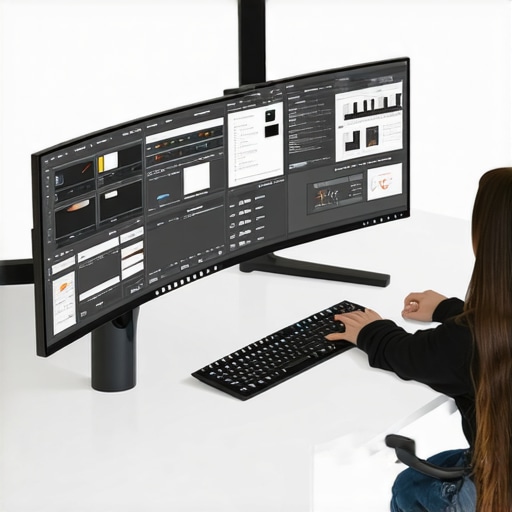
Visualize your workspace configured for seamless multitasking with well-defined zones on an ultrawide monitor, enhancing focus and efficiency.
While many enthusiasts rave about curved monitors and ultrawide displays, there’s a common misconception that these screens are just aesthetic upgrades or gaming gimmicks. In reality, understanding the nuanced effects of curvature and wide aspect ratios can significantly influence how you perceive benefits like immersion and reduced eye strain. For instance, many assume that a higher curvature, such as 1000R, universally provides better comfort, but this isn’t always true. The optimal curvature depends on your viewing distance and specific use case. Experts like those at Ultimate Home Displays have highlighted that excessive curvature can distort peripheral vision and cause unnatural focusing issues if not matched properly to the viewer’s setup.
Moreover, a prevalent myth is that ultrawide screens are solely advantageous for gaming or video editing. While they do excel in those areas, their true power lies in improving multitasking and productivity. When configured correctly, an ultrawide can eliminate the need for dual monitors, streamlining workflows and reducing the ‘spread’ effect that often leads to fatigue. Check out our detailed guide on how ultrawide displays impact productivity and gaming to see these benefits in action.
However, there’s a trap many users fall into: ignoring the importance of proper calibration. Curved and ultrawide screens require nuanced adjustments for color accuracy and distortion correction. Without these, the display can appear washed out or warped, defeating the purpose of investing in high-end tech. An insightful example comes from professional gamers who meticulously fine-tune their monitors for color and response time, ensuring that immersive qualities do not come at the expense of visual fidelity.
Looking for a deeper dive? Discover how curved monitors elevate your immersive experience and learn about the latest advancements in curvature technology that can redefine your visual engagement. Remember, the right setup is about harmonizing hardware with your workspace and tasks. Have you ever fallen into this trap? Let me know in the comments.Maintaining your immersive screens in top condition requires the right tools and a proactive approach. Personally, I rely on specialized cleaning solutions like ScreenShield Antistatic Spray, which I use regularly to keep my curved TV and ultrawide monitor free from dust and fingerprints, ensuring vibrant colors and clarity. Investing in quality cleaning cloths, such as microfiber varieties designed for electronics, is equally important to prevent scratches. When it comes to calibration, I utilize software like Calibrize, which helps me fine-tune color accuracy and contrast, especially after firmware updates or changing ambient lighting. Regular calibration can extend the lifespan of your display and preserve its immersive qualities.
For hardware, mounting solutions like the Ergotron LX Dual Side-by-Side Monitor Arm allow me to adjust the position and tilt of my ultrawide with ease, reducing neck strain and optimizing my workflow. Ensure your mounting hardware is rated for the size and weight of your screen—many high-quality mounts support up to 49 inches and over 20 kg, providing stable support and preventing dangerous desk sagging.
Software tools like DisplayHDR and Windows Display Settings help maintain color consistency over time. Regularly updating your graphics drivers through manufacturer utilities ensures compatibility with new features and fixes bugs that might cause screen flickering or ghosting, which can diminish the immersive experience. The upcoming trend points toward automated calibration hardware, like Spes hardware, which uses sensors to calibrate display settings in real-time, maintaining optimal picture quality without manual tweaks.
How do I keep my immersive screens working happily over the long haul? Consistent cleaning, periodic calibration, and hardware maintenance are key. Also, consider checking your display’s firmware regularly—manufacturer updates can improve performance and add new features that enhance your viewing experience. For example, some recent firmware updates for curved TVs address glare reduction and color distortion issues, ensuring your screen stays pristine.
To make the most of these tips, I highly recommend setting weekly reminders to perform small maintenance tasks, like cleaning and software updates. This habit prevents minor issues from escalating into costly repairs and keeps your visual setup performing at its best. For further guidance on optimizing equipment and avoiding common pitfalls, see our detailed [privacy policy](https://curvedtvs.ultimatehomedisplays.com/privacy-policy).
Ready to upgrade your maintenance routine? Try incorporating a sensor-based calibration device today—it might just revolutionize your immersive experience, keeping colors vivid and responses quick without constant adjustment.
Hidden truths about immersive screens I’ve uncovered
One of the biggest revelations was realizing that not all ultrawides or curved monitors are built equal—some require meticulous calibration to truly unlock their potential. Early in my journey, I assumed that simply plugging in a high-end display would elevate my workflow, but I was mistaken; the devil’s in the details, like color settings and mounting adjustments, which can drastically affect the experience. Additionally, I discovered that the true power of a curved monitor lies in custom layouts tailored to specific tasks—there’s no one-size-fits-all approach, and experimenting pays off. Lastly, I learned that regular maintenance, such as cleaning and software updates, ensures that immersive qualities aren’t compromised over time, keeping you engaged and fatigue-free for longer sessions.
My toolkit for immersive screen mastery
For calibrating my display, I trust tools like Calibrize for straightforward color adjustments, and hardware like the Spes calibration sensor for automation—both have helped me maintain vivid visuals without guesswork. Mounting my ultrawide with the Ergotron LX Dual Monitor Arm was a game-changer, providing flexibility and stability, which are crucial for ergonomic long-term use. When it comes to cleaning, I personally rely on microfiber cloths and ScreenShield Antistatic Spray—keeping fingerprints at bay preserves clarity and immersion. For software, Windows Display Settings combined with DisplayHDR options allow me to fine-tune contrast and brightness, ensuring my display’s visuals are as rich as intended, especially after firmware updates or lighting changes. Together, these tools form my personal arsenal for an immersive, efficient workspace.
Embrace the future of your visual experience
If you’re ready to elevate your workspace with an ultrawide or curved display, don’t hesitate—dive in with confidence, experiment with layouts, and maintain your equipment diligently. The more you invest in understanding your display’s nuances, the more joy and productivity it will bring into your daily routine. Remember, your immersive screen is more than just tech; it’s a gateway to creativity, focus, and comfort. So, take that first step today, and watch your work and play transform.
Have you ever struggled with setting up your display or finding the perfect layout? Let me know below, and let’s start the conversation!
Reading this post really resonated with me, especially regarding the importance of proper workspace setup and layout configuration on an ultrawide monitor. When I first switched to a similar setup, I underestimated how much the arrangement impacts productivity and fatigue. Initially, I just positioned the monitor at eye level and didn’t think much about zoning my workspace, which led to a lot of unnecessary window resizing and distraction. It wasn’t until I started dividing my screen into dedicated zones for email, references, and primary tasks that I noticed a real difference. The tip about using window management tools like DisplayFusion is a game-changer—automating window placement saves so much time. I also wonder how others balance between dedicated zones for work versus entertainment, especially when using the same ultrawide for gaming and media. Have you experimented with different layouts for different activities, and what big changes have you noticed in your workflow? This article definitely encourages me to refine my setup further for maximum efficiency.