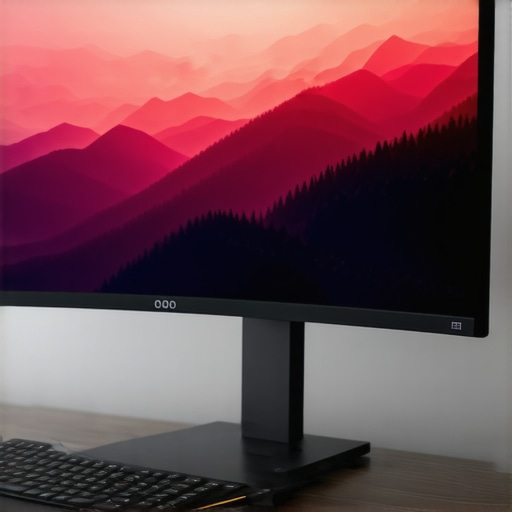
Have you ever sat down at your desk after a long day and felt that nagging sense of disappointment every time you glance at your screen? Maybe it’s the tiny corners of your monitor, or perhaps the flat, uninspiring display that just doesn’t draw you in anymore. I’ve been there—struggling with limited screen space and a less-than-immersive experience that makes gaming, working, or even binge-watching feel like just okay. That was until I had my lightbulb moment: switching to an ultrawide or curved monitor changed everything. Suddenly, my screen became an expansive window into a more engaging world, and I knew I wasn’t alone in feeling this way. Today, I want to share how these screens can transform your digital experience and why they’re worth considering, especially if you crave a deeper, more immersive view. You might be wondering, “Are ultrawide or curved monitors really worth the hype?” Well, I’ll walk you through everything I’ve learned along the way, including common pitfalls and how to avoid them.
Why Most Monitors Fail to Impress and How to Fix That
When I first thought about upgrading my display, I just assumed bigger was better. Turns out, it’s not that simple. A lot of people buy larger screens without considering the curve or aspect ratio, only to find out that their new monitor still feels disconnected from their work or play. Early on, I made the mistake of choosing a wide monitor that was flat—great for productivity but not so much for gaming or entertainment. I didn’t realize that the curvature could make a huge difference in creating that immersive feeling I craved. As I delved deeper, I discovered that ultrawide and curved displays aren’t just about size—they’re about how the screen wraps around your vision, pulling you into the action rather than making you feel like you’re watching from the sidelines. According to recent studies, curved displays can increase user engagement and reduce eye strain, making them a smart choice for daily use. If you’re tired of squinting at your current setup or feeling disconnected from your content, then keep reading. We’ll explore the ins and outs of choosing the perfect ultrawide or curved monitor and how to get the most from your investment. Ready to turn your screen into a portal of immersion? Let’s dive in.
Is the Hype About Ultrawide & Curved Monitors Justified?
Before we get into the nitty-gritty, I want to address the skepticism I often hear: “Are these displays really worth the extra money?” Honestly, I’ve made that mistake myself—buying into the hype without doing enough research. I once purchased a high-end flat monitor, only to realize later that I wasn’t truly utilizing its full potential. It’s a common pitfall: assuming bigger or curved equals better without considering your specific needs. If you’re curious whether the investment will pay off, I’ve got good news. The right ultrawide or curved monitor can boost productivity, enhance gaming, and elevate your entertainment experience—sometimes all at once. For a comprehensive comparison, check out this detailed guide on [ultrawide displays and their impact on productivity and gaming](https://curvedtvs.ultimatehomedisplays.com/ultrawide-displays-and-their-impact-on-productivity-and-gaming). Now, let’s move beyond the hype and look at how to pick the perfect display for your space and lifestyle.
Set Your Priorities and Measure Your Space
Begin by defining what you want from your monitor. Are you aiming for better gaming, enhanced productivity, or immersive media consumption? I once measured my desk with a tape measure, just like I was preparing for a DIY project. This helped me determine the maximum size I could accommodate without crowding my workspace. Use a ruler or tape to measure your available space and compare it with the dimensions of ultrawide or curved monitors listed on product pages like top ultrawide and curved monitors. Choosing a monitor that fits comfortably ensures seamless integration into your setup, preventing frustration down the line.
Research and Narrow Down Your Options
Next, dive into reviews and specifications. I recommend focusing on key factors such as aspect ratio, curve radius, resolution, and refresh rate. For example, I initially overlooked the importance of the curvature radius, which impacts how wrap-around the display feels. A smaller radius (like 1800R) creates a more pronounced curve—perfect for immersive gaming—while a flatter curve (around 3000R) suits multitasking. Cross-reference your findings with guides like ultimate guide to ultrawide & curved displays to understand what best fits your needs.
Test Before You Buy
Whenever possible, visit a physical store or attend a tech fair to see monitors in action. I visited a local electronics store and asked to see a curved monitor demo. Watching movies and scrolling through documents in person instantly revealed whether the curvature felt natural or caused distortions. If visiting a store isn’t feasible, check if the retailer offers a trial period or return policy. This step saved me from purchasing a monitor that looked great online but felt uncomfortable during extended use.
Adjust Settings for Optimal Comfort
Once you have your monitor, fine-tune the settings. I recommend adjusting brightness, contrast, and color profiles for your environment. Additionally, enable features like anti-glare and blue light filters. For example, I set my monitor to a warmer color temperature to reduce eye strain during late-night work sessions. Use the monitor’s on-screen menu or software provided by the manufacturer to customize these settings. Proper calibration makes a noticeable difference in your viewing experience and reduces fatigue over long periods.
Position Your Monitor Correctly
Position is crucial for immersive viewing. Place the monitor directly in front of you, with the top at or slightly below eye level. I once set my ultrawide too low, causing neck strain. Use a monitor arm or stand to achieve the perfect height and angle. For curved monitors, sit at a distance roughly equal to the radius of the curve—about 1.5 to 2 meters for 1800R models—to maximize immersion. Proper positioning minimizes eye strain and ensures the curvature enhances your experience rather than causing discomfort.
Integrate with Your Workflow or Entertainment Setup
Finally, connect your monitor to your PC or gaming console. Use high-quality cables like DisplayPort or HDMI to maintain resolution and refresh rate. I upgraded my cables and noticed a clear improvement in image clarity and responsiveness. For an optimal setup, consider mounting your monitor on a flexible arm or wall bracket, especially if space is tight. Also, customize your desktop layout or gaming interface to take full advantage of the wide or curved display area. This step transforms your monitor from a simple screen into an immersive portal—making every work session or game session more engaging.
While it’s common to focus on size, resolution, and curvature when selecting an ultrawide or curved monitor, there are more nuanced aspects that can dramatically affect your experience—yet many overlook them. One such detail is the impact of color accuracy and calibration in creating an immersive environment. Many gamers and professionals assume that high resolution alone guarantees visual quality, but the truth is, a monitor with poor color fidelity can diminish the perceived sharpness and realism. For example, an ultrawide with wide color gamut support and factory calibration can make a significant difference in gaming realism and photo editing accuracy. Learn more about color calibration benefits here.
Another often-missed factor is the refresh rate and response time compatibility with your GPU. Many assume that a monitor’s refresh rate is only important for competitive gaming, but in reality, a mismatch between high refresh rate displays and a graphics card’s output can lead to screen tearing or stuttering, especially when using adaptive sync technologies like G-Sync or FreeSync. An advanced tip is to verify not just the monitor’s advertised refresh rate but also how well your system can sustain that rate in real-world scenarios—this requires understanding your GPU’s bandwidth and frame output.
Additionally, don’t underestimate the ergonomic and placement nuances. While adjustable stands are common, the curvature radius and viewing distance must be optimized for your specific setup. Sitting too close to a highly curved monitor can cause distortion or eye strain, especially if the curvature is aggressive (like 1800R). A proven trick is to sit at a distance roughly equal to the radius of the curve to maximize immersion without discomfort. For advanced users, this guide offers detailed ergonomic insights.
What about the myth that all curved monitors are better for gaming?
Contrary to popular belief, not all curved monitors provide an advantage for gaming. The curvature radius plays a crucial role; a very aggressive curve (like 1800R) can sometimes distort peripheral vision or cause visual fatigue over extended periods, especially if the monitor is oversized. For casual gaming, a moderate curve (around 3000R) often strikes a better balance. The type of panel also matters—IPS panels offer better color reproduction, while TN panels can deliver faster response times. It’s about matching your specific gaming style and the types of games you play. For in-depth comparisons, check this detailed comparison.
Finally, many overlook the importance of software calibration and ambient lighting. Properly adjusting your display’s settings and ensuring the room lighting minimizes glare can enhance perceived contrast and reduce eye fatigue. Regular calibration, especially for professional work, ensures your monitor maintains color accuracy over time.
Have you ever fallen into this trap? Let me know in the comments. Remember, choosing the right ultrawide or curved monitor involves more than just specs; it’s about understanding these hidden nuances to truly elevate your visual experience.
Keeping your ultrawide or curved monitor in top shape requires more than just occasional cleaning. Over time, dust, fingerprints, and even software glitches can diminish your viewing experience. To ensure long-term performance, I rely on specific tools and routines that I personally vouch for. First, a high-quality microfiber cloth is indispensable. I use a microfiber cloth from Meguiar’s because it removes dust and smudges without scratching the screen, preserving the display’s clarity. Avoid harsh chemicals; instead, opt for a screen cleaner designed for electronics, such as Screen Mom, which is alcohol-free and gentle yet effective.
For software maintenance, I recommend using DisplayCAL. This open-source calibration tool allows me to fine-tune my monitor’s color accuracy periodically, which is crucial for maintaining the immersive quality of ultrawide and curved screens. Proper calibration ensures that colors remain vibrant and accurate over time, especially if you do professional work or serious gaming where visual fidelity matters. Additionally, enabling built-in blue light filters and adjusting gamma settings can reduce eye strain during prolonged sessions, which I do through the monitor’s on-screen menu or via software like f.lux.
Long-term health of your hardware depends on environmental factors. Keeping your workspace dust-free with a small vacuum or compressed air can prevent buildup behind vents or in cable ports. I make it a habit to dust my monitor every couple of weeks, focusing on vents and edges. For internal components, especially if you notice flickering or color inconsistencies, a professional cleaning or inspection might be necessary. Do not attempt to open the monitor yourself unless you’re experienced, as it can void warranties.
To extend the lifespan of your display, consider using a surge protector to guard against power fluctuations, and avoid leaving your monitor in direct sunlight or near heat sources. Regularly updating your graphics drivers and firmware from the manufacturer’s website ensures compatibility and smooth operation, especially if you’re using adaptive sync technologies like G-Sync or FreeSync. For example, Nvidia’s website provides detailed instructions on optimizing driver settings for high refresh rate ultrawide gaming setups.
Looking ahead, I believe the trend toward integrated calibration tools and smarter cleaning solutions will grow. Manufacturers might incorporate self-cleaning screens or AI-driven calibration to make maintenance even easier. To stay ahead, I suggest trying out the latest calibration software and ensuring your environment stays dust-free with a dedicated workspace. Remember, a well-maintained monitor not only looks better but also lasts longer and provides a more immersive experience. If you’re interested in detailed guides on calibration and maintenance, check out this resource. Start integrating these expert tips today, and enjoy your ultra-wide or curved display at its best for years to come.
The Hardest Lesson I Learned About Ultrawide and Curved Displays
One of my biggest takeaways is that a monitor’s curvature and aspect ratio can significantly influence your comfort and immersion. I once bought a large flat screen thinking size alone would boost my experience, but I quickly realized that the wrong curvature or size could cause discomfort or distort your view. The lightbulb moment was understanding that these features need to be tailored to your specific workspace and usage habits. It’s not just about having a big screen — it’s about how that screen wraps around your vision and how you position yourself in relation to it.
My Most Valuable Tip for Choosing the Right Ultrawide or Curved Monitor
Measure your space carefully and consider the curvature radius that best suits your sitting distance. I found that sitting at a distance roughly equal to the radius (like 1800R for a very immersive feel) maximized comfort and immersion. Trust me, taking this step saved me from buying a monitor that I couldn’t comfortably use for long periods or that caused eye strain. Making sure your setup matches your physical environment is the secret to enjoying the full benefits of these displays.
The Unexpected Power of Proper Calibration and Maintenance
Many overlook how crucial calibration and cleaning are for maintaining an immersive experience. I use tools like DisplayCAL for color accuracy, which keeps my visuals vibrant and true to life. Regular cleaning with a microfiber cloth and avoiding harsh chemicals also preserves clarity. These small habits have kept my ultrawide display looking sharp and feeling comfortable for years, proving that ongoing care truly pays off.
Curated Resources to Elevate Your Display Game
For those ready to dive deeper, I recommend exploring the ultimate guide to ultrawide displays — it’s packed with insights that helped me choose the right monitor for my needs. Also, check out why curved monitors are shaping the future of entertainment for a broader perspective. Finally, don’t forget to visit contact us if you’re considering personalized advice or specific recommendations.
Your Next Step Toward Better Screen Immersion
Embrace the potential of ultrawide and curved monitors, and don’t be afraid to experiment with your setup. Whether for gaming, work, or media, these screens can transform your digital world into an immersive haven. Your perfect display is out there — all it takes is a little knowledge and the willingness to optimize your environment. Start today, and watch your viewing experience reach new heights!