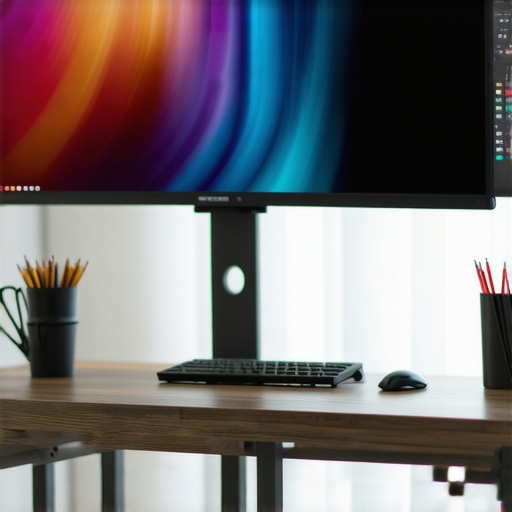
I remember the moment I realized my old, flat-screen monitor was holding me back. I was knee-deep in a complex project, juggling multiple windows, and constantly resizing or switching between tabs. Frustration built up until I finally switched to an ultrawide curved monitor. Suddenly, everything felt more natural—more immersive. It was like my workspace had come to life, and my gaming sessions? They became more intense and engaging than ever before.
Why Ultrawide and Curved Monitors Are a Game Changer
In 2024, this trend isn’t just about aesthetics anymore. It’s about transforming how we work, play, and connect with our screens. The benefits of ultrawide and curved displays are backed by real-world improvements in productivity, immersion, and comfort. I’ve personally seen the difference, especially when I compare my experience now to those frustrating days of multitasking on a tiny, flat monitor. If you’ve ever felt like your screen isn’t quite enough—whether for work or gaming—then stick around. We’re going to explore how these screens can make your digital life better.
Is the Hype About Ultrawide and Curved Monitors Justified?
Early on, I made the mistake of dismissing these monitors as just fancy gadgets. I thought, “How much better can they really be?” Turns out, quite a lot. I was skeptical until I experienced the wide field of view and the comfort of the curved design firsthand. Studies show that curved displays reduce eye strain and increase viewing comfort—something I didn’t fully appreciate until I started using one for hours at a stretch. So, if you’re unsure whether all the fuss is worth it, I get it. But I can tell you from experience—these screens truly change the game. Want to know how to choose the right one for your needs? Keep reading, because I’ll walk you through the practical steps to upgrade your setup.
Have you ever felt that your current monitor isn’t quite enough for your daily tasks or gaming marathons? If so, you’re not alone. Many people overlook the benefits of ultrawide and curved screens, but once you try them, it’s hard to go back. For a deeper dive into how these displays can boost your productivity and entertainment, check out this detailed guide. Ready to explore the options? Let’s get started with what makes these screens worth considering in 2024.
Assess Your Workspace Needs
Start by analyzing what you primarily use your monitor for. Are you into gaming, video editing, multitasking, or general browsing? For example, I once used my old monitor for simple tasks, but after shifting to an ultrawide, I realized I needed a setup that maximized my workspace. Write down your key activities and how much screen real estate they require. This helps in selecting the right size and curve for your setup, ensuring that your investment aligns with your usage.
Compare Types of Ultrawide and Curved Monitors
Not all screens are created equal. Dive into the specifications like curvature radius (measured in R), resolution, refresh rate, and panel type. For instance, a 34-inch ultrawide with a 1800R curve offers a more immersive experience than a flat monitor of the same size. Use resources like this comparison guide to understand the nuances. I once bought a curved monitor with a 1500R radius, but it was too aggressive for my desk, so I swapped it for an 1800R, which felt more natural during long sessions.
Measure Your Space and Set a Budget
Physical space is crucial. Measure your desk dimensions and consider clearance for comfortable viewing angles. When I upgraded, I realized my desk couldn’t handle a 49-inch ultrawide without clutter. I opted for a 34-inch model that fit perfectly, balancing immersion with practicality. Set a realistic budget—these monitors can range from affordable mid-range options to premium models. Remember, investing in quality often pays off in durability and performance.
Connect and Configure Your Monitor
Once your monitor arrives, focus on setup. Use high-quality cables—DisplayPort or HDMI 2.1—to ensure optimal image quality. Position the monitor at eye level to prevent neck strain, akin to adjusting a camera lens for best focus. For example, I initially placed mine too low, which caused discomfort; raising it to eye level significantly improved my comfort. Adjust the curvature and resolution settings through your OS to match your preferences and workflow.
Calibrate for True Colors and Clarity
Calibration enhances visual fidelity. Use built-in tools or third-party software to fine-tune brightness, contrast, and color accuracy. When I calibrated my display, images appeared sharper and colors more vibrant, making my creative work more enjoyable. Don’t skip this step if you want the best viewing experience.
Optimize Your Workflow for Immersive Viewing
Leverage the expansive screen space for multitasking. Use split-screen features or third-party apps to organize multiple windows efficiently. I adopted a workflow where my reference materials are on one side and active work on the other, mimicking a multi-monitor setup. This setup significantly boosts productivity and minimizes distractions, allowing you to focus better.
Keep Your Display Updated and Maintain It
Regularly update your graphics drivers and monitor firmware if available. Clean your screen with a microfiber cloth to prevent dust and fingerprints that can diminish clarity. I make it a habit to dust my monitor weekly, maintaining its pristine condition for immersive viewing.
Embracing these steps transforms your workspace into a fully immersive environment, whether for work, gaming, or entertainment. Proper selection, setup, and calibration are key to maximizing your ultrawide or curved monitor’s potential and enjoying a truly enhanced visual experience in 2024.
Many enthusiasts jump into upgrading their monitors without understanding some of the nuanced pitfalls that can diminish the expected benefits. One of the most pervasive myths is that ultrawide or curved screens automatically guarantee increased productivity or gaming immersion. While these features do offer substantial advantages, they are not magic solutions; their effectiveness heavily depends on proper setup and realistic expectations.
For example, a common mistake is choosing a monitor with an aggressive curvature radius, such as 1500R, believing it will provide a more immersive experience. However, this can backfire on smaller desks or in cramped spaces. A study from the Ultimate Home Displays suggests that an 1800R or 2000R curve often offers a more natural viewing angle for most users, reducing eye strain and distortion.
Another hidden nuance is the misconception around resolution and refresh rate. Many assume that a higher resolution or refresh rate will automatically improve their experience. But if your graphics card cannot handle 3440×1440 at 144Hz smoothly, you’ll end up with choppy visuals and frustration. It’s crucial to match your hardware capabilities with the monitor’s specs, or you might end up with a setup that looks good on paper but performs poorly in real life. I recommend checking your GPU’s performance benchmarks on sites like this resource.
Why You Might Be Overlooking Ergonomics When Picking a Curved Monitor
Many users focus solely on size, resolution, or curve radius, neglecting the importance of ergonomics. An overly large ultrawide might look impressive but can cause neck strain if it forces you to turn your head excessively. Proper positioning—such as eye-level placement and appropriate distance—can make or break the experience. The mistake here is assuming that bigger is automatically better; instead, consider your workspace and posture to avoid long-term discomfort. For more detailed advice, visit this guide.
Finally, a common trap is neglecting software calibration and color accuracy. Many users buy high-end monitors expecting perfect visuals, but without proper calibration, colors can appear dull or skewed. Investing in a calibration tool or using built-in software can dramatically enhance your viewing experience. This is especially critical for creative professionals who rely on precise color reproduction.
In conclusion, understanding these subtle nuances and avoiding the common traps can significantly enhance your ultrawide or curved monitor experience. If you’re considering an upgrade, take the time to assess your workspace, hardware, and ergonomic setup carefully. Have you ever fallen into this trap? Let me know in the comments or get personalized advice by reaching out here.
Keeping your ultrawide or curved monitor in top condition requires more than just occasional dusting. It involves a combination of reliable tools, consistent maintenance routines, and understanding how to optimize long-term performance. As display technology evolves, so do the best practices for ensuring your investment continues to deliver immersive experiences for years to come.
Why Regular Software Updates Matter
One of the simplest yet most impactful maintenance steps is keeping your graphics drivers and monitor firmware up to date. Manufacturers frequently release updates that improve compatibility, fix bugs, and enhance features like color calibration or adaptive sync. I personally schedule monthly checks using dedicated software like NVIDIA GeForce Experience or AMD Radeon Software to ensure my system is optimized. This way, I avoid performance drops or visual glitches that could diminish your immersive viewing experience.
Tools I Recommend for Monitor Care
To maintain top image quality, I rely on a high-quality microfiber cloth—specifically, those made for electronic screens. Avoid using paper towels or rough cloths that can scratch the surface. For deeper calibration, I use a hardware colorimeter like the X-Rite i1Display Pro. It precisely measures color accuracy and luminance, helping me fine-tune my display settings for optimal visual fidelity. This investment pays off, especially if you’re into creative work or demanding gaming, where color precision enhances immersion.
Additionally, software calibration tools such as DisplayCAL are invaluable. They allow you to tweak gamma, contrast, and color profiles, ensuring consistent performance over time. Regular calibration prevents color drift and maintains the vibrant visuals that make ultrawide screens so captivating.
Long-Term Monitoring and Maintenance
Implementing a routine to monitor your monitor’s health is crucial. I use software like Monitorian or HWMonitor to keep an eye on operating temperatures and voltage levels, preventing overheating or electrical issues. Keeping your environment cool and dust-free minimizes risks of hardware degradation. Dust buildup can cause overheating, which reduces lifespan and image quality. Clean your monitor’s vents and casing every few months using compressed air and a soft brush.
For physical maintenance, I recommend using a screen cleaning kit designed for electronic displays. These kits typically include anti-static wipes and cleaning solutions that preserve the screen’s coating and prevent streaks. Remember, gentle cleaning preserves the integrity of your display’s surface, maintaining clarity and immersion.
Future Trends in Maintenance and Tools
Looking ahead, the integration of AI-driven calibration and self-maintaining displays might become standard. Manufacturers are exploring sensors that automatically adjust brightness and color based on ambient lighting, reducing manual calibration. Predictive maintenance tools could alert you to potential hardware issues before they become problematic, extending the lifespan of your setup.
Start by investing in a quality calibration device and establishing a routine for software updates and physical cleaning. These steps will ensure your immersive setup remains flawless well into 2024 and beyond. If you want personalized advice on maintaining your specific monitor model, don’t hesitate to reach out here.
The Hardest Lesson I Learned About Ultrawide and Curved Monitors
One of my biggest realizations was that not all ultrawide monitors are created equal. I once bought a model with an aggressive 1500R curve, thinking it would instantly immerse me more deeply. Instead, I found myself constantly adjusting my position and experiencing eye strain. The lesson? Balance the curve radius with your desk size and natural viewing angles. A more moderate 1800R or 2000R curve often offers a more comfortable and natural experience, especially for extended use. This taught me to prioritize ergonomic harmony over mere visual appeal.
My Essential Toolkit for Achieving the Best Visual Experience
Proper calibration tools have revolutionized the way I optimize my monitor. I trust the X-Rite i1Display Pro for precise color calibration. Pairing this with software like DisplayCAL helps me maintain consistent, vibrant visuals. Regular cleaning with a microfiber cloth and dusting of vents also keeps my display performing at its best. Trust me, investing in these tools makes an enormous difference in sustaining an immersive experience over time.
Take Your Display Maintenance to the Next Level and Extend Its Lifespan
Routine updates of your graphics drivers and monitor firmware are crucial. I schedule monthly checks using NVIDIA GeForce Experience and AMD Radeon Software. Additionally, monitoring temperatures with tools like HWMonitor prevents overheating. For physical upkeep, a gentle clean with specialized electronic wipes preserves clarity and prevents streaks. Looking ahead, I’m excited about AI-driven calibration sensors that could automatically optimize your display settings based on ambient light, reducing manual effort and ensuring peak performance. Consistent maintenance not only keeps your ultrawide or curved monitor looking stunning but also prolongs its useful life, making your investment truly worthwhile.