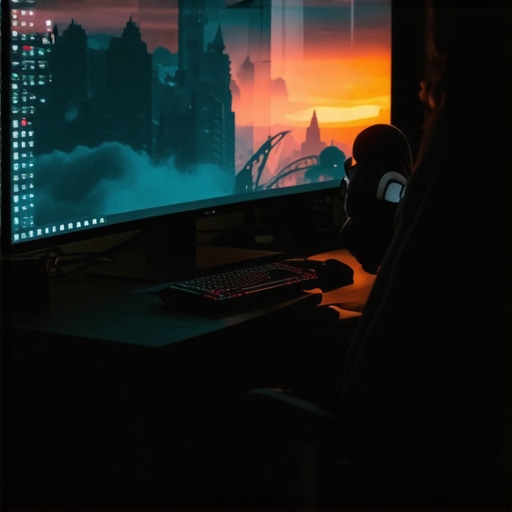
Ever sat down at your desk, fired up your favorite game or streaming show, and felt that nagging sense of disconnect? Maybe the screen feels just a little too flat, the edges pulling your gaze outward instead of pulling you into the action. I’ve been there—initially thinking I just needed a bigger monitor, only to realize that what I really craved was a more immersive experience. That was my lightbulb moment: switching to a curved ultrawide display transformed my entire viewing perspective.
Why You Need to Rethink Your Screen Setup
It’s no secret that most traditional monitors are flat and rectangular. They’re functional, sure, but they often leave you feeling distant from the content. Whether you’re deep into a gaming session, editing videos, or just binge-watching your favorite series, the flat screen can limit your peripheral vision and create gaps in your spatial awareness. That’s where curved monitors and ultrawide displays step in, filling your entire field of view and making everything feel more natural and engaging.
Are Curved Monitors and Ultrawide Displays Actually Worth the Hype?
This was my biggest fear early on—thinking these fancy setups might just be a gimmick. I made the mistake of assuming that a bigger or curved screen would automatically boost my productivity or gaming experience. Spoiler alert: without proper research, I ended up with a monitor that was too wide or not the right curve, which only gave me eye strain and frustration. It’s essential to understand what benefits these displays truly offer and how to choose the right one for your needs. Curious? You can explore how these displays impact productivity and gaming here.
So, if you’ve ever felt that your current monitor isn’t quite cutting it—whether it’s discomfort, limited screen real estate, or just a lack of immersion—then stick around. We’re about to dive into everything you need to know about selecting and setting up the perfect curved ultrawide display for your home or workspace. Trust me, once you experience the difference, there’s no going back.
Pick the Right Size and Curve for Your Space
Start by measuring your workspace and considering how close you’ll sit to the screen. I once bought a 49-inch ultrawide without measuring, only to find I couldn’t fit it comfortably on my desk. Now, I know that a 34-inch with a 1800R curve fits perfectly, filling my peripheral vision without overwhelming my space. Think of choosing your monitor like picking a pair of shoes—size and fit are everything to avoid discomfort.
Connecting and Mounting with Precision
Next, focus on the setup. Use a sturdy mount or stand that can handle the weight and size of your monitor. I initially just placed mine on my desk, but after securing it with a monitor arm, I gained flexibility and improved ergonomics. Ensure your cables are tidy—use cable clips or sleeves—to prevent distractions and accidental pulls, which can be a game-changer for a clean workspace.
Adjusting Settings for Peak Performance
Once physically set up, dive into your monitor’s settings. Adjust brightness and contrast to reduce eye strain, especially during long sessions. Tweak the refresh rate to match your usage—most ultrawides support 100Hz or higher, which makes motion smoother. I experimented with these settings over a weekend, and the difference was night and day—less fatigue, more immersion.
Optimize Your Workspace for Comfort and Focus
Arrange your desk so that the monitor is directly in front of you, with your chair at the right height—your eyes should be level with the top of the screen. Use an adjustable chair and consider ergonomic accessories if needed. I added a footrest and adjusted my monitor tilt, which eliminated neck strain and kept me comfortable for hours. Remember, a well-organized workspace enhances the immersive experience and helps you stay focused.
Calibrate Color and Brightness for Realistic Views
Finally, calibrate your display. Use free tools like Windows’ built-in calibration or professional software to match colors accurately. This step is crucial if you’re into photo editing or gaming where color precision enhances realism. I calibrated mine after a few tutorials, and the vibrant visuals made every game feel more alive and every photo more true to life.
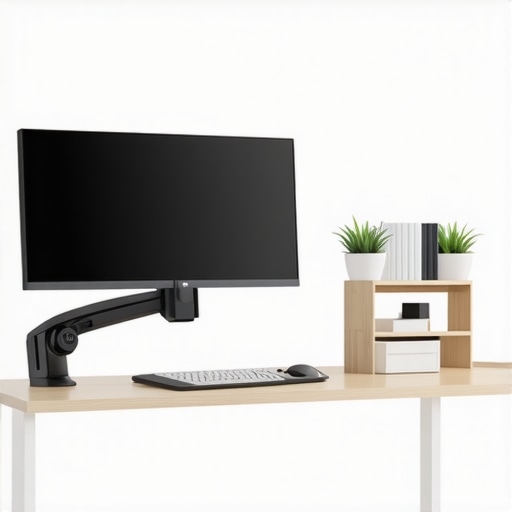
Illustration of a well-set-up ultrawide curved monitor with ergonomic desk setup, emphasizing optimal size, positioning, and calibration.
While many enthusiasts rave about the immersive power of curved ultrawide monitors, there’s a common misconception that can trip up even seasoned users. The truth is, most people oversimplify what these displays can do and overlook crucial nuances that determine whether they truly enhance your experience. Let’s dig deeper into the subtleties that are often misunderstood, so you can make smarter choices and avoid costly mistakes.
Are Curved Monitors Really Better for Productivity?
It’s a widespread belief that curved screens automatically boost productivity, but the reality is more complex. The key lies in understanding how curvature interacts with your workspace setup. A monitor with a high radius (like 3000R) might deliver stunning immersion for gaming, but it can cause distortion or glare issues when used for detailed work, especially if your workspace isn’t optimized for such a curve. The sweet spot is usually a moderate curve (around 1800R) that balances immersion with practicality. For serious productivity, the focus should also be on resolution, color accuracy, and ergonomic positioning—factors that are often overlooked in favor of curvature hype. To see how these factors interplay, check out this guide.
The Biggest Trap: Misjudging Screen Size and Field of View
Many users assume that bigger is always better. However, an ultrawide monitor that’s too large for your desk or sitting distance can cause eye strain and neck discomfort, defeating the purpose of an immersive setup. The common mistake is not measuring your space and seating position beforehand. For example, a 49-inch ultrawide might look impressive, but if you sit too close or have limited desk space, it can become an ergonomic nightmare. The optimal approach is to match your monitor size with your typical viewing distance, which often means a 34-38 inch monitor with a 1500-1800R curve for most home offices. Want to get this right? Use this resource for proper sizing tips.
Advanced Mistake: Ignoring Calibration and Color Accuracy
One of the less obvious pitfalls is neglecting calibration. A curved ultrawide that looks vibrant out of the box might still be far from accurate—especially if you’re into photo editing, video production, or competitive gaming. Overlooking calibration can lead to color mismatches, eye fatigue, and reduced immersion. Experts recommend using calibration tools and software to fine-tune brightness, contrast, and color profiles. This step ensures that your visual experience matches your expectations and reduces fatigue over long sessions. For in-depth calibration techniques, consider visiting this detailed guide.
Have you ever fallen into this trap? Let me know in the comments. Remember, the devil is in the details when it comes to truly transforming your viewing experience with curved ultrawide displays.
Investing in a high-quality ultrawide curved monitor is just the beginning; maintaining it over time ensures you get the most out of your immersive setup. From software solutions to physical upkeep, I’ve found that using specific tools and adopting routine practices can significantly extend the lifespan and performance of your display.
Use Calibration Tools for Consistent Image Quality
One of the first steps I recommend is calibrating your monitor regularly. While many displays come with built-in presets, I prefer using dedicated calibration hardware like the X-Rite i1Display Pro. This device connects via USB and guides you through precise adjustments of brightness, contrast, and color accuracy. Personally, I calibrate mine once a quarter to ensure visuals remain true to life, especially if you do color-sensitive work or gaming where visual fidelity enhances immersion. Proper calibration not only improves image quality but also reduces eye strain over long sessions.
Employ Cleaning Products Designed for Screens
Physical maintenance is equally critical. Use a microfiber cloth and a gentle, screen-safe cleaning solution—nothing abrasive or ammonia-based. I keep a dedicated spray bottle with distilled water mixed with a few drops of 70% isopropyl alcohol for cleaning dust and fingerprints. Regular cleaning prevents the buildup of dust and grime, which can cause uneven backlighting or pixel issues over time. Remember, avoid spraying liquids directly onto the screen; instead, spray onto the cloth and wipe gently.
Protect Your Investment with Surge Protectors and UPS
Power surges and outages can damage sensitive electronics. I always connect my monitor and connected peripherals to a surge protector or an uninterruptible power supply (UPS). This simple step shields your display from voltage spikes, extending its usability. As technology advances, future-proofing your setup with reliable power management becomes even more critical, especially if you’re running multiple devices or have a home office that depends on uninterrupted power.
Schedule Routine Firmware Updates and Software Optimization
Manufacturers often release firmware updates to fix bugs, improve compatibility, or enhance features. I check for updates every few months via the manufacturer’s software or website, which can be automated if available. Additionally, optimizing your graphics card settings with manufacturer tools like NVIDIA Control Panel or AMD Radeon Software ensures smooth performance and longevity of your display. Keeping drivers up to date helps prevent issues like flickering or color inconsistencies, which can be frustrating over time.
Plan for Future Scaling and Upgrades
As technology evolves, so do your needs. I recommend periodically evaluating whether your current setup still meets your goals. Upgrading cables, adding external calibrators, or even swapping out a monitor mount can make a big difference in maintaining an ergonomic and immersive workspace. Staying ahead of hardware wear and tear allows you to adapt your environment without expensive replacements down the line.
Looking ahead, the trend toward smarter, more integrated display maintenance solutions suggests that upcoming monitors will incorporate self-calibration and diagnostic features. According to NVIDIA’s latest firmware updates, future displays may automatically adjust to environmental conditions, reducing manual effort and ensuring peak performance. Embracing these innovations early can keep your ultrawide experience seamless and stunning for years to come.
If you haven’t already, try implementing a regular calibration routine with a hardware tool like the X-Rite i1Display Pro. It’s a game-changer for preserving image quality and immersion. For ongoing maintenance, remember that physical cleaning, power protection, and software updates are your best allies in keeping your display working flawlessly over the long haul. Want more personalized advice? Feel free to reach out anytime.
Getting the most out of a curved ultrawide monitor isn’t just about picking the biggest or most stylish model. It’s about understanding the subtle lessons that can make or break your immersive experience. Over time, I learned that small adjustments and mindful choices significantly enhance how I see and feel about my setup.
The Hardest Lesson I Learned About Curved Ultrawide Monitors
One of my biggest mistakes was assuming that a larger size automatically means better immersion. It turned out that without proper space and seating distance, a massive monitor could cause discomfort rather than delight. Measuring your workspace and testing different sizes can save you from a costly mistake and ensure the monitor actually fits your environment and usage habits.
3 Myths About Curved Displays That Held Me Back
I used to believe that all curves are created equal and that higher curvature always equals better immersion. The truth is, a moderate curve (around 1800R) strikes the perfect balance for most users, while overly curved screens can distort images and cause glare. Knowing the right curve helps you avoid eye strain and visual distortions that diminish your experience.
What Experts Won’t Tell You About Maintaining Your Ultrawide Setup
Proper calibration and physical upkeep are often overlooked but crucial. Regularly calibrating your display with tools like the X-Rite i1Display Pro ensures colors stay accurate, especially for creative work. Additionally, gentle cleaning with screen-safe products and protecting your investment with surge protectors extend the lifespan of your display and keep visuals crisp and vibrant.
My Essential Toolkit for Optimizing Your Ultrawide Experience
- Calibration Tools: X-Rite i1Display Pro — for accurate colors and reduced eye fatigue.
- Cleaning Supplies: Microfiber cloths and gentle screen cleaners — to keep dust and fingerprints at bay.
- Power Protection: Surge protectors or UPS — to shield against voltage spikes and power outages.
- Firmware and Software Updates: Regularly check manufacturer sites or use automatic updates to keep your display running smoothly.
Your Next Step Toward Visual Mastery
Transforming your viewing experience with a curved ultrawide display is within reach. It’s about more than just hardware — it’s about cultivating a routine of calibration, maintenance, and thoughtful setup. Embrace these lessons, and you’ll find yourself immersed in a world where visuals truly come alive.
Have you ever struggled with fitting the perfect monitor size into your workspace? Share your experience below and let’s discuss how to optimize your setup for maximum immersion!
I really appreciate how this guide emphasizes the importance of measuring your space before selecting a monitor size. I learned the hard way that going for a larger ultrawide without considering my desk dimensions and seating distance can lead to discomfort and even eye strain. The detailed tips on ergonomic setup resonate with me, especially the advice about monitor tilt and proper chair height to avoid neck fatigue. I’ve found that regular calibration has been a game-changer for maintaining color accuracy, particularly when working on creative projects. It’s fascinating how small changes can significantly improve immersion and reduce fatigue over long sessions. For those new to calibration, do you have recommendations on budget-friendly tools or methods to get started? Also, has anyone experimented with different curvature radii to find the perfect balance for their workspace? Would love to hear experiences regarding what works best for different setups, as the balance between immersion and comfort seems quite nuanced.