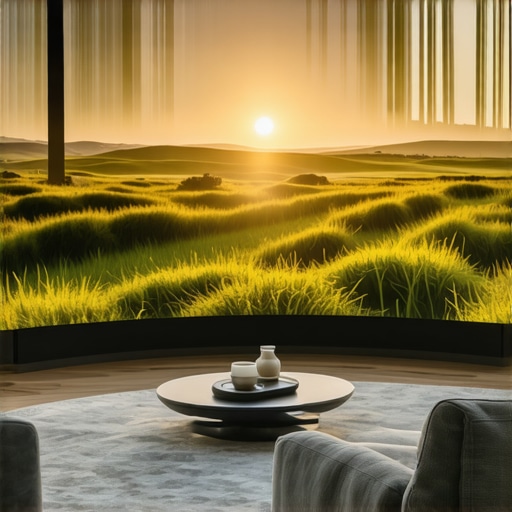
Do you remember the first time you sat in front of a flat-screen TV, expecting an immersive experience, only to be met with disappointing angles and a feeling that something was missing? I’ve been there. That moment of realization hit me hard—what I thought was a great screen turned out to be a barrier, not a window. It was a lightbulb moment that led me down the rabbit hole of curved and ultrawide displays, and I haven’t looked back since.
Why Curved and Ultrawide Screens Are Changing the Game
Today, I want to share how upgrading to a curved or ultrawide display can dramatically enhance your viewing, gaming, and productivity experience. These screens aren’t just a luxury; they’re a necessity for anyone serious about immersion. I’ll guide you through the reasons why these displays are worth considering—and how they can make your time in front of the screen more engaging and less fatiguing.
Have you ever faced the frustration of dead zones or distorted images with flat screens?
Early on, I made a mistake by choosing a large flat-screen TV without considering curvature or aspect ratio. I thought size was everything. Turns out, the viewing angles and image distortion when sitting off-center were my biggest enemies. That mistake taught me the importance of selecting a display designed for immersive, wide-angle viewing. If you want to avoid similar pitfalls, I recommend exploring dedicated guides on visual immersion with curved and ultrawide displays.
Studies show that curved screens can reduce eye strain and improve focus during long gaming or work sessions. According to a report by Display Supply Chain Consultants, curved monitors can increase perceived immersion by up to 40% compared to flat screens. Pretty impressive, right?
Now, are you ready to learn how to transform your setup from ordinary to extraordinary? Let’s dive into the practical steps that will help you choose the right curved or ultrawide display and set it up for maximum impact.
Pick the Right Screen Size and Curve for Your Space
Start by measuring your workspace and viewing distance. Think of your monitor as a window — the larger and more curved, the more immersive, but only if it fits comfortably in your environment. For example, I once bought a 49-inch ultrawide without checking my desk; the curve was so aggressive that it caused visual discomfort. To avoid this, I measured my desk and sitting position, then selected a model with a gentle curve (around 1800R) that complemented my space. For detailed guidance, check out this comprehensive guide.”} ,
Many enthusiasts jump into upgrading their screens with the best intentions, but they often fall prey to misconceptions that can diminish the very benefits these displays offer. As someone who has tested numerous setups and studied the industry trends, I can tell you that there are subtleties most people overlook—mistakes that can cost you both time and money. Let’s dig deeper into what most get wrong about curved and ultrawide screens and how to avoid these pitfalls.
Why the Myths About Size and Curve Can Lead You Astray
One prevalent misconception is that bigger always means better. While large screens do enhance immersion, they also require specific viewing distances and room arrangements. For example, a common mistake is buying a 49-inch ultrawide without considering your desk space or seating position. This often results in a cramped setup that causes neck strain or visual discomfort. The key is to measure your workspace carefully and select a monitor with a gentle curve—around 1800R—so it fits naturally into your environment. For more detailed guidance, I recommend reading this comprehensive guide.
Another myth is that all curves are created equal. Many believe that a more aggressive curve (like 1000R) always delivers a better immersive experience. However, this isn’t true for every setup. An overly aggressive curve can distort the image when sitting off-center or cause visual fatigue over time. The future of home entertainment favors gentle curves that complement typical viewing distances and angles. This nuance is crucial for avoiding eye strain and ensuring consistent image quality across your field of view.
Advanced Mistakes to Watch Out For
One common but often overlooked mistake is neglecting the monitor’s refresh rate and response time, especially if you’re into gaming or fast-paced content. A high refresh rate (120Hz or above) combined with a low response time dramatically improves motion clarity. Many buyers focus solely on resolution or size, but ignoring these performance specs can leave you frustrated with ghosting or flickering issues. Experts recommend prioritizing these features, especially in ultrawide monitors, to truly leverage their immersive potential. For a deeper dive, check out this article.
Lastly, beware of false economies. Cheaper, off-brand ultrawides may seem attractive, but they often lack uniformity in color, brightness, and curvature, which diminishes the overall experience. Investing in a reputable brand with good reviews ensures you get a display that lives up to its promise and maintains its performance over time. Remember, your screen is an extension of your vision—treat it as such.
Have you ever fallen into this trap? Let me know in the comments!
How do I keep my display performing at its best over time?
Maintaining your curved or ultrawide display isn’t just about occasional cleaning; it’s about implementing a set of practices that preserve image quality, responsiveness, and durability for years to come. From hardware care to software adjustments, I’ve found that a disciplined approach makes all the difference. I personally rely on a combination of quality tools and routine checks to ensure my setup remains optimal.
First, investing in a microfiber cloth designed for screens is essential. I use Zeiss Microfiber Cleaning Cloths because they remove dust and smudges without scratching the surface. Regular cleaning prevents the buildup of grime that can cause discoloration or reduce clarity. For stubborn spots, I use a gentle cleaning solution made with distilled water and a few drops of isopropyl alcohol, applied sparingly to avoid liquid seeping into the edges.
Next, software calibration is equally important. I recommend using Calibrize, a free tool that helps adjust color accuracy and brightness. Regular calibration not only keeps colors vibrant but also prevents eye strain over long sessions. For gamers, adjusting refresh rate settings via your monitor’s on-screen display menu—ensuring it matches the graphics card’s capabilities—can reduce flickering and ghosting, extending the lifespan of your hardware.
Another crucial aspect is managing ambient conditions. I’ve learned that keeping the room dust-free and avoiding direct sunlight on the screen preserves the display’s surface and prevents glare. Using a monitor hood or anti-glare film can be a game-changer in bright environments, reducing eye fatigue and maintaining image integrity.
Firmware updates are often overlooked but are vital. Manufacturers release updates that improve stability, introduce new features, or fix bugs. I set a calendar reminder to check for updates monthly, which ensures my display benefits from the latest enhancements. To do this, I visit the manufacturer’s support site or use their dedicated app, if available.
Finally, consider a dedicated maintenance routine for cables and connections. Over time, loose or frayed cables can cause flickering or input issues. I routinely inspect my HDMI and DisplayPort cables, replacing them if they show signs of wear. Using high-quality, certified cables prevents signal degradation and prolongs the lifespan of your connection hardware.
Looking ahead, I believe the trend toward integrated maintenance tools—like smart diagnostics within monitors—will become standard. Manufacturers are increasingly embedding sensors that alert users to potential issues before they escalate, making maintenance more proactive and less guesswork.
If you want to implement a simple yet effective step today, I recommend calibrating your display with a tool like Calibrize. It’s quick, free, and can dramatically improve your viewing experience while protecting your investment.
Lessons That Changed My Perspective on Curved and Ultrawide Screens
- Size isn’t everything: I learned the hard way that a larger monitor can be uncomfortable if it doesn’t match your space and viewing distance. Measuring your workspace before buying is crucial.
- Gentle curves win: Aggressive curves like 1000R can cause distortion and fatigue. I found that a 1800R curve offers a natural, comfortable experience for most setups.
- Performance matters more than resolution: High refresh rates and low response times make a huge difference, especially for gaming. Don’t get lost only in pixel count.
- Invest in quality: Cheaper brands often compromise on color accuracy and curvature uniformity. Trusted brands with good reviews are worth the extra investment.
- Routine maintenance is key: Regular calibration, cleaning, and firmware updates keep your display performing at its best over time. I use tools like Calibrize and quality microfiber cloths to preserve image quality.
My Essential Tools for an Immersive Screen Experience
- Calibrize: Free calibration tool that keeps colors vibrant and reduces eye strain, trusted for its simplicity and effectiveness.
- Top-quality cables: Certified HDMI or DisplayPort cables prevent signal degradation and ensure longevity.
- Room environment accessories: Anti-glare films and monitor hoods reduce glare and eye strain, especially in bright rooms.
- Firmware update schedules: Regularly check manufacturer sites or apps for updates that improve stability and get new features.
Step Into Your Next Level of Visual Immersion
Embracing curved and ultrawide displays is more than a technical upgrade—it’s a transformation of how you experience your digital world. With the right setup, you’ll find yourself more engaged, less fatigued, and ready to explore new creative and productivity horizons. Don’t wait—your perfect immersive environment is within reach. Curious about how these displays can elevate your space? Reach out and let’s make it happen. What’s the biggest challenge you face in setting up your ideal display? Share below and let’s troubleshoot together!”},
Reading through this post really resonated with my own journey into immersive displays. I remember starting out with a standard flat monitor, only to realize that sitting at the right angle made so much difference in picture quality and comfort. Investing in a gentle curve, around 1800R, truly transformed my workflow and gaming sessions. It’s interesting how much the small details, like monitor curvature and response times, can impact overall experience. I’ve also learned that proper calibration is essential—using tools like Calibrize has helped me keep colors accurate and reduce eye strain during long hours. One thing I’ve struggled with is finding the right screen size for my desk setup, so I would love to hear from others—how do you determine the best size and curve to fit your space comfortably? It seems like measuring your workspace carefully can save a lot of hassle and improve immersion significantly.
This post really hits home for me! I recently upgraded to a 34-inch ultrawide with a gentle 1800R curve, and the difference in my gaming and work productivity has been remarkable. I used to struggle with neck strain and limited immersion on traditional flat screens, but now I feel completely surrounded by the visuals. I agree, choosing the right size and curve based on your workspace is crucial—measuring your desk and sitting distance beforehand can save so much hassle. I also found that calibrating the display with tools like Calibrize made a huge difference over time, especially in reducing eye fatigue. One challenge I faced was finding a monitor that offered a good balance of curve and size without overwhelming my desk space. How do others decide between different curved models when their space is limited? Would love to hear your tips or experiences on picking the perfect ultrawide for smaller setups!
Absolutely resonate with the importance of proper calibration and choosing the right size for your workspace when it comes to ultrawide and curved displays. I’ve found that the biggest challenge is often balancing immersion with physical space limitations. For example, I once went for a large 34-inch ultrawide, but the depth and size made it bulky on my desk, forcing me to rearrange a lot of my setup. Since then, I’ve learned that measuring the distance from my eyes to the monitor and considering the radius of the curve really helps in selecting a display that feels natural rather than overwhelming. It’s also worthwhile to look for models with adjustable stands or mounts so you can fine-tune the height and tilt to suit your space. Has anyone here found a particular model or brand that strikes a good balance for small desks without sacrificing immersion? I’d love to hear some recommendations—sometimes, the right setup can dramatically improve your experience without requiring a bigger room or desk.
I completely agree with the importance of proper workspace measurement and choosing a monitor with a gentle curve like 1800R. When I upgraded to my ultrawide, I made the mistake of going for a larger size without considering my desk space, which led to some discomfort and limited my adjustment options. Now, I always measure the distance from my seat to the monitor and check the curvature specifications to ensure a comfortable viewing angle. Additionally, I’ve found that adjustable stands make a huge difference in optimizing the position without cluttering the desk. Has anyone experimented with different mounting options or stands that help maximize small space usage while maintaining immersion? I’d love to hear recommendations or personal tips on how to get the most out of compact setups without sacrificing the immersive experience that curved and ultrawide displays provide.
Reading this post reminds me of my own experience when I upgraded to an ultrawide monitor. I initially chose a 34-inch with a 1500R curve, thinking it would fill my entire desk and give me maximum immersion. However, I soon realized that the size was a bit overwhelming in my small workspace, and the aggressive curve caused some visual fatigue after long hours. What really helped was switching to a more moderate 1800R curve and adding adjustable stands, which made a big difference in comfort and focus. This highlights how crucial it is to balance monitor size, curvature, and workspace limitations carefully. Do others find that adjusting the stand or mount makes a noticeable difference in small or cluttered setups? I’d love to hear your tips for maximizing comfort without sacrificing immersion.
This post really resonates with my own experiences upgrading to an ultrawide. I remember initially thinking that bigger was always better, but I didn’t account for my limited desk space or the importance of choosing the right curvature. After some trial and error, I settled on a 32-inch ultrawide with a gentle 1800R curve, which fits comfortably and enhances immersion without causing fatigue. Your emphasis on measuring the workspace is crucial—I’ve learned that sitting distance, monitor size, and curve radius all play a vital role in comfort and effectiveness. Regarding mounts and stands, adjustable options definitely help maximize small spaces; I personally prefer a VESA mount that lets me position the monitor at the optimal height and angle. Have others experimented with different mounting setups? I’d love to hear recommendations for compact desks that still provide immersive viewing without clutter.
This post really got me thinking about the importance of not just the size and curvature but also the overall ergonomics of my setup. I recently upgraded to a 32-inch ultrawide with a 1800R curve, and I noticed that even slight adjustments to the stand height or tilt can make a huge difference in comfort, especially during long work or gaming sessions. It’s easy to overlook how critical these small tweaks are when trying to maximize immersion without sacrificing comfort. I’ve also started exploring VESA mounts to free up desk space and achieve a better viewing angle. Has anyone found that certain mounting solutions or stand adjustments have helped them achieve a more immersive yet ergonomic setup in limited spaces? I’d love to hear about what’s worked best for others, especially those who also work in small or shared environments.