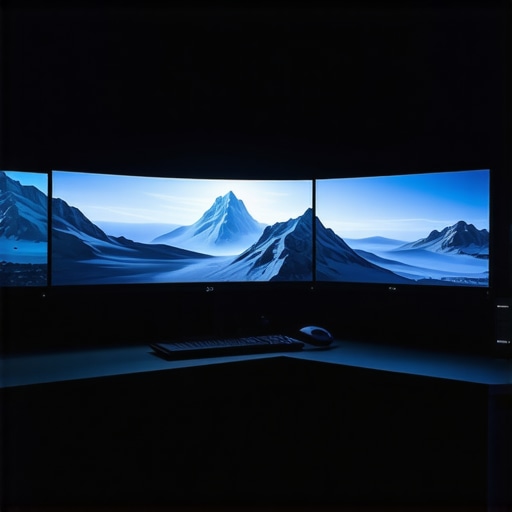
Have you ever sat down to work or game on your current monitor, only to feel like you’re staring at a tiny window rather than a window into another world? I remember the exact moment I realized my old flat-screen just wasn’t cutting it anymore—my peripheral vision constantly ignored, workflow slowed down, and gaming sessions missing that immersive punch. It hit me that the right display can transform an ordinary screen into a portal of endless possibility. But here’s the thing: with so many options out there in 2024, choosing the perfect ultrawide or curved monitor can feel overwhelming.
Why Screen Size and Shape Matter More Than Ever
In my early days of upgrading, I made a classic mistake—buying a giant monitor without considering how it would fit into my space or actually enhance my experience. Turns out, bigger isn’t always better if you don’t get the curvature or resolution right. The truth is, a well-chosen ultrawide or curved display can significantly boost productivity, elevate your gaming, and make movie nights more cinematic. This is backed by recent insights showing that immersive screens can increase focus and reduce eye strain, especially when you opt for models designed with eye comfort in mind (source).
Have you faced the frustration of a flat, small screen holding back your experience? If so, you’re not alone. Many enthusiasts have struggled with similar issues before discovering the magic of ultrawide and curved designs.
Today, I’ll walk you through what makes 2024 the year to upgrade to these expansive displays, share my personal tips, and help you avoid the pitfalls I fell into early on. Ready to transform your setup into an immersive sanctuary? Let’s dive in and find out how the right monitor can change everything.
Choose the Right Size and Curvature for Your Space
Start by measuring your workspace to ensure your new monitor fits comfortably and doesn’t overwhelm your desk. I once bought a 34-inch ultrawide without considering my desk dimensions, which led to constant adjustments and frustration. To avoid this, use a tape measure to determine your available width and height, then select a monitor that leaves room for your keyboard, speakers, and movement. Remember, a monitor that’s too large can cause neck strain, while one too small won’t deliver the immersive experience you crave.
Match the Curvature to Your Viewing Angle
Curved monitors come with different radii, typically ranging from 1800R to 4000R. A lower number like 1800R offers a more dramatic curve, ideal for gaming or cinematic viewing, mimicking the natural curvature of your eyes. I experimented with a 1500R monitor, and it felt incredibly immersive—like stepping into a mini theater—until I realized it required sitting directly in front to avoid distortion. For versatile use, 1900R or 2000R provides a comfortable balance that suits most setups. Check out why a curved monitor is the future for more insights.
Set Up Your Display for Maximum Immersion
Position your monitor so that the top edge is at or slightly below eye level. Use a mounting arm if necessary to fine-tune height and angle, preventing neck strain. I initially placed mine too high, which caused discomfort during long gaming sessions. After adjusting the height and tilt, I noticed immediate relief and a more natural viewing experience. Ensure the monitor is centered to reduce eye movement and fatigue. For multitasking, consider a dual setup with ultrawides aligned side by side, but keep the primary monitor directly in front of you for the best experience.
Configure Your Display Settings
Set your resolution to the native support of your monitor—usually 3440×1440 or higher for ultrawides. Use your graphics card control panel to adjust scaling and refresh rate, aiming for 100Hz or higher if supported, to smooth out motion. For gaming, enable G-Sync or FreeSync if available. I spent time tweaking color profiles and contrast, which made a noticeable difference in visual clarity and comfort. For productivity, enable split-screen or window management features to maximize your workspace. Dive into this guide for detailed setup tips.
Optimize Lighting and Seating
Adjust ambient lighting to reduce glare and reflections on your screen. I added bias lighting behind my monitor, which reduced eye strain and enhanced contrast. Sit at an arm’s length from your screen, with your eyes aligned slightly below the top edge of the display. Use an ergonomic chair to support your posture during long hours. Remember, a comfortable setup helps you stay immersed without physical fatigue.
Test and Fine-Tune Your Arrangement
Once everything is in place, test your setup by watching a movie or playing a game. Notice if the edges feel unnatural or if any distortion occurs. Adjust the angle, height, and distance as needed. I found that small tweaks significantly improved my immersion and reduced fatigue. Keep experimenting until your monitor feels like a natural extension of your vision, not an obstacle.
Applying these steps transformed my workspace into an immersive sanctuary. Take your time, measure carefully, and don’t rush the setup process. The right configuration turns a good monitor into a portal of endless possibility, elevating your gaming, work, and entertainment to new heights.
Many enthusiasts believe that simply enlarging the screen or opting for a curved design automatically enhances their experience. However, there are nuanced pitfalls that can undermine the benefits of ultrawide and curved monitors. Let’s dig deeper into what most people get wrong and how to sidestep these traps to truly optimize your setup.
Why Bigger Isn’t Always Better Without the Details
One prevalent myth is that a larger monitor will always deliver a more immersive experience. While size matters, ignoring factors like resolution, aspect ratio, and curvature radius can lead to disappointment. For instance, buying a massive 49-inch monitor with a low resolution might result in pixelation and blurry visuals, defeating the purpose of an immersive display. Advanced users understand that matching the monitor’s resolution to your GPU’s capabilities and your typical use case is crucial. For example, ultrawide resolutions like 3440×1440 or 3840×1600 strike a balance between size and sharpness, offering clarity without overburdening your graphics card. To explore this further, check out this comprehensive guide.
Beware the Curvature Trap
Many assume that more pronounced curves always equal better immersion. In reality, the optimal curvature depends heavily on your sitting distance, desk setup, and primary use. An overly aggressive 1500R curve, for example, can distort images if you’re not seated directly in front. Conversely, a milder 2000R or 2500R provides a natural viewing angle for most setups, especially in multi-purpose spaces. The key is to experiment with different radii to find what feels most natural and minimizes eye strain. You can learn more about selecting the right curvature at this resource.
Don’t Overlook Ergonomics and Positioning
Another mistake is neglecting the importance of proper positioning. A monitor that’s too high, too low, or at an awkward angle can negate the benefits of an ultrawide or curved display. Advanced users recognize that ergonomic adjustments—such as adjustable arms, proper eye-level placement, and glare reduction—are critical. Even a perfectly sized monitor can become uncomfortable if your posture suffers over long sessions. Incorporate ergonomic principles and consider dedicated monitor mounts, which can make a dramatic difference in comfort and immersion. For detailed setup tips, visit this guide.
What about the Myth of Higher Refresh Rates?
Many believe that a higher refresh rate automatically equates to better immersion. While it’s true that 120Hz or higher can improve motion clarity, especially in fast-paced gaming, it’s not the be-all-end-all. A common mistake is to focus solely on refresh rates and ignore resolution, color accuracy, and input lag. For serious gaming and professional work, balancing refresh rate with resolution and response time ensures a smooth, immersive experience. If you want to delve into the details of display performance, check out this article.
Understanding these nuanced pitfalls can save you from costly mistakes and help you truly leverage the benefits of ultrawide and curved displays. Have you ever fallen into this trap? Let me know in the comments!
Once you’ve set up your immersive ultrawide or curved display, keeping it in prime condition over time requires some specific tools and routines. In my experience, investing in quality maintenance gear and adopting a regular cleaning schedule can significantly extend the lifespan and performance of your monitor. This not only preserves the visual quality but also ensures sustained comfort during long gaming or work sessions.
How do I maintain my display over time?
First, choose the right cleaning tools. I recommend using a microfiber cloth—preferably one designed for electronics—to gently remove dust and smudges without scratching the screen. For stubborn spots, a mixture of distilled water and a few drops of isopropyl alcohol (70%) applied lightly to the cloth works wonders. Avoid harsh chemicals or abrasive materials, which can damage the display surface or coatings. If your monitor has an anti-glare coating, be extra cautious to prevent peeling or clouding.
Next, consider the environment where your monitor lives. Regularly check and control ambient humidity and temperature. Dust accumulation can be mitigated by using an air purifier or keeping the room clean, preventing dust from settling on vents and ports. I also use a compressed air can to blow out dust from vents and cable areas, which helps prevent overheating and keeps everything running smoothly.
Additionally, software tools play a vital role. I rely on calibration utilities like DisplayCAL to fine-tune color accuracy and ensure your monitor stays optimized for gaming, video editing, or productivity. These tools help maintain a consistent visual experience and can alert you if color shifts occur due to aging or hardware issues.
Future trends in monitor maintenance and calibration
Looking ahead, I believe smart monitors with built-in maintenance sensors will become more common. These devices could automatically detect dust build-up, calibration drift, or hardware degradation, notifying users via app or desktop alerts. This integration of hardware and software will make long-term upkeep much easier and more precise.
I highly recommend trying a calibration tool like DisplayCAL and setting a reminder to clean your screen monthly. Small, consistent efforts will keep your display looking vibrant and functioning flawlessly for years to come. Want to learn more about the best tools for maintaining your immersive setup? Check out this detailed guide.
The Hardest Lesson I Learned About Ultrawide and Curved Monitors
One of my biggest surprises was realizing that obsessing over size alone can lead to disappointment. I once bought a 34-inch ultrawide without considering my workspace, only to find it overwhelming and impractical. The lesson: size must match your space and purpose, or it’ll backfire.
3 Myths About Curved Monitors That Held Me Back
I used to think that the more aggressive the curve, the better the immersion. Turns out, a 1500R curve felt unnatural unless I sat perfectly centered. Now I focus on finding a radius that complements my sitting distance, like 2000R or 2500R, for a natural viewing angle.
What Experts Won’t Tell You About Optimizing Your Display
Many overlook ergonomics, assuming a larger or curved monitor automatically improves experience. Proper positioning—eye level, tilt, and glare management—is crucial. I invested in an adjustable mount, which made my long gaming and work sessions much more comfortable and immersive.
My Essential Toolkit for Maintaining an Immersive Display
To keep my monitor pristine, I use a microfiber cloth and a gentle mixture of distilled water and isopropyl alcohol for cleaning. Regular dust removal with compressed air and calibration with tools like DisplayCAL ensure colors stay vibrant and consistent over time. Smart monitors with built-in sensors are the future, making maintenance even easier.
Your Turn to Try Achieving Visual Immersion
Choosing the right ultrawide or curved monitor can transform your gaming, productivity, and entertainment experiences. The key is to tailor your setup to your space, use, and comfort. Dive into the details, experiment, and don’t settle for less than a fully immersive environment. Ready to upgrade your display? Share your plans or questions below, and let’s elevate your visual experience together!
This post hits on so many important points! I recently upgraded to a 32-inch curved ultrawide, and I can’t believe how much more immersive my gaming and work sessions are now. I especially appreciated the tips about matching curvature to sitting distance—initially, I went for a 1500R curve, but I realized it felt unnatural unless I was perfectly centered. Moving to a 2000R gave me the perfect balance between immersion and comfort. One thing I’ve found helpful is investing in a good adjustable monitor arm; it made fine-tuning height and tilt so much easier and helped reduce neck strain during long sessions. Have others here experienced a noticeable difference after switching to adjustable mounts? I’d love to hear about how you optimized your setup for maximum comfort and immersion.
I completely agree that choosing the right size and curvature is crucial for an immersive experience. I’ve been using an ultrawide 3440×1440 monitor with a 2000R curvature for a while now, and it really changed how I engage with both work and gaming. What I found especially helpful was calibrating my monitor’s settings to get the color and contrast just right — it makes a big difference in visual comfort. One aspect I think often gets overlooked is the importance of good cable management and workspace arrangement to keep everything feeling neat and distraction-free. How do others here manage their cables to keep their immersive setups clean? Also, I wonder if anyone has tips for balancing multiple monitors while still maintaining this level of immersion.