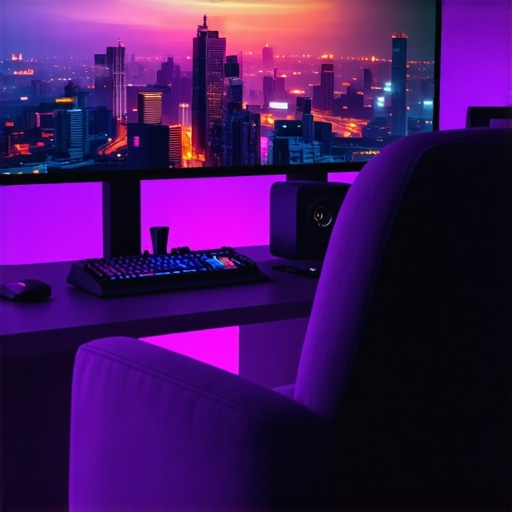
I remember the exact moment I realized my old monitor just wasn’t cutting it anymore. I was deep into a gaming session, completely immersed — or so I thought — until a quick glance at the edges of my screen made me feel like I was peering through a narrow window. That tiny, confining view reminded me why I had to upgrade. It was a lightbulb moment, realizing how much my experience could be transformed with the right display. If you’ve ever felt frustrated by your current setup, thinking it should feel more immersive, you’re not alone. And the good news is, the solution isn’t as complicated as you might think. Today, I’ll walk you through why ultrawide displays could be a game-changer for your home setup, and how you can make the leap with confidence.
Stepping Up Your Viewing Game with Ultrawide Displays
Is the Ultrawide Buzz Just Hype or Worth It?
Early on, I made a mistake many enthusiasts do — I dismissed ultrawide monitors as just a fancy gimmick. I thought, “Why not just use a dual monitor setup?” But I quickly learned that splitting your attention across multiple screens disrupts the flow, especially during intense gaming or focused work. Plus, the seamlessness of an ultrawide is unparalleled for immersion. According to a study by NVIDIA, ultrawide screens can enhance immersion and improve productivity by up to 30%, simply because they reduce the need to switch between tabs or screens (source). That was a real eye-opener for me. If you’ve ever faced the frustration of having to drag your eyes back and forth, I promise, ultrawide displays are worth considering. But, I’ll be honest, it’s easy to fall into the trap of believing it’s all hype without understanding what makes these screens so effective. That’s exactly what I want to help you with today — understanding the real benefits and how to get started.
Choose the Right Ultrawide Screen
Start by researching different ultrawide monitors that fit your needs and budget. I once spent an entire afternoon reading reviews on best ultrawide displays for 2024. I settled on a model with a curved design, which significantly boosted my immersion. When selecting, consider resolution, refresh rate, and curvature to match your use case—gaming, work, or entertainment.
Set Up Your Space for Optimal Viewing
Position your monitor directly in front of you, about an arm’s length away. Use a sturdy desk that can support the monitor’s weight and offers enough space for adjustments. I once placed my ultrawide on a cluttered desk, which caused glare and discomfort. Clearing the area and adjusting the height to eye level made a noticeable difference. Remember, a well-organized workspace enhances focus and reduces strain during long sessions.
Adjust Display Settings for Comfort and Clarity
Once set up, tweak the display settings. Increase contrast and reduce blue light to lessen eye fatigue. For my setup, I increased the brightness slightly and enabled a blue light filter, which allowed me to work comfortably for hours. Many ultrawide monitors come with customizable profiles—experiment with these to find your ideal visual comfort. Also, calibrate the color settings to ensure vivid, accurate images, especially if you do creative work.
Configure Software for Seamless Multi-Tasking
Use your operating system’s display management tools to split the ultrawide into multiple virtual screens. On Windows, snap assist makes this easy; on Mac, Mission Control helps organize windows. I once struggled with overlapping windows until I learned to assign specific zones to different tasks, boosting my productivity. Many models also come with proprietary software that allows custom layouts—install and experiment with these features to optimize your workflow.
Test and Tweak for Maximum Immersion
After initial setup, spend time testing your monitor with your favorite games or work tasks. Adjust the curvature and angle for optimal viewing comfort. I initially set my monitor too flat, which reduced the immersive effect. After tweaking the tilt and curvature, I felt like I was truly inside the game or video. Don’t hesitate to revisit your settings regularly, as your preferences may change over time.
Incorporate Accessories for a Complete Experience
Enhance your setup with a good quality stand, anti-glare screen protector, or even a secondary keyboard and mouse for ergonomic comfort. I added a monitor arm, which allowed me to fine-tune the height and angle, reducing neck strain. These small upgrades contribute significantly to long-term satisfaction with your ultrawide display.
Many enthusiasts and even seasoned users fall into misconceptions about curved TVs, ultrawide displays, and immersive screens. Let’s dig deeper into some hidden nuances and common pitfalls that can undermine your viewing experience. First, a widespread myth is that all curved monitors automatically provide better immersion. While curvature enhances the sense of depth, it’s not a one-size-fits-all solution. The effectiveness of curvature depends heavily on the size of the screen and your seating distance. For example, a 34-inch ultrawide at a typical desk distance may benefit greatly from a gentle curve, but larger screens or different setups might require different configurations. You can learn more about optimizing your setup by exploring why a curved monitor is future-proof.
Next, beware of the common trap of overestimating the benefits of ultrawide screens without considering resolution and hardware compatibility. An ultrawide is impressive visually, but if your graphics card isn’t up to par, you’ll face issues like stuttering or subpar image quality. This often leads to disappointment and the misconception that ultrawide displays are not worth it. To avoid this, check the recommended specs and ensure your system can handle the resolution and refresh rate of your chosen monitor. For guidance, see ultrawide impacts on productivity and gaming.
Many people also overlook the importance of proper calibration and positioning. A common mistake is setting the monitor flat on the desk or too low, which can cause neck strain and reduce immersion. Instead, tilt and position your screen to match your natural line of sight. Adjusting the curvature and height can make a significant difference. For advanced users, customizing the display settings and using software tools for precise calibration can elevate your experience. Check out ultimate guide to ultrawide and curved displays for tips on perfect setup.
What about the misconception that curved screens are exclusively for gaming or entertainment? While they excel in these areas, many professionals underestimate how a well-calibrated curved monitor can boost productivity. It reduces eye movement and provides a more natural viewing angle, especially for tasks involving multiple windows or data streams. This subtle advantage is often overlooked, but it can be a game-changer for your workflow. For more insights, see benefits of curved ultrawide monitors for work.
Finally, don’t fall into the trap of assuming that all curved or ultrawide displays are equally good. The market offers a wide range of products with varying quality, curvature radii, and features. Investing in a reputable brand and model suited for your specific needs will save you frustration and money in the long run. Check reviews and professional guides, and consider your space and use case before making a decision. As always, the right setup can transform your viewing experience — but only if you avoid these common mistakes. Have you ever fallen into this trap? Let me know in the comments.
How do I maintain my immersive screen setup over time
Maintaining your curved TV, ultrawide display, or widescreen monitor requires a combination of proper cleaning, software management, and hardware care. Personally, I rely on specific tools and methods to ensure my setup stays in peak condition and continues delivering an immersive experience. For cleaning, I use a microfiber cloth and a gentle screen cleaner designed for electronics to prevent dust buildup and smudges without damaging the delicate surface. Regularly wiping the screen once a week keeps the image crisp and vibrant, which is essential for immersive viewing.
Hardware longevity depends heavily on proper placement and handling. I always make sure my monitor is mounted securely using a high-quality arm, which not only allows for ergonomic adjustments but also prevents unnecessary strain on the stand or mount. When it comes to cords and connections, I use cable management sleeves and clips to keep everything organized. This prevents accidental tugging or pinching that could damage ports over time.
From a software perspective, I recommend using display calibration and management tools. For example, I personally use CalMAN for color calibration, ensuring my ultrawide display maintains accurate colors even after months of use. Additionally, adjusting refresh rate and resolution settings according to your hardware capabilities prolongs the lifespan of your graphics card and prevents overheating. Many modern monitors include proprietary software—like LG’s OnScreen Control—that simplifies window management and screen split configurations, keeping your workflow seamless and reducing unnecessary strain on your hardware.
Long-term, investing in quality accessories like anti-glare screen protectors and surge protectors is crucial. These prevent damage from dust, moisture, or power fluctuations. For instance, I added an anti-glare protector to my curved monitor, which significantly reduced reflections and eye strain during extended gaming or work sessions. Regularly updating your graphics drivers and firmware ensures compatibility and fixes bugs that could interfere with your immersive experience. I schedule monthly checks to install updates and review my system’s health.
Looking ahead, I predict advancements in AI-driven calibration and maintenance tools will make upkeep even easier. For example, future monitors might automatically detect and correct calibration drift or hardware issues, saving users time and money. Staying proactive with maintenance now ensures you get the most out of your investment and enjoy a consistent, high-quality immersive experience for years to come.
Don’t forget, for comprehensive guidance on optimizing and maintaining your setup, check out this detailed guide and consider trying some of these advanced maintenance tips today. Proper care not only extends the life of your technology but also preserves the stunning visual immersion that makes your setup truly special.
Lessons the Screen Didn’t Teach Me
One of the biggest surprises I discovered was how crucial proper calibration is—initially, I thought just plugging in my ultrawide monitor was enough. But I quickly realized that fine-tuning the color, contrast, and curvature dramatically enhanced the immersion and reduced eye strain, especially during long gaming marathons or intense work sessions. It’s a reminder that even the best hardware needs a personal tweak to unlock its full potential.
Another insight was the importance of ergonomic setup. I used to place my monitor flat on the desk, which caused neck strain. Moving it to eye level and adjusting the tilt made a noticeable difference, allowing me to stay comfortable and fully immersed without discomfort. Your setup can make or break the experience, so investing time here is worth every minute.
Lastly, I learned that not all ultrawide displays are equally compatible with every system. Upgrading your graphics card or checking your hardware specs beforehand prevents frustration down the line. A little research on your hardware compatibility ensures you enjoy the full benefits of a curved ultrawide monitor without hiccups.
My Go-To Resources for Ultrawide Mastery
For anyone serious about creating an immersive display setup, I highly recommend the ultimate guide to ultrawide and curved displays. It’s packed with expert tips and real-world advice that helped me understand the subtle nuances of calibration and positioning. Additionally, I trust review sites that test and compare ultrawide monitors, ensuring I choose hardware that truly enhances my experience. Lastly, I follow industry blogs that keep me updated on the latest advancements, so I stay ahead of the curve.
Your Next Step Toward Total Immersion
Now that you know some insider secrets, it’s your turn to transform your gaming or workspace with a curved ultrawide display. Remember, the key isn’t just hardware but how you set it up and calibrate it to fit your needs. Don’t be afraid to experiment with angles, settings, and accessories—small adjustments can lead to big gains in immersion and comfort. The future of immersive screens is here, and it’s waiting for you to take the leap. What’s stopping you from creating your perfect viewing environment? Share your thoughts below and start your journey today!