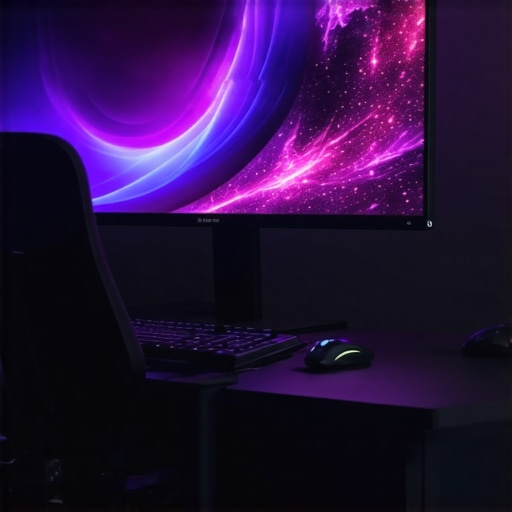
It hit me suddenly one evening as I was trying to get lost in a game, only to be pulled out of immersion by a dull, flat screen that felt more like looking through a window than stepping into a new world. Sound familiar? We’ve all hit that moment where our display just doesn’t cut it anymore—whether it’s the glare, the distortion at the edges, or the feeling that something’s just not quite right. That’s when I realized I was several steps behind in a tech upgrade and needed a solution that could truly elevate my viewing experience.
Why Traditional Screens Just Don’t Cut It Anymore
Having experienced the initial thrill of high-resolution monitors, I thought I had all the visual clarity I needed. But over time, old flat screens started to feel… tired. The edges seemed distant, the viewing angles limited, and I constantly fought with reflections and sharp corners that broke my immersion. It was a clear sign that standard monitors, no matter how good, can restrict our sensory engagement.
Enter curved monitors—my game-changer for 2024. These screens wrap around your field of view, creating a sense of depth and realism that flat displays simply can’t match. According to a report from Ultimate Home Displays, curved screens significantly enhance viewing comfort and immersion, reducing eye strain and boosting overall enjoyment. This revelation made me rethink what it truly means to have a captivating visual experience.
But I have to admit, I was skeptical at first. Would this really make a difference? Or was it just another gimmick? And that brings me to the most common mistake I made early on—assuming that all curved screens are the same and overestimating their immediate impact without proper research.
If you’re feeling the same doubts or have faced frustration with your current setup, stay tuned. We’re about to explore how these innovative displays can transform your tech environment and why 2024 is the perfect year to make the switch.
Pick the Right Screen Size and Curve for Your Must-Have Experience
Start by determining your primary use—gaming, professional work, or entertainment. I remember when I chose my first ultrawide monitor, I measured my desk space and decided on a 34-inch curved display. To ensure maximum immersion, select a monitor with a curvature radius between 1800R and 2500R—lower numbers mean more curvature, wrapping closer around your field of view. For example, I opted for a 1800R curve, which truly enveloped my peripheral vision, making gaming sessions feel like stepping into the action. Use resources like this guide to gauge your ideal size and curve.
Set Up Your Display with Precision
Position Matters: Eye Level and Distance
Place the monitor so the top is roughly at eye level, about an arm’s length away. I learned this the hard way—initial setup had my neck craning, leading to discomfort. Adjust the height and tilt to minimize glare and reflections. For immersive effect, I placed my ultrawide on a sturdy adjustable stand, ensuring no clutter blocked my view. Proper positioning reduces eye strain and maximizes the visual wrap-around effect.
Calibrate for Color and Contrast
Use built-in tools or calibration software to fine-tune brightness, contrast, and color settings. A well-calibrated display reveals richer details and correct color reproduction—crucial for creative work or enjoying cinematic content. I spent a weekend fine-tuning my monitor, noting improvements in brightness uniformity across the screen.
Integrate Advanced Hardware and Software
Leverage your graphics card settings for optimal display performance. For ultrawide and curved monitors, set a custom resolution in your graphics control panel—settings like 3440×1440 or wider—to match your monitor’s specifications. Ensure your GPU supports these resolutions; I upgraded my graphics card to handle my new display smoothly, reducing lag and tearing during fast-paced games.
Use software like Windows Display settings or third-party tools to configure multiple windows and taskbars. I created custom profiles to switch between work and gaming modes, dynamically adjusting refresh rates and color profiles for each. By syncing your software with your hardware, you’ll get seamless performance that enhances immersion.
Optimize Content for Your Curved and Ultrawide Screen
Not all applications automatically adapt to ultrawide or curved displays. Use patches, game settings, or specialized apps to expand FOV and prevent distortion. For instance, I adjusted my in-game settings to utilize the full width, avoiding letterboxing bars that detract from realism. Check out this resource for tips on content adaptation.
Test and Tweak for Maximum Immersion
After setup, spend time observing the display during various activities. Notice any areas of blurriness, color inconsistency, or reflections. I conducted several sessions—adjusting brightness and contrast here, repositioning my monitor there—until the image felt natural and enveloping. Small tweaks can make a significant difference in achieving whole-body immersion.
While many enthusiasts jump straight into choosing the latest ultrawide or curved monitors, a critical nuance often gets overlooked: the misconception that bigger, more curved, or ultra-wide is universally better. In reality, these features can sometimes be counterproductive if not tailored to your specific use case. For instance, a common myth is that ultra-wide screens automatically boost productivity. While they can, the truth is that their usefulness depends heavily on your workflow and desk setup. Studies such as those from this research highlight that overly wide monitors may cause increased eye movement and fatigue during long tasks. Another nuance lies in the curvature degree; many believe that more curvature equals better immersion, but in fact, excessive curvature can distort peripheral visuals and reduce clarity at the edges, especially when viewed from a non-ideal angle. A common mistake is selecting a monitor with a curvature radius lower than 1800R without considering your viewing distance and angle. As per industry experts, the optimal curvature should align with your seating position, ensuring a seamless wrap without distortion. For advanced users, understanding how to calibrate and integrate these displays with your hardware can dramatically impact actual usability. For example, setting the right resolution, adjusting color profiles, and managing display scaling are often neglected but essential steps. To master this, consider exploring how professional gamers and designers optimize their setups, avoiding the trap of assuming all high-end features deliver equal benefits across tasks. Remember, the key isn’t just in the specs but how effectively they integrate into your environment. The more you understand these nuances, the more you can craft a truly immersive experience tailored to your needs. Want to dive deeper into premium display choices? Check out the ultimate guide to ultrawide displays and unlock the full potential of your setup. Have you ever fallen into this trap? Let me know in the comments.Once you’ve tailored your ultrawide or curved display setup for maximum immersion, keeping it in top shape over time requires specific tools and consistent maintenance routines. I swear by a few key pieces of equipment and software that ensure my display remains pristine and performs at peak levels. For physically cleaning my curved monitor without risking damage, I always use a microfiber cloth designed for electronics, paired with a gentle cleaning solution that avoids streaks or residue. Regular cleaning prevents dust buildup that can cause glare or thermal issues, especially in environments with high airflow or pet dander. To keep the internal components cool and running quietly, I recommend an adjustable fan controller, which I use to optimize airflow according to workload, prolonging the lifespan of my GPU and display electronics. For calibration, I rely on software like DisplayCAL, which allows me to maintain accurate color profiles and uniform brightness across my ultrawide—critical for creative work or detailed gaming. These tools are instrumental in managing long-term color consistency and image clarity, much like how industry professionals calibrate high-end cinema displays. Prediction-wise, as hardware continues to evolve, I foresee integrated AI-driven calibration tools becoming standard, simplifying maintenance and ensuring optimal performance without manual intervention. To truly benefit from this technology, I recommend setting reminders to run calibration every few months or whenever you notice shifts in color or brightness. How do I maintain my display over time? The key is a combination of regular physical cleaning, software calibration, and hardware monitoring. For example, I use hardware monitoring tools like HWMonitor to keep tabs on temperature spikes that could indicate dust blocking airflow or failing components—an issue that’s often overlooked but can significantly shorten your display’s lifespan. Additionally, invest in a UPS (Uninterruptible Power Supply) to protect your setup from power surges, which can degrade electronics over time. For a more comprehensive approach, consider incorporating software solutions like Windows’ built-in calibration tools paired with third-party monitoring, so you catch issues early before they become costly repairs. Remember, the investment in good calibration and maintenance tools pays off in clearer images, reduced eye strain, and longer hardware life—crucial aspects when building an immersive environment. To see the difference proper maintenance can make, I highly suggest trying out a regular calibration schedule with DisplayCAL; it’s a game-changer for color fidelity across your ultrawide setup.
As I reflect on my journey toward mastering immersive screens, I realize that the most valuable lessons often come from unexpected revelations and practice. One insight that transformed my experience was discovering how personalized calibration and thoughtful setup can turn a good display into a gateway of total immersion. For instance, paying close attention to the curvature radius and positioning helped me avoid common distortions and eye fatigue. These nuanced adjustments, combined with curated content, can make an astonishing difference, allowing you to enjoy games, movies, and work like never before. Remember, the magic of an ultrawide or curved display isn’t just in its specs but in how well you tailor it to your unique environment and needs. Embrace the experimentation—it’s the secret ingredient to unlocking your screen’s full potential.