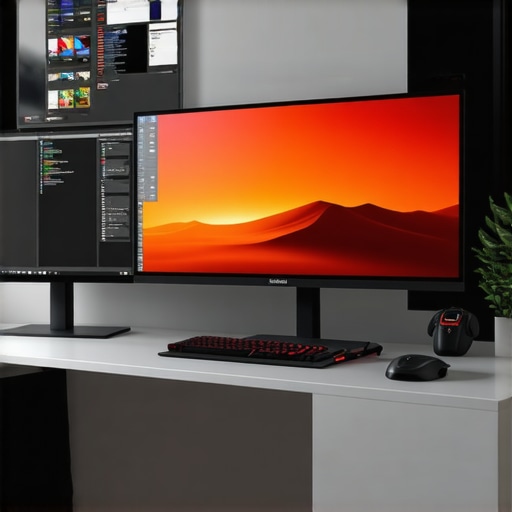
I remember the exact moment I realized my old, standard monitor was holding me back. I was deep into a gaming session, fully immersed in a breathtaking virtual landscape, when suddenly, everything felt flat—like I was peering at the world through a narrow window. That lightbulb moment revealed a simple truth: my screen’s size and shape could dramatically impact my experience, whether for work, gaming, or entertainment.
Why Ultrawide Displays Are Transforming the Way We View in 2024
As someone who spends hours in front of a screen, I understand how frustrating it can be to feel confined by borders that separate us from total immersion. When I first switched to an ultrawide display, the difference was night and day. No more distractions from visual boundaries, just expansive horizons that pull you in. Today, I’ll share how choosing the right ultrawide monitor or curved TV can elevate your experience. We’ll explore the tangible benefits, tackle common fears, and help you decide if it’s time to upgrade your setup.Are Ultrawide Displays Worth the Hype, or Just a Fad?
Early on, I made the mistake of assuming that bigger screens were just a luxury. I hesitated, worrying about cost, space, and whether I’d actually notice the difference. Turns out, I overlooked the real game-changer: the *immersion* they bring. According to recent research, ultra-wide screens can improve productivity and reduce eye strain by providing a more natural viewing experience. So, if you’ve ever wondered whether these displays are just a marketing gimmick, I encourage you to reflect—have you ever sat down with one and felt completely lost in your work or game? If so, you’re not alone. That’s precisely what motivated me to embrace the ultrawide revolution.
I also learned the hard way that not all ultrawide monitors are created equal. My early mistake was choosing a model with poor curvature and subpar color accuracy, which ultimately dampened my experience rather than enhanced it. To truly get the most immersive benefits, understanding the nuances of screen curvature, size, and resolution is essential. In the next sections, I’ll guide you through the key benefits and help you identify the perfect ultrawide display for your needs. Ready to see how this upgrade can redefine your digital environment? Let’s dive in.
Choosing the Right Screen Size and Curvature
Start by assessing your workspace dimensions; I once ordered a 49-inch ultrawide monitor without considering my desk space, leading to a crowded setup and constant adjustments. To avoid this, measure your available area and decide on a size that fits comfortably. For curvature, understand that a gentle curve (around 1500R) mimics natural eye movement, reducing strain and enhancing immersion. Use resources like this comparison guide to select the ideal curvature suited for your tasks and space.
Step 1: Set Your Display’s Position Correctly
Position your monitor so that the center aligns with your eye level, approximately 20 inches from your face. I once placed my ultrawide too low, causing neck strain during long sessions. Use adjustable stands or mounts to refine height and tilt, ensuring comfortable viewing angles. Keep in mind, a well-placed monitor reduces fatigue and maximizes the benefits of immersive screens.
Step 2: Calibrate Brightness and Color Accuracy
Calibration is crucial; I initially ignored this step, resulting in washed-out colors and eye discomfort. Use built-in calibration tools or software like DisplayHDR. Focus on setting the brightness to match ambient lighting, typically between 120-150 cd/m². For color, aim for an accuracy that’s within 2-5 dE (delta E), especially if you use your monitor for creative work. Check out this guide for detailed calibration tips.
Step 3: Optimize Connection and Display Settings
Use high-quality DisplayPort or HDMI cables—I once experienced flickering because of a mediocre cable. Set your display resolution to its native setting, usually 3440×1440 or higher for ultrawides, and enable refresh rates of 120Hz or more for smooth visuals. Explore your monitor’s settings menu to enable features like true black levels or specific gaming modes, which can significantly boost your experience. For better understanding, see this resource.
Step 4: Apply Proper Workspace Ergonomics
Arrange your desk so that your keyboard and mouse are close, reducing reach and tension. I made the mistake of sitting too close to my ultrawide, which caused eye strain; moving back 24-30 inches helped. Use ergonomic chairs and ensure adequate lighting to minimize glare. Adjust monitor brightness to prevent reflections, and consider matte screens or anti-glare filters if necessary. These small adjustments make a big difference in long-term comfort, as highlighted in this guide.
Step 5: Customize for Your Specific Needs
Whether for gaming, work, or media consumption, tailor your display settings accordingly. For gaming, activate high refresh rates and low latency modes; I enabled these during a intense FPS session, noticing smoother gameplay. For productivity, split the screen using software like Windows Snap Assist or third-party tools to multitask efficiently. This personalization maximizes the advantages of ultrawide and curved displays, transforming your experience into total immersion.Implementing these steps ensures you harness the full potential of your immersive screen setup, making every digital interaction more engaging and comfortable. Dive into more detailed improvements at this comprehensive guide to push your setup further.While many enthusiasts applaud ultrawide and curved monitors for their immersive benefits, a common misconception persists: that size alone guarantees a superior experience. In reality, **the devil is in the details**. For example, many believe that curvature universally enhances all tasks; however, the optimal curvature depends heavily on viewing distance and use case. A gentle curve (around 1500R) can reduce eye strain and increase perceived immersion, but a highly aggressive curve might distort perception for productivity tasks or creative work. According to experts from this resource, understanding the nuanced application of curvature is essential for maximizing benefits.
Another myth revolves around the idea that wider screens always lead to better productivity. While increased horizontal real estate can reduce window switching, it can also cause discomfort if the monitor’s size exceeds optimal viewing angles, leading to neck strain. Interestingly, some users fall into the trap of choosing ultrawides with ultra-high resolutions (like 5120×1440 or higher) without considering their GPU capabilities or scaling issues. This oversight results in subpar performance and visual artifacts. A study highlighted in this article emphasizes matching display resolution to your hardware for a seamless experience.
For those eyeing curved TVs as an alternative to monitors, many assume they replicate the same immersive qualities. But the key difference lies in **field of view and distance**. Curved TVs, designed for larger screens and living room viewing, may not offer the same ergonomic advantages for desk setups, unless they possess a carefully calculated curvature and appropriate size. In fact, using a massive curved TV at close proximity can cause distortion and discomfort, reducing the immersion rather than enhancing it.
A crucial nuance that often gets overlooked is the impact of *color accuracy and calibration*. Gamers might prioritize refresh rates, but professionals engaging in video editing or photography must also consider color fidelity. Achieving true immersion isn’t just about size and curvature — it’s about aligning visual quality with your specific needs. If you’re curious about optimizing your display for your unique use case, check out this detailed guide.
Lastly, remember that the *environment* plays a pivotal role. An immersive display can be undermined by poor lighting, glare, or improper ergonomic setup. For example, even the best ultrawide monitor won’t deliver its full potential if placed too close or in a brightly lit room causing reflections. Always consider your ambient conditions and workstation ergonomics, as highlighted in this article.
In summary, don’t fall into the trap of oversimplification. Size, curvature, and resolution are just pieces of a bigger puzzle. Embracing these nuances will ensure you make truly informed choices about your immersive display setup. Want to avoid these common pitfalls? Dive deeper at the linked resources and let me know if you’ve ever fallen into this trap in the comments.
Maintaining your ultrawide, curved monitor, or curved TV is crucial to preserving its vibrant visuals and smooth performance over time. Unlike traditional screens, these immersive displays require specific attention to software and hardware upkeep to ensure long-term longevity and optimal experience. A quality calibration tool, for instance, is indispensable. I personally rely on the Datacolor SpyderX, which offers fast, accurate color calibration by providing real-time feedback. Regular calibration ensures that colors stay true, especially if you’re engaged in creative pursuits or media consumption. Additionally, software like DisplayHDR allows me to fine-tune brightness and contrast, adapting to different ambient lighting conditions seamlessly.
Hardware health is equally important, particularly the connection cables. I only use high-speed certified DisplayPort or HDMI cables when connecting my ultrawide display. This prevents flickering or resolution issues that can develop from subpar cables, a mistake I made early on. For cleaning, I opt for microfiber cloths and anti-static solutions, avoiding harsh chemicals that can damage the screen surface. Dust accumulation can also affect cooling and bias performance, especially in high-refresh-rate monitors. I recommend keeping your workspace clean and dust-free, and occasionally checking the vents and fans of your monitor or TV.
Looking ahead, I believe adaptive sync technologies like NVIDIA G-SYNC or AMD FreeSync will become even more integrated into mainstream displays, providing smoother visuals during fast-paced gaming and video editing. Future innovations may include smarter calibration systems that automatically optimize settings based on content type or ambient light sensors that adjust display parameters in real-time, as highlighted by recent tech analyses from this source.
How do I maintain my immersive screen setup over time?
Implementing a routine maintenance schedule is essential. Clean your screen regularly with appropriate cloths; keep the firmware and drivers updated to access new features and performance improvements; and periodically recalibrate your display using reliable tools like Datacolor SpyderX. This ensures colors remain accurate, and the display functions at its best. Check your connections and cable integrity often, replacing any that show signs of wear. Additionally, monitor your device’s temperature and airflow—overheating can cause throttling and reduce lifespan. A well-maintained setup not only prolongs the life of your display but also sustains its exceptional quality, keeping your immersive experience consistently engaging. To get started with advanced calibration, I suggest trying out a hardware calibration tool and following detailed guides available at this resource. Take action today and give your display the care it deserves to keep it performing at its peak for years to come.
Warnings from My Ultrawide journey: Don’t Overlook the Details
One of my biggest eye-openers was realizing that not all ultrawide monitors deliver the same immersive experience. I once bought a model with an overly aggressive curvature, thinking it would boost my immersion, only to find it caused distortion during creative work. The lesson? Always match your monitor’s curvature and size to your specific use case and viewing distance. Overlooking this can turn an exciting upgrade into a source of frustration.
Another insight came from understanding the importance of calibration. I underestimated how much color accuracy and brightness adjustments affect visual comfort and productivity. Regular calibration using trusted tools like the Datacolor SpyderX transformed my workspace, making long hours not just bearable but enjoyable. This taught me that investing in proper calibration is essential for truly immersive, eye-friendly display experiences.
Lastly, I learned that environment matters just as much as hardware. Poor lighting, reflections, and cluttered desks can diminish even the most advanced ultrawide setup. Taking time to optimize my workspace—using anti-glare filters, adjusting ambient light, and ergonomically arranging my desk—paid dividends in comfort and immersion. So, my biggest takeaway? A superb display is only as good as the environment it lives in.
This post really resonated with me, especially the part about calibration and environment. I’ve found that investing in a good calibration tool like the SpyderX has drastically improved my color accuracy and reduced eye strain during long hours of work or gaming. It’s interesting how much environmental factors like lighting and glare can diminish the benefits of an otherwise excellent display. I also agree that choosing the right curvature and size depends heavily on your workspace setup and use case, as a poor match can lead to discomfort rather than immersion. For anyone considering an ultrawide, what are some tips for creating an ergonomically optimal workspace that maximizes the benefits of these immersive screens? And do you think future tech, like automated calibration systems or ambient light sensors, will make managing these setups even easier? I’d love to hear others’ experiences or suggestions on maintaining an optimal immersive environment.