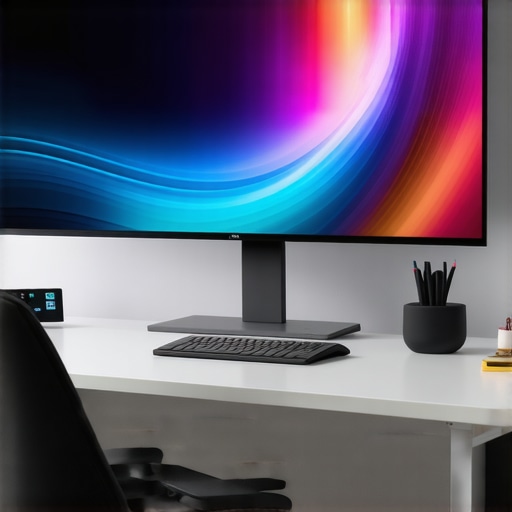
I vividly remember sitting at my desk, frustration mounting as I battled with multiple monitors that just didn’t cut it anymore. The endless toggling between windows, the cluttered workspace, and that nagging feeling that I was missing out on something bigger—literally. One day, during a late-night browsing session, I stumbled upon the concept of ultrawide displays. At first, I was skeptical. Would it really make that much of a difference? Could I truly replace my cluttered setup with a single, sleek screen?
That moment marked the beginning of a personal experiment that transformed my entire digital experience. Today, I want to share how choosing a top ultrawide display for immersive viewing in 2024 revolutionized the way I work, game, and enjoy entertainment. If you’ve ever felt overwhelmed by your current screen setup or wished for a more seamless, immersive experience, you’re in the right place.
Stepping Up My Game with Wide Horizons
The explosion of high-resolution, curved ultrawide monitors has been a game-changer—not just for gamers but for anyone who demands more from their screens. These displays provide a wider, more natural field of view that enhances productivity and immersion simultaneously. As I researched further, I found that many users report increased focus and enjoyment, whether they’re tackling complex tasks or diving into the latest AAA game.
But here’s the truth: Not all ultrawide monitors are created equal. Early on, I made **the mistake of prioritizing size over quality**, ending up with a display that stretched my budget but left me frustrated due to poor color accuracy and lag. That misstep taught me the importance of understanding what to look for in 2024’s top models.
If you’re curious about how ultrawide displays can elevate your digital life, check out [this comprehensive guide](https://curvedtvs.ultimatehomedisplays.com/ultrawide-display-benefits-for-an-immersive-viewing-experience) to learn more about their benefits. Now, let’s explore what makes a high-quality ultrawide display worth the investment—and how it can truly change your viewing experience.
Select the Right Screen Size and Curvature
Start by choosing a monitor that fits your workspace. Think of a curved ultrawide display as the throne of visual immersion—larger sizes (34 inches and above) offer expansive real estate, but ensure your desk can support it. Preference should go to models with a curvature radius of 1800R or 1500R, mimicking the natural curve of your eyes, which minimizes distortion and eye strain. I once ordered a 49-inch curved monitor without checking my desk space, leading to a cluttered setup and frequent adjustments, but ultimately, the right size creates a seamless field of view.
Focus on Visual Quality and Refresh Rates
Prioritize Resolution and Color Accuracy
Look for resolutions of at least 3440×1440 for clarity in gaming and work. Color accuracy is vital for creative tasks—aim for models with a color gamut of 99% sRGB or higher. When I upgraded to a high-res ultrawide, my photo editing speed and precision improved markedly, making work more enjoyable. Check reviews and manufacturer specs; false color representation can spoil the immersive experience.
Ensure Smooth Motion for Gaming and Video
A refresh rate of 100Hz or higher is ideal for fluid motion, especially during fast-paced gaming. My early tests with a 75Hz screen showed noticeable motion blur, hampering gameplay. Comb through reviews to confirm real-world performance, as advertised specs don’t always tell the full story.
Configure Your System for Peak Performance
Connecting your ultrawide display properly is crucial. Use DisplayPort 1.4 or HDMI 2.0 cables for optimal bandwidth. Adjust your graphics card settings to match the native resolution and refresh rate; this minimizes lag and tearing. I learned this the hard way after experiencing irregular frame rates, which broke immersion. Additionally, calibrate color settings in your OS or graphics card software to achieve vivid, true-to-life visuals that uphold your expectations of immersion.
Adapt Your Workspace for Comfort and Efficiency
Position the monitor correctly—centered at eye level, about an arm’s length away—to reduce neck and eye strain. Consider a monitor stand or arm for height adjustments. My makeshift setup caused neck discomfort after hours, but investing in ergonomic accessories transformed my workflow. Also, optimize your desktop layout to utilize the expansive screen space; keep frequently used windows on the sides, similar to a real command center, reducing unnecessary mouse movements. For illustrative guidance, check out this detailed workspace improvement guide.
Leverage Software for a Better Multi-Tasking Experience
Use window management tools or the OS’s native features to divide your display into zones—this maximizes productivity. My favorite is snapping apps into predefined areas, which makes multitasking smoother on the ultrawide expanse. Productivity-enhancing tools can turn a single ultrawide monitor into multiple virtual screens, optimizing workflow and reducing clutter. For deeper insights, explore this comprehensive guide.
Calibration and Personalization for an Immersive Journey
Finally, calibrate your display using dedicated software or hardware tools to fine-tune brightness, contrast, and gamma. This ensures consistent color representation across different lighting conditions. I once ignored calibration, resulting in dull visuals that detracted from the immersive experience. Personalizing your display settings can make your viewing more comfortable and visually striking, truly unlocking the potential of your ultrawide monitor. For more detailed steps, visit this guide on perfect calibration.
Many enthusiasts assume that the main advantage of ultrawide monitors and curved screens is purely aesthetic or simply wider visuals, but let’s dig deeper into what most people get wrong about these immersive displays. A common misconception is that a larger, curved screen automatically translates to better performance or immersion. In reality, the effectiveness depends heavily on nuanced factors like curvature radius, panel technology, and even user-specific workspace setup. For instance, a 1800R curvature might seem ideal, but if your viewing distance isn’t optimized, you won’t enjoy the full immersive benefits, leading to eye strain or distortion. Recent studies suggest that the human eye perceives near-flat angles more naturally, so an overly aggressive curve can actually diminish sharpness in peripheral zones, undermining immersion rather than enhancing it. You can explore how to optimize your setup by visiting this comprehensive guide. Moreover, a prevalent myth is that all curved monitors are inherently superior for gaming or creative work; however, research demonstrates that the benefits are highly context-dependent. For fast-paced gaming, high refresh rates and low response times matter more than curvature, which might just add visual distortion if improperly calibrated. As industry expert TechRadar advises, “choosing the right display involves balancing curvature, resolution, and refresh rate—focusing on user needs rather than aesthetics alone.” An often overlooked detail is that many assume curved screens eliminate glare, but without proper anti-reflective coatings, they can exacerbate reflections, disrupting the immersive experience.
Are curved monitors always better for color accuracy?
Not necessarily. The curvature influences how light hits the panel, and in some models, it can cause uneven color shifts across the surface if the panel technology isn’t uniform. Professional color work still favors flat, high-precision panels for consistency. The takeaway? While ultrawide and curved displays unlock vast potential for immersive viewing, understanding their nuanced technology and environment compatibility helps avoid costly mistakes. Always tailor your choices to specific use cases—be it gaming, productivity, or content creation—and don’t fall for oversimplified myths. Do you know the difference between a display optimized for gaming versus professional workflows? Share your experiences or questions below!
Ensuring your ultrawide, curved, or widescreen monitor continues to deliver stunning visuals over the years requires deliberate maintenance and smart tool choices. From calibrating display settings to choosing the right cleaning routines, every step counts in preserving that immersive experience. I personally rely on advanced color calibration tools like the X-Rite i1Display Pro—I use mine every few months to fine-tune color accuracy and contrast, especially after software updates or changes in ambient lighting. This hardware calibration ensures the vibrant visuals of my ultrawide display remain consistent, avoiding the dullness that sometimes creeps in over time.
Software maintenance is equally vital. Keeping your graphic card drivers up to date—particularly the NVIDIA GeForce Experience or AMD Radeon Software—helps optimize performance and minimize latency, which is critical for high refresh rate displays. I schedule a quick check every quarter to install updates; this habit prevents lag or tearing during intense gaming or editing sessions. Additionally, regularly review your display profile settings in your OS to adjust for changing lighting conditions, as this can trip up even seasoned enthusiasts.
For physical upkeep, gentle cleaning is best. Use microfiber cloths with a bit of screen-safe glass cleaner, avoiding harsh chemicals. I’ve experimented with different cleaning routines, and the key is to avoid applying excessive pressure that might damage delicate OLED or IPS panels. When cleaning my curved monitor, I ensure the screen is cool and unplugged, then wipe gently using circular motions—this prevents dust buildup that can distort images over time.
Looking ahead, the trend points toward smarter, integrated maintenance solutions. Companies are developing AI-powered calibration and troubleshooting tools that proactively alert you to potential issues before visual quality degrades. For instance, some upcoming monitors will feature built-in sensors to adjust brightness and contrast automatically based on ambient lighting, maintaining optimal immersion at all times.
How do I maintain my display over time?
An effective approach combines physical care, software updates, and periodic calibration. Establishing a routine, such as monthly cleaning and quarterly calibration, helps extend the lifespan of your high-end monitor. Don’t forget to back up your custom settings—especially if you’ve fine-tuned color profiles or configurations—and keep your system free of clutter and unnecessary background processes to avoid overheating. For more detailed tips, explore comprehensive guides on maintaining immersive displays. Investing in quality tools like calibration hardware and adopting regular check-ins can make all the difference in preserving that pristine, immersive experience long-term.
Ready to optimize? Try setting a reminder to calibrate your display with a tool like the X-Rite i1Display Pro—it’s a game-changer that ensures your visuals remain sharp and true to life, boosting your immersive experience in 2024 and beyond.
Throughout my journey with ultrawide displays, the most profound lesson was realizing that technology alone isn’t enough—your mindset and setup truly unlock its magic. I once believed that simply buying a larger, curved monitor would instantly revolutionize my experience, but I overlooked how proper calibration and workspace ergonomics could make or break immersion. It’s like owning a high-performance sports car but driving it with worn-out tires—you won’t reach its true potential. So, my biggest insight? Invest not just in the hardware, but in knowledge and setup that complements your display’s capabilities. When I adjusted my seating position, calibrated my colors, and optimized my software, my ultrawide became more than just a screen—it became an extension of my creative and gaming worlds.
Reading this article really resonated with my experience switching from multiple monitors to a single ultrawide. I initially thought bigger meant better, but I learned quickly that display quality and calibration make a huge difference. The mention of curvature radius is important—my 1800R monitor feels much more natural than a flatter one, reducing eye strain during long sessions. I’ve also started using window management tools, and suddenly multitasking feels seamless, especially with productivity zones. The only challenge I faced was ensuring my GPU could handle the high resolution smoothly, so I had to tweak some settings for optimal performance.
I’m curious, how do others find balancing size with desk space? I often wonder if a slightly smaller ultrawide would give me more flexibility without compromising immersion. Also, what are some good tips for reducing glare on curved screens? Thanks for a practical overview that makes me even more excited to optimize my setup in 2024.