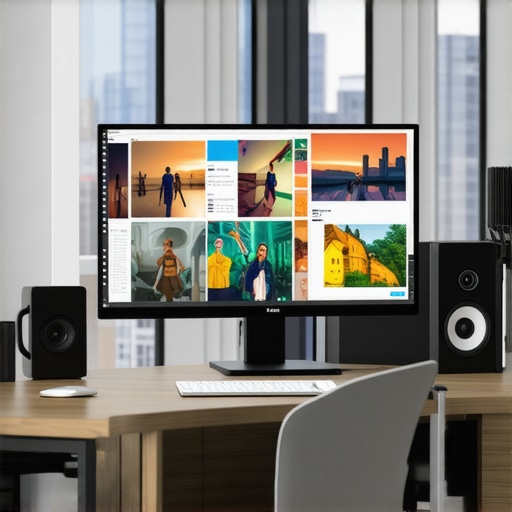
I remember the exact moment I realized my regular flat monitor just wasn’t cutting it anymore. I was deep into a gaming session, eyes glued to the screen, when suddenly, everything felt off—distorted edges, an awkward sense of depth, and a constant need to reposition myself. It was like trying to look through a window that just didn’t fit the frame anymore. That lightbulb moment made me question: is there a better way to truly immerse myself in digital worlds?
Why a Curved Monitor Could Be Your Game-Changer
The truth is, many of us settle for flat screens out of habit or budget constraints. But as I dug deeper, I discovered that curved monitors aren’t just about aesthetics—they’re about transforming our entire viewing experience. They gently wrap around your field of vision, minimizing distortions and blurriness at the edges, which is especially noticeable during intensive gaming or detailed work. This curved design pulls you into the action, making you feel as if you’re part of the scene rather than just observing it.
In fact, research shows that curved screens can reduce eye strain and improve viewing comfort—key benefits if you’re spending hours in front of the display. An article on Ultimate Home Displays highlights how curved technology is swiftly becoming the standard for immersive home entertainment.
But here’s the kicker: I made the mistake early on of thinking all ultrawide or curved screens are the same. Without proper research, I ended up with a monitor that technically was curved but compromised on color accuracy and refresh rates, hampering my experience. So, I want to help you avoid that pitfall.
In this post, we’ll delve into why curved monitors are revolutionizing how we view screens, and I’ll guide you through practical tips to choose the best one for your needs. Ready to upgrade your digital environment and truly elevate your immersion? Let’s explore how to make that a reality.
Properly Measure Your Space and Select the Right Size
Before purchasing, measure your desk space and viewing distance—aim for a setup where the monitor fills your peripheral vision without overwhelming your workspace. I once bought an ultrawide curved monitor without measuring, leading to a clunky fit that caused neck strain. Now, I always use a tape measure, ensuring a comfortable viewing experience aligned with my typical sitting distance of around 20 inches for optimal immersion.
Choose a High-Quality Connection to Maximize Performance
Using the right cable—like DisplayPort or HDMI 2.1—is crucial to unlocking your monitor’s full potential, especially for high refresh rates and 4K resolutions. In my first attempt, I connected my new monitor with a basic HDMI cable, which capped my refresh rate at 60Hz, dulling the smoothness I craved. Switching to DisplayPort instantly boosted my gaming experience, making actions feel fluid and responsive.
Configure Display Settings for Ultimate Clarity
Adjust your color calibration, contrast, and brightness settings through your operating system or monitor menu. I recommend activating a preset mode for gaming or multimedia, then fine-tuning to your liking. This step removes dull colors or glare, sharpening visuals and enhancing depth—crucial for immersive work or gaming. In my setup, I increased contrast slightly and calibrated color to match real-world hues, significantly improving picture accuracy.
Position Your Monitor for Comfort and Realistic Depth
Align the monitor so the top edge is at or slightly below eye level, with the screen tilted slightly upward. This positioning reduces neck strain and creates a natural viewing angle. When I first set mine, I struggled with constant head tilts; after adjusting height and angle, I found my neck relaxed, and the immersive effect felt more natural, like sitting in a cockpit rather than staring at a screen.
Optimize Your Workspace for Seamless Viewing
Arrange your desk and accessories to avoid glare and distractions. Use curtains or anti-reflective coatings if necessary. I once had a light source behind me that caused glare, diminishing contrast. Moving my monitor slightly or adding an anti-glare filter improved visibility and deepened the immersion.
Leverage Software and Monitor Features
Enable features like flicker-free technology, low blue light modes, and adaptive sync to reduce eye strain during long sessions. Many monitors also have gaming modes that optimize response time and contrast. I discovered these settings by exploring my monitor’s menu, leading to less fatigue and more hours in the zone, especially during marathon gaming sessions.
For further insights on how to customize your immersive screen experience with ultrawide displays and curved monitors, visit this guide.
While many enthusiasts celebrate the immersive benefits of ultrawide and curved monitors, there are nuanced pitfalls that even seasoned users often overlook. One common misconception is that bigger or more curved always equals better immersion, but in reality, the effectiveness heavily depends on your specific workspace and usage habits. For instance, a prevalent myth is that ultrawide displays universally enhance productivity; however, studies like those referenced by Ultimate Home Displays suggest that if your workflow involves multitasking across multiple windows, a properly configured dual-monitor setup might sometimes outperform a single ultrawide screen, especially when ergonomic positioning is considered.
Another advanced nuance is the importance of viewing angle and distance. Many users fail to realize that the perceived immersion is compromised if the monitor’s curvature does not match their natural eyeline or seating position. A study published by top experts highlights how misaligned curvature can lead to increased eye strain over prolonged periods, contrary to popular belief that curvature solely enhances comfort.
Beware of the trap surrounding screen resolution and refresh rates. It’s tempting to assume that a curved ultrawide at any resolution will deliver seamless visuals, but inadequate hardware support can negate these benefits. Choosing a monitor without confirming compatibility with high refresh rate outputs or without considering the quality of panel technology (like VA vs. IPS) can lead to disappointment. An overlooked mistake is opting for a lower quality panel that distorts colors or suffers from ghosting, which can ruin the intended immersive experience. For in-depth guidance on selecting premium ultrawide or curved displays tailored to your needs, explore this comprehensive guide.
Advanced users also question the ecological impact and long-term durability of these displays. While the tech promises immersive dreams, some models incorporate high blue light emission or flicker that might inadvertently increase eye fatigue, contrary to marketing claims. Confirming features like flicker-free technology and blue light filters during purchase is crucial. An educated choice involves cross-checking reviews and specifications, not just aesthetics.
Finally, always remember that the true power of immersive screens depends on content compatibility. Cutting-edge hardware can be compromised if your software or game doesn’t support ultrawide aspect ratios. To maximize your investment, ensure your content library and setup are aligned; otherwise, you risk ending up with black bars or stretched visuals that completely undermine immersion.
In essence, understanding these subtle nuances allows you to make informed decisions and truly harness the potential of your display technology. Have you ever fallen into this trap? Let me know in the comments or visit our contact page for personalized advice.
To ensure your immersive screens continue providing stunning visuals and seamless performance, regular maintenance is essential. I personally rely on specific tools and routines to keep my ultrawide and curved displays operating flawlessly over the long haul. First, investing in a high-quality cleaning kit, like a microfiber cloth paired with anti-static screen cleaner, prevents dust buildup and smudges that can distort picture quality. I avoid harsh chemicals; instead, I use a gentle, screen-specific solution that protects the panel surface and maintains color accuracy.
For software, I recommend calibration tools such as CalMAN or DisplayCAL. These programs allow you to fine-tune your display’s color profile, ensuring consistent calibration over time. I perform calibration every few months because ambient lighting and aging hardware can shift color fidelity. Connecting through stable, high-quality cables—preferably DisplayPort 1.4 or HDMI 2.1—also safeguards against flickering or signal drops, which can disrupt the immersive experience.
Beyond cleaning and calibration, monitor firmware updates often include bug fixes and performance improvements. Regularly check your monitor manufacturer’s website or enable automatic updates if available. This simple step can prevent unexpected glitches and keep your setup running at peak performance.
Looking ahead, advancements in self-cleaning monitor surfaces or AI-based calibration are likely to streamline maintenance further. Embracing these innovations will make sustaining long-term immersion more effortless. For now, establishing a routine using the right tools—like microfiber cloths, calibration software, and high-quality cables—ensures your investment remains vibrant and responsive for years to come.
How do I maintain my immersive display over time?
Getting into a habit of gentle cleaning, regular calibration, and firmware checks will extend your monitor’s lifespan and preserve the visual quality that enhances your experience. For a detailed, step-by-step guide on keeping your ultrawide and curved screens in top shape, visit this resource.
One advanced tip I recommend trying immediately is calibrating your display with a tool like DisplayCAL. Precise calibration ensures accurate colors and contrast, vital for immersive work or gaming. By implementing this routine, you’ll enjoy a consistent, stunning visual experience that stands the test of time and hardware aging.
What I Wish I Knew When I Started Exploring Ultrawide and Curved Screens
- Never underestimate the importance of optimal positioning; aligning the monitor to your natural eye line and seating posture drastically enhances immersion and reduces fatigue.
- Don’t assume that bigger always equals better—consider your workspace, typical viewing distance, and whether your hardware can fully support high resolutions and refresh rates for a truly seamless experience.
- Color calibration isn’t just for professionals; taking the time to fine-tune your display right from the start prevents dull visuals and enhances the immersive quality of gaming or multimedia.
- Small adjustments, like upgrading cables to DisplayPort 1.4 or HDMI 2.1, can make a surprising difference in achieving the smoothness and responsiveness you desire.
- Being aware of content compatibility is vital; check if your favorite games or applications support ultrawide aspect ratios to avoid immersion-breaking black bars or stretching.
My Top Picks for Elevating Your Ultrawide Experience
- DisplayCAL: I trust this calibration tool because it offers precise, user-friendly color adjustments that keep my visuals vibrant and accurate over time.
- High-quality cables like DisplayPort 1.4: These ensure stable, high-bandwidth connections, preventing flickering and maximizing refresh rates.
- Anti-glare screen protectors: Simple but effective at reducing reflections, they help me maintain immersion even in bright environments.
- Relevant reading from Ultimate Home Displays: Their comprehensive guides have helped me grasp advanced configurations, making my setup truly personalized.
This Is Your Moment to Transform Your Viewing Journey
Embracing the full capabilities of your ultrawide curved monitor can revolutionize how you work, game, and relax. Remember, the key lies in understanding your unique space, investing in quality accessories, and continuously fine-tuning your setup. The world of immersive screens is waiting for you to make your move—don’t miss out on the future of digital experience. Take action now, explore resources, and elevate your visual environment today. Have you faced any specific challenges when optimizing your monitor setup? Share your story below or reach out for personalized advice.
,
Reading through this guide really resonated with my own experience of switching from a flat to a curved monitor. The difference in immersion is night and day, especially during long gaming sessions or when I’m working on detailed projects. I particularly appreciated the emphasis on proper positioning—aligning the top of the monitor slightly below eye level has greatly reduced my neck strain. One thing I’ve found helpful, which wasn’t mentioned, is adjusting the monitor’s tilt and distance to match my natural eyeline, which further improves comfort and immersion. Has anyone experimented with different curvature degrees? I’ve heard that a more pronounced curve isn’t always better for every setup. It would be interesting to hear how others have tailored their setups to maximize the curved screen immersion, especially in smaller workspaces where space is limited.