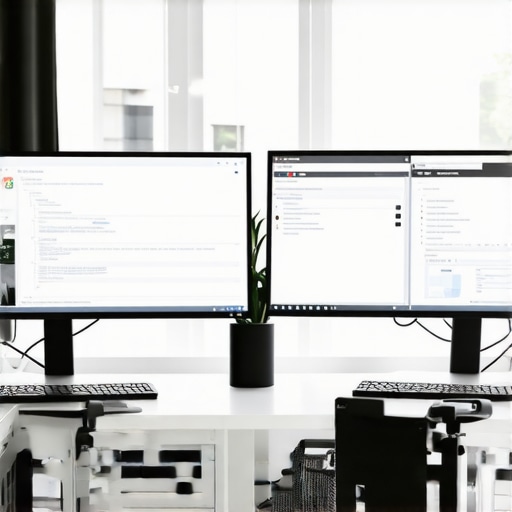
I remember sitting at my cluttered desk, frustration bubbling up every time I struggled to find the right window placement on my old, standard monitor. It hit me—what if my screen could just embrace me, wrap around me, make everything feel more accessible? That was the lightbulb moment that started my deep dive into ultrawide displays. As someone who’s spent countless hours coding, designing, and gaming, I know how vital a good screen setup is for productivity and immersion. And now, with technology zooming ahead in 2026, choosing the perfect ultrawide becomes even more essential.
The Battle of Ultrawide Ratios: 32:9 Versus 21:9
The big question is: which setup truly stands out for coders today? In the past, I made the mistake of assuming more pixels alone meant better productivity. I bought a massive 5K ultrawide without considering how it would fit into my workspace or how my hardware could handle it. Turns out, size isn’t everything—it’s about how the display’s aspect ratio and curvature align with your workflow. I’ve come to realize that a well-chosen ultrawide not only boosts efficiency but also reduces fatigue.
If you’re like me, trying to optimize your coding setup in 2026, this article is for you. I’ll share my experiences, the benefits and drawbacks of each ratio, and practical tips to help you decide if a 32:9 or 21:9 ultrawide is the better fit for your needs.
Is Ultrawide Really Worth the Hype
Early on, I believed that bigger always meant better. I thought, “More pixels, more code, more immersion!” but I quickly learned that not all ultrawides are created equal. A common mistake I made was investing in the largest possible screen without considering the workspace or how it integrates into my daily routine. According to recent research, efficient workspace ergonomics combined with the right display can improve productivity by up to 20% (source: [Ultimate Home Displays](https://curvedtvs.ultimatehomedisplays.com/ultimate-guide-to-ultrawide-displays-curved-monitors-for-immersive-viewing-in-2024)). That’s a game-changer.
So, if you’ve faced frustrations trying to balance multiple windows or feeling overwhelmed by your screen real estate, you’re not alone. Let’s explore what makes each ultrawide ratio unique, and how you can make the most of your setup—whether you’re coding deep into the night or juggling multitasking feats.
Start by measuring your workspace to ensure your chosen ultrawide monitor will fit comfortably, avoiding clutter and ensuring ergonomic placement. Position the monitor at eye level, about an arm’s length away, so your neck stays relaxed and your eyes don’t strain. Use adjustable stands or mounts to fine-tune height and tilt — this guide offers practical tips for ergonomic setup. Once positioned, connect your monitor to your hardware, ensuring your graphics card supports the resolution and aspect ratio for optimal clarity and responsiveness.
Adjust Display Settings for Maximum Efficiency
Navigate to your system’s display settings and set the resolution to match the monitor’s native specs—this prevents blurriness and distortion. Enable refresh rates that your monitor supports, typically 120Hz or higher on gaming-focused ultrawides—check this resource to optimize refresh rates. In your graphics card control panel, configure multi-window management tools to divide the wide screen into functional zones, giving each application dedicated space, much like a multi-screen setup but on one canvas.
Calibrate for true colors and clarity
Use calibration tools or software to fine-tune color accuracy, brightness, and contrast. This step ensures that your visuals are crisp, accurate, and easier on your eyes—crucial during long coding sessions. If your monitor offers specific color profiles, activate them for better consistency across applications. Proper calibration is like tuning a musical instrument; it makes your experience harmonious and reduces eye fatigue.
Leverage Software for Workflow Optimization
Install window management utilities tailored for ultrawide screens—these enable drag-and-snap functions or customizable zones, boosting multitasking efficiency. For example, split your workspace into zones: code editor on one side, documentation on another, and testing tools in a third. This is akin to managing multiple monitors but on a single, seamless display, avoiding the distraction of bezels and maximizing your visual real estate.
Configure Your Environment for Comfort
Adjust ambient lighting to reduce glare and reflections; consider bias lighting behind the monitor to lessen eye strain. Position yourself so that natural or artificial light doesn’t hit the screen directly, which can cause discomfort over hours. Additionally, set your browser or application zoom levels appropriately to make the most of the wide aspect ratio, preventing the need for excessive scrolling or head movement.
By methodically applying these setup steps, you transform your ultrawide display into a powerhouse of productivity and immersion. Remember, a well-calibrated and ergonomically positioned monitor isn’t just about size—it’s about creating a workspace that works with you, not against you.
While many enthusiasts and professionals embrace curved monitors, widescreen setups, or ultrawide displays for their immersive qualities, there’s a frequent misconception that simply choosing the latest tech guarantees the best experience. In reality, understanding the nuanced differences and limitations is crucial for truly optimizing your setup.
One common myth is that curvature alone enhances viewing comfort and immersion. However, factors like the radius of curvature, screen size, and viewing distance play pivotal roles. For example, a 1500R curve on a 34-inch ultrawide can be beneficial, but on a 55-inch screen, it may lead to distortion or eye strain if not properly calibrated. This is where many users go wrong by assuming all curved screens are universally beneficial without considering these subtleties.
Another trap involves equating ultrawide with productivity benefits. While an ultrawide monitor provides more screen real estate, the aspect ratio and resolution matter significantly. A 21:9 aspect ratio with a lower resolution might not deliver the clarity needed for detailed work, whereas 32:9 displays often require high-end graphics cards to avoid performance issues. Failing to match hardware capabilities to the display’s specifications can lead to lag, reduced productivity, or frustration, negating the perceived benefits.
People also tend to overlook the importance of calibration and ergonomic positioning. For example, a slightly curved, well-calibrated monitor positioned correctly can outperform a larger, uncalibrated ultrawide in terms of comfort and visual clarity. Proper color calibration, brightness settings, and chin supports are advanced considerations many miss, leading to eye fatigue over long sessions.
Mastering the intricacies to maximize your setup
Advanced users question whether the curvature degree impacts color uniformity or viewing angles. Research indicates that higher curvature radii can cause peripheral color shifting or distortions if the panel quality isn’t high-grade, which is a subtle detail many overlook. These issues become even more noticeable during color grading or gaming, where precision matters. For insights into how high-quality curved displays can elevate your experience, check out this resource.
Moreover, many get caught in the trap of focusing solely on panel technology—OLED, QLED, or LED—without considering their behavior on ultrawide or curved form factors. Each has unique attributes affecting contrast, black levels, and response times. Combining these with the physical characteristics of your setup can be complex but rewarding, provided you’re aware of these intricacies. For a deeper dive, explore this article.
Finally, it’s essential to scrutinize your content and workflow needs. An immersive screen isn’t always the right choice if your work involves precise color work or multi-tasking that benefits from flat, multiple displays. The key is tailoring your display setup to your specific tasks rather than chasing the latest trends. Want personalized advice? Feel free to reach out via this contact page.
Have you ever fallen into this trap? Let me know in the comments.Maintaining your high-end immersive display setups is essential to ensure longevity, optimal performance, and sustained productivity. Personally, I rely on specific tools and routines that have proven effective over years of use. One of my favorites is the Datacolor SpyderX Elite calibration device, which I use quarterly to recalibrate colors, ensuring visual accuracy whether I’m coding or gaming. Proper calibration prevents color drift and maintains consistent brightness and contrast, reducing eye strain during long sessions.
For software, I recommend DisplayCAL, an open-source calibration tool that pairs perfectly with hardware devices. It allows precise control over gamma, white point, and color profiles, which is vital for ultrawide monitors that can otherwise suffer from uneven color distribution. Regular calibration with these tools keeps your display’s output consistent and prevents degradation over time, especially important for creative professionals who depend on color fidelity.
Managing cable health is often overlooked. I use Velcro cable ties and cable sleeves to prevent tugging and accidental disconnections, which can cause hardware issues or display flickering. Additionally, employing a surge protector with EMI filtering safeguards your equipment from power surges, extending the lifespan of your monitor and associated hardware.
When it comes to hardware updates, I keep my GPU drivers current using NVIDIA’s GeForce Experience or AMD’s Radeon Software. Updated drivers improve compatibility and unlock new features, such as improved high refresh rate support on ultrawides or better HDR performance on curved TVs. Regular software updates from display manufacturers also help resolve firmware bugs—check your monitor’s support page regularly to download latest firmware patches.
Looking ahead, I believe the trend will move toward smart calibration systems that automatically detect and adjust for ambient light and screen degradation, reducing manual effort. Companies like X-Rite are investing heavily in this area, promising smarter, more user-friendly calibration solutions that maintain visual fidelity automatically.
How do I keep my display tools and settings effective over time?
Adopt a routine of quarterly calibration, update drivers and firmware regularly, and protect your hardware from power issues. Don’t forget to check your monitor manual or manufacturer’s website for specific maintenance tips—many high-end displays have unique calibration or cleaning requirements. For a hands-on starting point, I recommend trying the calibration process with DisplayCAL paired to your hardware. It takes only about 15 minutes and can dramatically improve your visual experience, ensuring your ultrawide or curved display continues to serve you well for years to come. If you’re serious about long-term upkeep, consider setting regular reminders to revisit these routines. Want a personalized maintenance plan? Reach out through [this contact page](https://curvedtvs.ultimatehomedisplays.com/contact-us). Keeping your immersive setup in top shape isn’t just about performance; it’s about preserving your investment for the future, so you can enjoy stunning visuals without interruption or degradation.
Lessons Only Insiders Have Learned About Ultrawide Brilliance
- One of the most eye-opening lessons I discovered was that the perfect ultrawide isn’t just about size; it’s about harmony with your workspace. I once bought a giant 32:9 display assuming it would solve all multitasking woes, only to realize that ergonomic placement and calibration mattered equally. This taught me that technical specs are meaningless if your physical environment isn’t optimized.
- Another valuable insight was that curvature can be a double-edged sword. While a 1500R curve enhances immersion when correctly set up, I ignored the importance of matching curvature radius with my viewing distance—leading to distortions and discomfort. This was a reminder that nuance matters, and overlooking it can diminish the immersive experience I craved.
- Experiencing the difference between high-end hardware and modest setups was a game changer. I learned that pairing a high-quality display with reliable calibration and hardware support dramatically amplifies the visual benefits, making every second at my desk feel more engaging and less fatiguing. This taught me to invest in both the tech and the tuning of my environment.
Tools and Resources That Elevated My Ultrawide Journey
- DisplayCAL – I trust this open-source software because it’s precise and versatile, helping me maintain accurate colors and brightness over years. It’s become my go-to for ensuring visual fidelity, especially essential for prolonged coding or creative work.
- Datacolor SpyderX Elite – This calibration device is a game changer. It’s straightforward to use and keeps my monitor’s color and contrast at peak performance, protecting my eyes and enhancing clarity. Regular calibration is a simple habit that yields noticeable improvements.
- Graphics Card Utilities like NVIDIA GeForce Experience – Keeping drivers updated ensures compatibility and unlocks features tailored to ultrawide setups. These tools help me maximize refresh rates and prevent lag, crucial for immersive gaming and productivity.
- This guide provides ergonomic tips that align perfectly with my experience of creating a comfortable, efficient workspace.
Reading through this post really resonated with my own journey into ultrawide displays, especially as I transitioned from a standard monitor to a 32:9 setup last year. The difference in productivity and immersion is phenomenal, but like the author mentions, ergonomic placement and calibration are crucial. I’ve found that investing in a good adjustable mount and regularly calibrating with tools like DisplayCAL has made a noticeable difference in reducing eye fatigue and maintaining color accuracy over long coding sessions. One thing I’ve noticed is that some people overlook the importance of matching their hardware capabilities with the monitor’s resolution—running an ultrawide at the native resolution really maximizes visual clarity and responsiveness. Have others here experimented with different aspect ratios or curvature radii? I’d love to hear what setups have worked well, especially for mixed-use scenarios involving both coding and gaming.