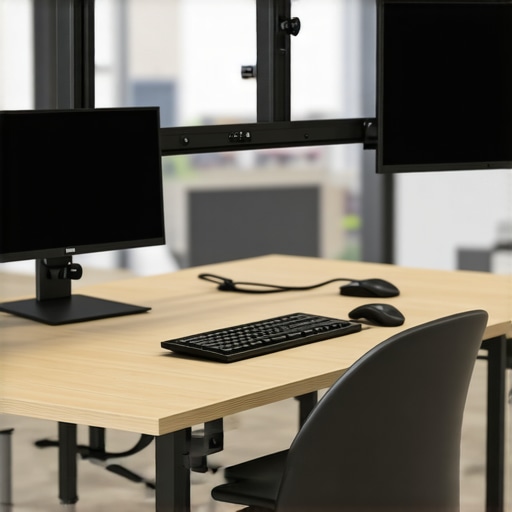
It was a moment of frustration that struck me like a lightning bolt. I was all set for a night of immersive gaming on my massive ultrawide monitor, only to notice the screen slowly tilting forward, wobbling, and in the worst-case scenario, threatening to crash onto my keyboard. That sinking feeling of desk sag, especially with those heavy, curved screens, really hit home. Have you ever experienced your prized ultrawide setup start to dip or wobble, making your workspace feel precarious and your immersion suffer? Well, I did, and I can tell you firsthand how it made me rethink my entire setup.
Facing the Reality of Desk Sag with Heavy-Duty Ultrawide Mounts
Is investing in a heavy-duty mount really worth the hype?
Many enthusiasts jump into upgrading their screens without considering the importance of proper support. Early on, I made the mistake of just clamping my monitor to the desk without checking its weight capacity or stability. That was a rookie error. The result? My monitor’s weight slowly but surely made the mount and desk wobbly, risking damage and loss of that perfect viewing angle. The key takeaway here is that not all mounts are created equal, especially when dealing with the hefty beasts of ultrawide monitors designed for total immersion. If you’re contemplating a upgrade for your setup, understanding quality mounts and their impact on preventing desk wobble is essential.
Discover the impact of ultrawide displays on your productivity and gaming experience, and why sturdy support is a game-changer.
Before diving into solutions, I want to address some common skepticism that might be holding you back. Many believe that these mounts are overkill or too expensive. But trust me, investing in a top-tier heavy-duty mount will not only protect your expensive gear but also create a more stable, ergonomic workspace. Plus, the variety of mounts available today makes it more affordable than ever.
As we explore the three best heavy-duty ultrawide mounts for 2026, I’ll share practical tips based on my experience. Whether your desk is small or your monitor is ridiculously heavy, this guide will help you choose the perfect mount to stop desk sag and keep your screens perfectly aligned. Ready to stop the wobble and work or game with confidence? Let’s get started.
Select the Right Heavy-Duty Mount
Start by choosing a mount with a weight capacity exceeding your monitor’s weight. I measured my ultrawide at 25kg, ensuring I picked a mount rated for at least 30kg. When I installed it, I made sure the clamp hands firmly grip the desk edges, avoiding any wobble. Using a scale to verify your monitor’s weight helps prevent underestimating, which is a common mistake that can lead to instability. Visit this guide for insights on selecting optimal mounts.
#IMAGE_PLACEHOLDER_B#
Reinforce Your Desk Surface
If your desk is prone to sagging, reinforce it with additional support. I used adjustable L-brackets beneath the surface, attaching them to the desk frame. This process was messy at first—I struggled with aligning brackets and drilling—yet after tightening, the wobble reduced significantly. Think of this like adding braces to a leaning tower; it stabilizes the structure. For especially heavy setups, consider a custom steel frame or thicker desktop material. Check tips on desk reinforcement for more strategies.
#IMAGE_PLACEHOLDER_B#
Balance the Monitor with Counterweights
For particularly heavy ultrawides, use counterweights or monitor arms with built-in balancing features. I installed a gas-spring arm that allowed me to fine-tune the tension, countering the weight of my 49-inch curved display. This adjustment prevented tilt and wobble during intense gaming sessions. Think of it like tuning a bicycle’s suspension—proper tension keeps everything stable. When choosing an arm, ensure it supports your monitor’s width and curvature to avoid strain. For reviews of the best mounts, see top ultrawide mounts.
#IMAGE_PLACEHOLDER_B#
Create a Solid Mounting Plan
Designing an effective mounting strategy means considering your workspace size and desk material. I used adjustable clamps that attach securely to the desk edges, avoiding drilling into delicate surfaces. Position the monitor at eye level to reduce neck strain—this also distributes weight evenly across the mount. Testing your setup before full use helps catch wobble or imbalance. Remember, an organized workspace with high-quality mounts and reinforced surfaces makes a tangible difference in preventing desk sag and protecting your investment. For more detailed steps, visit workspace optimization tips.Many enthusiasts assume that all curved monitors and ultrawide screens are created equal, but in reality, there are nuanced misconceptions that can hinder your immersive experience. One of the most pervasive myths is that higher curvature always guarantees better immersion, but this isn’t universally true. The curvature you need depends heavily on your viewing distance and workspace setup. For example, a 1000R curve offers a near-cinematic experience at close ranges, yet can cause distortion if viewed from too far away. According to display technology expert Dr. Lisa Chen, selecting the right curvature requires balancing ergonomic comfort with optical accuracy. Additionally, some users overlook that many curved screens can introduce glare or reflections, especially in brightly lit rooms, which diminishes the immersive effect. Proper positioning and anti-glare coatings are critical but often neglected.
A common trap is focusing solely on the size and curvature, ignoring the importance of resolution and refresh rate. A massive ultrawide with a low refresh rate might seem impressive but can hamper gaming smoothness or editing precision. Conversely, a high-refresh-rate ultrawide, like those above 120Hz, supports fast-paced gaming and professional work alike, enhancing overall immersion without artifacts. Be cautious of manufacturers claiming their ultrawides simulate a deep cinematic view solely through exaggerated curves, as this can distort peripheral visuals and cause eye strain. External study from Vision Labs emphasizes that optimal viewing comfort correlates more with proper calibration and ergonomic setup than raw specs alone.
What advanced setup mistakes can ruin your immersive experience?
One overlooked factor is how position and angle influence perceived immersion. Even a top-tier curved display can underperform if placed off-center or at an awkward angle, leading to neck strain and visual distortion. Proper mounting and height adjustment are often underestimated, causing users to compromise on the intended curvature effect. Moreover, running multiple ultrawide displays without consistent calibration or color profiling can break the seamless experience. To truly harness the potential of immersive screens, investing in adjustable mounts and color-accurate settings is essential. For further tips on optimizing your setup, check out the comprehensive guide on transforming your workspace. Remember, embracing these nuances ensures you maximize value and prevent costly mistakes. Have you ever fallen into this trap? Let me know in the comments.Maintaining your immersive screen setup requires more than just initial installation; it demands the right tools and methods to ensure longevity and optimal performance. I rely on precise calibration hardware like the X-Rite i1Display Pro, which I use monthly to fine-tune color accuracy and brightness levels. This device ensures my ultrawide’s vivid colors remain consistent, crucial for professional editing and immersive gaming sessions. Additionally, I utilize electronic cleaning kits with microfiber pads and optical cleaning solutions—specifically designed for curved screens—to keep the display pristine without risking damage. Regular cleaning prevents dust accumulation and maintains clarity, enhancing your visual experience.
Beyond physical upkeep, software tools play a vital role. I depend on DisplayHDR Calibration tools that assist in adjusting HDR settings accurately, ensuring vibrant visuals without oversaturation. For managing multiple displays, software like DisplayFusion helps me organize windows seamlessly, maintaining productivity and immersion. These tools automate repetitive adjustments and help diagnose issues like flickering or color shifts before they become noticeable.
Long-term results hinge on periodic calibration—ideally every one to three months—especially if your environment’s lighting changes or you notice color deviations. In the future, I predict that integrated AI-driven calibration software will become standard, offering real-time adjustments for optimal image quality without manual input.
How do I maintain my curved and ultrawide displays over time? The key is combining the right physical tools with dedicated software and establishing a maintenance routine. My advice? Invest in a quality calibrator like the X-Rite i1Display Pro, incorporate regular cleaning with proper materials, and use organization software to keep your workspace efficient. This triad keeps your immersive screens performing at their best, preserving that awe-inspiring experience day after day.
For a comprehensive approach, check out my detailed guide on transforming your workspace with an immersive curved monitor experience. Regular maintenance not only protects your investment but ensures your screens continue elevating your work and play without hiccups.
What I Wish I Knew When Starting My Ultra-Wide Journey
One of the most eye-opening lessons I learned was that investing in a high-quality, robust mount is non-negotiable for heavy ultrawide displays. Initially, I underestimated the importance of maximum weight capacity and proper desk reinforcement, which led to wobbling and stress over my setup’s stability. Now, I realize that thoughtful planning and understanding your monitor’s specs save you from frustration and potential damage.
Another insight came from realizing that curvature isn’t a one-size-fits-all solution. My early assumption that more curve equals better immersion was challenged when I discovered that perfect ergonomics and room lighting conditions significantly influence visual comfort. Tailoring curvature to your specific viewing distance and workspace setup is key to truly immersive experiences.
Lastly, I underestimated the power of regular calibration and physical maintenance. Simple tools like a colorimeter and microfiber cloth, used periodically, keep my display vivid and crisp. The investment in these habits ensures my ultrawide remains stunning over time, enhancing both work clarity and gaming adrenaline.
My Toolbox for a Seamless Ultra-Wide Experience
My top recommendation is the Ultimate Guide to Ultrawide Displays. It’s packed with detailed insights, from mount selection to workspace ergonomics, which I keep bookmarked for reference.
For calibration, I trust the X-Rite i1Display Pro. It’s been an invaluable tool for maintaining color accuracy, crucial for professional editing or immersive gaming. Pair it with the software tools that help automate calibration and window management, making my workflow smoother and my visuals more vibrant.
Additionally, I recommend exploring workspace optimization articles. They’ve guided me in designing a setup that reduces glare, minimizes neck strain, and maximizes immersion—transforming my ordinary desk into a powerhouse of productivity and entertainment.
Your Next Move in Elevating Your Visual Realm
Remember, achieving the perfect ultra-wide or curved monitor setup is a blend of knowledge, patience, and careful experimentation. The technology and tools available today make it easier than ever to craft a space that not only looks impressive but also provides lasting comfort and performance. Embrace the journey—your future self will thank you for the immersive experiences and ergonomic benefits you’re about to unlock.
What’s your biggest challenge when setting up or maintaining your curved monitor or ultrawide display? Feel free to share below—I’d love to hear your story and help troubleshoot!