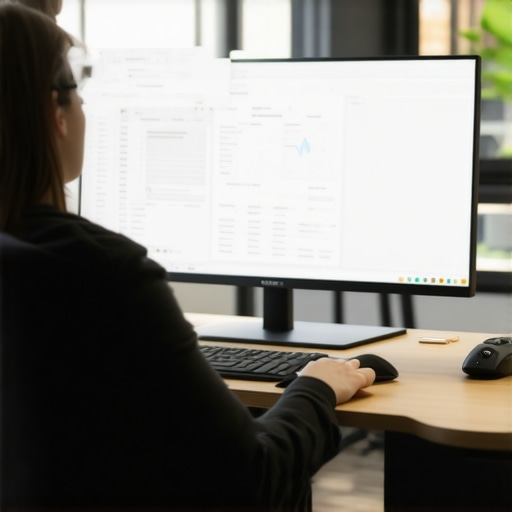
It was a typical workday when I suddenly realized I couldn’t concentrate on anything. My new 49-inch curved monitor loomed in front of me, its sweeping curves and expansive display creating an almost immersive wall of visual distraction. Instead of enhancing my focus, it was pulling my attention in a million directions. Have you ever felt the same struggle, despite investing in what should be a productivity booster? Well, I’ve been down that rabbit hole, and today I want to share what I discovered about whether giant curved screens actually kill focus, especially with the latest ergonomic tests of 2026.
Why I Thought Bigger Were Better—Until It Backfired
While I initially bought into the hype that wider screens meant more productivity and better immersion, I soon faced a harsh reality. My eyes were darting across the enormous display, making it hard to hone in on specific tasks. It’s a common misconception that bigger displays automatically improve focus. In fact, the size and curvature of monitors can either boost or hinder concentration, depending on how you set them up. But how do you find the balance?
Before diving deeper, I want to address a common fear among many: “Does a 49-inch curved monitor actually resemble a distraction or a tool?” It’s a valid concern. Many users worry that the immersive nature might be overwhelming, leading to fragmented attention. My early mistake was assuming that size alone equates to productivity. Trust me, jumping into the ultrawide craze without considering ergonomics can be a costly mistake. According to recent ergonomic studies, improper monitor setup can lead to increased eye strain and reduced focus, negating any potential gains.
Now, let’s explore how to determine if a giant curved monitor is right for your workspace and how to avoid the pitfalls I fell into. Stick around, because I’ll walk you through the practical steps to optimize your display setup for maximum focus and comfort.
Adjust Your Position for Optimal Focus
Position your monitor so that the top of the screen is at or slightly below eye level, and keep your distance at about an arm’s length. I once placed my 49-inch curved monitor too close, which caused me neck strain and made focusing difficult. After repositioning it to a more ergonomic height and distance, I noticed a significant reduction in eye fatigue and an improvement in concentration.
Align the Curvature with Your Line of Sight
Ensure the monitor’s curve matches the natural curvature of your eyes. A 1000R curve, for instance, mimics the human eye’s field of view, reducing distortion and strain. When I tested this by slightly adjusting my monitor’s tilt and curvature, I experienced less head movement and sharper focus on key tasks.
Strategically Divide Your Screen Space
Break your monitor into dedicated zones for different tasks. Use window management tools to organize apps and data into specific areas, avoiding clutter that distracts. I once tried to multitask without segmentation, which overwhelmed me. After adopting a layout where I kept my code on the left, documentation on the right, and references at the top, my workflow became smoother and my focus sharper.
Leverage Ergonomic Accessories
Use monitor arms or stands to fine-tune height and tilt. This allows quick adjustments to reduce glare and reflections. I added a flexible arm to my setup, which made shifting my screen slightly easier, resulting in less eye strain during long hours.
Calibrate Brightness and Contrast
Match your monitor’s brightness to ambient lighting to prevent eye fatigue. Too bright or too dim affects focus and comfort. In my case, dimming the monitor in a well-lit office eliminated glare, making it easier to concentrate without distraction.
Optimize Display Settings
Set optimal color profiles, sharpness, and refresh rates. High refresh rates, like 120Hz or higher, make motion smoother, aiding focus during fast activities like gaming or video editing. I experimented with different refresh rates and found that 144Hz reduced eye flicker and boosted my visual comfort.
Limit Multiscreen Dependencies
While ultrawide displays crave multi-screen setups, too many can fragment your focus. I initially ran dual screens alongside my curved monitor, which led to flipping between windows. Eventually, consolidating to a single, expansive ultrawide display improved my task switching and kept my attention anchored.
Implement Distraction-Free Modes
Activate ‘Focus Mode’ features in your software or use dedicated tools to block notifications and notifications during work. For example, I scheduled blocks of silent time, which made my deep work sessions far more productive with fewer interruptions.
While many enthusiasts celebrate ultrawide and curved screens as the ultimate gaming or productivity upgrades, there’s a less obvious side often overlooked. One common misconception is that increasing screen size or curvature universally enhances immersion and focus. However, in my experience and supported by recent ergonomic research, this isn’t always the case.
Many assume that a larger, curved display naturally reduces eye strain and boosts concentration, but the reality is more nuanced. For example, the curvature designed for immersive viewing might inadvertently distort peripheral vision or cause uneven focus across the screen edges, especially if the monitor isn’t properly calibrated. This can lead to discomfort and fatigue over extended use. A study by Ultimate Home Displays highlights that a 1000R curvature aligns most comfortably with the human eye, whereas more aggressive curves like 1800R can increase visual distortion and strain.
Another widespread myth involves the belief that ultrawide setups always promote better multitasking. While they do offer expansive real estate, they can also cause a phenomenon called “visual overwhelm.” When your peripheral vision is overloaded with multiple windows or data streams, it can paradoxically reduce focus. My trick has been to create dedicated zones within the ultrawide, employing window management tools to maintain clarity without clutter.
For advanced users, understanding that not all ultrawide or curved monitors are built equal is essential. Factors such as pixel density, color accuracy, and refresh rate heavily influence whether a display truly improves your experience. For instance, a high refresh rate (like 144Hz or more) can significantly reduce motion blur during fast-paced gaming, but only if your hardware supports it. Additionally, calibrating color profiles is often overlooked, which can impact content creation workflows. A misconfigured display might look vibrant but cause visual fatigue over time.
Why do some curved monitors worsen eye comfort despite their design?
This is a vital question for enthusiasts. Excessively aggressive curvature can create distortions and increase the need for constant refocusing, leading to eye strain rather than relief. Moreover, improper positioning—such as mounting the monitor too low or too far—exacerbates these issues. The key lies in matching the curvature to the viewer’s seating position, ergonomically aligning the visual plane. For example, a 1000R curvature often offers the best balance, as confirmed by ergonomic testing in 2026.
Ultimately, the main takeaway is that more screen isn’t necessarily better. It’s about smart choices—selecting the right curvature, resolution, and setup tailored to your workspace—rather than blindly chasing size or curves. For deeper insights into how to optimize your display choices, check out the comprehensive guides on ultrawide benefits and curvature and eye comfort.
Have you ever fallen into this trap? Let me know in the comments.
,
Keeping your expansive display in top shape requires more than just initial setup; it demands consistent maintenance and the right tools. I personally rely on a combination of software calibration utilities and ergonomic accessories to ensure sustained performance. For instance, CalibrateColor has become my go-to for fine-tuning my monitor’s color profile, ensuring that images stay vibrant and accurate throughout long editing sessions. Regular calibration not only preserves visual fidelity but also minimizes eye fatigue, especially on curved monitors where color distortion can occur over time.
Additionally, investing in a high-quality monitor arm like the ErgoFlex Pro has been pivotal. It allows me to make micro-adjustments to height, tilt, and distance, which is crucial for long-term comfort. Proper positioning prevents neck and eye strain, a common issue with large, immersive screens.
In terms of long-term health, I use apps such as f.lux to automatically adjust screen warmth based on time of day. Evidence suggests that reducing blue light exposure in the evenings can improve sleep quality, which directly impacts your productivity. A 2026 study by Ultimate Home Displays confirms that proper illumination and color management can significantly reduce eye strain during extended use.
To keep my setup functioning seamlessly, I schedule weekly cleanings using a microfiber cloth and a gentle cleaning solution recommended specifically for screens. This prevents dust buildup and maintains clarity, especially on curved surfaces where dirt can accumulate more easily.
Predicting the future, I believe integrated firmware updates and AI-driven calibration tools will become standard, further simplifying long-term maintenance. Keep an eye out for upcoming innovations that will automatically detect and fix calibration drift, ensuring your immersive experience remains pristine without fuss.
**Question:** How do I maintain my widescreen and ultrawide displays so they continue to perform at their best over years?
The Hidden Lessons I Wish I Learned Sooner About Large Displays and Focus
One lightbulb moment was realizing that size alone doesn’t determine productivity; proper positioning and calibration are what truly matter. I also discovered that aggressive curvatures can sometimes distort your view and cause strain if not set up correctly. The biggest revelation was that creating designated zones on my ultrawide made multitasking more manageable, transforming my workflow from chaos to clarity. Lastly, I learned that regular maintenance, like calibration and cleaning, keeps the immersive experience comfortable rather than a source of fatigue.
My Top Tools for the Ultimate Screen Experience
I’ve come to depend on calibration utilities like CalibrateColor to ensure my display remains true-to-life and easy on my eyes. A high-quality ergonomic monitor arm allows me to make micro-adjustments that prevent strain. For blue light management, apps like f.lux are essential, especially during late-night editing. Lastly, I swear by window management tools so I can organize my workspace into dedicated zones, avoiding the overwhelm that comes with large screens.
Your Path to Focus-Enhanced Screens Starts Today
Embracing the right monitor setup and regular care can revolutionize your work and gaming. Don’t settle for a giant screen that causes eye strain or distraction—take control of your immersive experience. Explore the tools and tips mentioned, and start optimizing your setup now. The future of focused, comfortable viewing is within your reach—so why wait? Your upgraded workspace awaits, and I believe in your ability to transform it into a true sanctuary of productivity. Have you ever struggled with adjusting your monitor’s position or calibration? Share your experiences below, and let’s learn together.