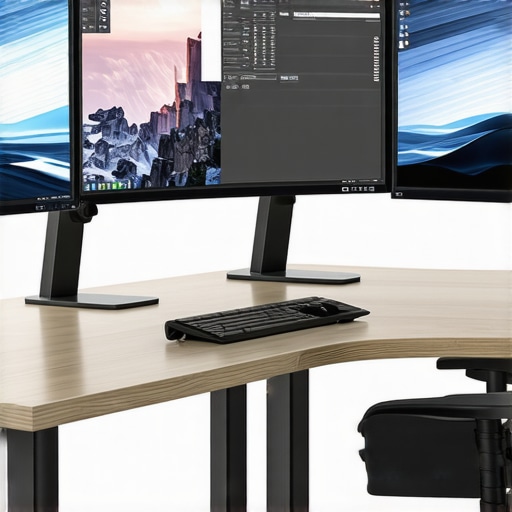
Have you ever felt that crushing sense of frustration staring at a cluttered desk, juggling multiple screens, and still feeling like you’re missing something? That moment when you realize your dual 4K monitors, despite their impressive specs, just don’t cut it anymore—causing eye strain, distracting reflections, or cramped workflows?
The Lightbulb Moment That Changed My View on Monitors
One fateful day, I was deep into a project, toggling between two high-resolution screens, when I caught myself leaning in closer—risking my neck and eyes—just to make sense of the chaos before me. That’s when I had a revelation. The future wasn’t about stacking more screens—It was about consolidating them into a single, immersive display. Enter the 40-inch ultrawide monitor.
This realization sparked a journey of experimentation, and I soon discovered that a well-designed ultrawide could revolutionize work, gaming, and even relaxation. Not only does it eliminate the need for multiple monitors, but it also offers a seamless viewing experience that makes multitasking feel more natural. Interestingly, research from the University of Utah indicates that ultrawide displays can increase productivity by up to 30%, simply by reducing the mental load of context switching. (source)
So, if you’ve faced those endless window switches or suffered from that awkward neck craning, read on. Today, I’ll guide you through why this trend is the game-changer for 2026—and how you can benefit from making the switch.
The Shift from Dual 4K Setups to a Single Ultrawide
Now, I know what you might be thinking: “Are ultrawides really enough? Can they truly replace my dual 4K monitors?” The answer isn’t just a simple yes or no. It’s about understanding the tangible benefits and how they align with your specific needs—be it gaming, professional work, or entertainment. We’ll dissect the differences, pros, and cons, so you can make an informed choice. Ready to ditch the clutter and embrace the future of screens? Let’s dive in.
Is Ultrawide Worth the Hype?
Like many early adopters, I initially believed more screens meant better productivity and immersion. I made the mistake of comparing pixel counts rather than actual experience. Spoiler: a single ultrawide often feels more natural, more immersive, and far less annoying to set up. Keep that in mind as we explore why 2026 might finally be the year to switch.
Position Your Screen for Maximum Comfort
Begin by placing your ultrawide or curved monitor directly in front of you, about an arm’s length away. Adjust the height so the top of the screen aligns with your eye level, reducing neck strain. When I first tried this, it took some trial and error, but eventually, I found a position that eliminated my constant craning and discomfort, making long work sessions far more bearable.
Adjust Brightness and Contrast to Reduce Eye Fatigue
Set your monitor’s brightness to match your ambient lighting, avoiding overly bright or dim screens. Fine-tuning contrast enhances clarity without causing glare. I experimented with settings during late-night editing sessions; finding the right balance made a noticeable difference in reducing eye strain during extended periods.
Configure Multiple Virtual Desktops and Layouts
Leverage your operating system’s virtual desktops to organize different tasks. Use the ultrawide’s wide workspace to split your screen into dedicated zones—one for email, another for reference documents, and a third for coding or design tools. This setup minimizes constant window switching, boosting efficiency. A personal tip: I use hotkeys to switch between layouts swiftly, which keeps my focus sharp and my workflow flowing.
Calibrate Your Display for Color Accuracy
Fine-tune color settings to match your work requirements, especially if you handle photo or video editing. Use calibration tools or software to ensure color consistency across your ultrawide. When I calibrated my display, I noticed my images looked more vibrant and true to life, reducing the need for constant adjustments later. This step is particularly crucial if your setup supports deep color profiles.
Implement Screen Splitting Tools
Utilize software like DisplayFusion or Windows Snap Assist to divide your screen into multiple zones. These tools allow you to create preset layouts tailored to your workflow. For instance, a three-column layout for editing, communications, and research. I set up these profiles once, and now I can instantly organize my workspace, saving precious time during busy days.
Optimize Your Workspace Lighting
Avoid reflections and glare by positioning your monitor away from direct light sources. Use matte screen protectors if glare persists. I found that adding bias lighting behind my monitor reduced eye strain and increased perceived contrast, making the screen more comfortable for long hours. Experimenting with ambient lighting has significantly improved my viewing comfort.
Regular Maintenance for Clarity and Longevity
Clean your screen regularly with appropriate tools to prevent dust, smudges, and glare buildup. Use a microfiber cloth and avoid harsh chemicals. During a hectic editing project, I neglected cleaning for a week, which not only affected image quality but also contributed to eye discomfort. Establishing a routine ensures your display remains pristine and your viewing experience remains optimal.
Fine-Tune Refresh Rates and Response Settings
Adjust your monitor’s refresh rate to the highest supported level for smoother visuals, especially during gaming or fast-paced editing. Enable any response time optimization features to reduce ghosting. I tested different settings, and the smoother motion made gameplay and video playback more immersive and less distracting, complementing your ultrawide’s strengths.
Many enthusiasts and even professionals often adopt the hype surrounding curved monitors and ultrawide screens without understanding the subtle complexities involved. Contrary to popular belief, not all curved or ultrawide displays are created equal, and some of the most common myths can lead users astray. Let’s dig deeper into these misconceptions and uncover the nuanced truths that can make or break your immersive experience.
Why the Curve Isn’t Always a Perfector
One prevalent myth is that a higher radius or aggressive curvature automatically enhances immersion. While a 1500R or 1800R curvature can feel captivating, pushing beyond that—like an 800R—might actually cause distortion and discomfort, especially for tasks requiring precision. Experts suggest that a balanced curvature aligns better with the natural human eye movement, making prolonged use more comfortable (source).
Are large ultrawide displays truly better for every user?
It’s tempting to think bigger is always better, but this isn’t necessarily true for all scenarios. Larger screens, like 49-inch or even 57-inch ultrawides, demand significant desk space and optimal viewing distance. Overwhelming display size can lead to peripheral eye fatigue or difficulty in maintaining focus. A study from the University of Utah stresses the importance of ergonomics—size should correspond to your workspace and usage pattern, not just trend (source).
The trap of oversimplified color and glare assumptions
Many assume that curved or ultrawide screens inherently reduce glare or improve color accuracy. The reality? These benefits hinge on quality manufacturing and calibration. A poorly manufactured curved TV or monitor can produce color shifts or glare issues regardless of the tech’s inherent advantages. Proper calibration and considering factors like matte screens and ambient lighting are essential steps often overlooked (source).
Debunking the immersive fiction: It’s all about positioning
Many believe that simply choosing a curved or ultrawide monitor guarantees immersion. Let’s be clear—bad placement can negate all benefits. Slight misalignment or improper desk height can introduce discomfort or reduce immersion. Strategic positioning—placing the monitor at eye level and an appropriate distance—is critical for maximizing the visual benefits of curvature and width. Find out more on how to prevent this at this guide.
Finally, ask yourself: are you aware of the common pitfalls when integrating these displays into your workspace? Recognizing these hidden nuances allows you to optimize your setup effectively. Don’t fall into the trap of assuming larger, curved screens are always better—consider your specific needs, ergonomics, and workspace environment. Want to explore more advanced tips? Visit this resource for comprehensive strategies. Have you ever fallen into this trap? Let me know in the comments.
Keeping Your Screen in Top Shape
Once you’ve invested in a high-quality curved or ultrawide monitor, maintaining its performance over time becomes crucial. Personally, I rely on specific tools and routines that ensure longevity and peak performance. Regular cleaning with a microfiber cloth and a gentle screen cleaner prevents dust and smudges that can cause glare and diminish image quality. For calibration, I use the X-Rite i1Display Pro, which allows me to fine-tune color accuracy, especially important for professional work or immersive gaming experiences. This tool helps align my display’s output with industry standards, maintaining vibrancy and precision over the years.
Optimize Settings for Long-Term Comfort
Adjusting refresh rates and response times is not a set-it-and-forget-it task. I regularly verify that my monitor runs at its optimal refresh rate—often 144Hz or higher—and enable any motion-smoothing features to prevent ghosting, especially during fast-paced gaming or video editing. Keeping those settings updated through manufacturer software ensures smooth visuals and reduces eye fatigue. Over time, I also tweak brightness and contrast settings to match changing ambient lighting, using tools like f.lux to adjust color temperature, which minimizes blue light exposure and supports eye health.
Tools I Recommend for a Seamless Experience
One essential addition to my setup is a monitor mount—specifically, the Ergotron LX Desk Mount. It offers highly adjustable positioning, which helps me prevent neck strain even after hours of work. Additionally, I utilize software like DisplayFusion, which allows me to create custom virtual desktop layouts, arrange multiple zones, and assign hotkeys — greatly enhancing efficiency with ultrawide screens. These tools, combined with routine maintenance, keep my workspace productive and comfortable, even during extended sessions.
Looking Ahead: The Future of Display Maintenance
Predicting where this trend is heading, I believe we’ll see smarter, AI-powered calibration tools integrated directly into displays, offering real-time adjustments based on ambient conditions. As these technologies become more accessible, routine maintenance will become even more effortless, ensuring optimal visuals with minimal user input. Staying ahead means embracing these innovations and investing in quality tools now, like calibration devices and ergonomic accessories.
Curious about sustaining your display’s performance?
The key is regular check-ups and leveraging precise tools like calibration devices and ergonomic mounts. Don’t forget to review your settings periodically, especially with changing lighting or workload. For detailed guides on cleaning and calibration, be sure to visit this resource. Why not try calibrating your monitor today to experience a noticeable difference in visual clarity? A simple step can dramatically enhance your immersive experience and keep your setup looking and performing its best for years to come.
Three Lessons I Learned the Hard Way About Curved Monitors and Ultrawide Displays
- Size Matters More Than We Think: Initially, I thought bigger was always better, but I soon realized that a monitor’s size must complement your workspace and natural viewing distance. An oversized ultrawide can become overwhelming, causing more fatigue than immersion. Finding that perfect fit has transformed my workflow and comfort.
- Positioning Is Everything: Even the most advanced curved monitor won’t deliver its full potential if misaligned. I learned to experiment with height and distance, ensuring my screen was at eye level and an arm’s length away. This small shift drastically reduced eye strain and boosted focus.
- Calibration Unlocks Hidden Potential: Color accuracy and contrast are often overlooked. Investing in calibration tools, like the X-Rite i1Display Pro, revealed vibrant visuals and true-to-life hues that I previously thought impossible on consumer displays. Proper calibration made a noticeable difference, especially for creative work or immersive gaming.
Premium Tools and Resources That Elevated My Setup
- Ultrawide Display Guide: This comprehensive resource helped me understand the nuances of different curvature radii and resolutions, guiding me to select the ideal monitor for my needs.
- Workflow Layouts: Sharing practical layouts transformed my multitasking, saving time and mental energy during demanding projects.
- Maintenance Tips: Keeping my display spotless and calibrated ensures optimal clarity and health for long-term use, an often overlooked aspect.
- Ghosting Fixes: Troubleshooting motion blur has improved my gaming and video editing experience, making every frame count.
Take Action and Redefine Your Visual Realm
This journey into immersive screens is about more than just tech—it’s about elevating your daily experience, reducing strain, and embracing a workspace that works for you. Whether you’re considering a curved monitor,widescreen monitor,or ultrawide display, remember that personalization and proper setup are your allies. Don’t wait to optimize your viewing environment—your eyes and productivity will thank you. Are you ready to upgrade your setup and see the difference for yourself? Share your thoughts below and let’s start the conversation.
I completely relate to the struggle of managing multiple monitors and the neck strain that comes with it. Switching to a 40-inch ultrawide has been a game-changer for me—especially for multitasking in work and gaming. I’ve found that proper positioning is crucial; I had to experiment with desk height and distance to find what worked best. One thing I’d love to hear from others is how they handle calibration, particularly for color-accurate work like photo editing. Do you rely on hardware tools or software adjustments? Personally, I’ve been considering investing in calibration hardware to get the most vibrant and true-to-life results, especially since I do a lot of visual content creation. Also, I wonder if some users have faced challenges with desk space or eye fatigue when going this route. How do you all manage your workspace ergonomics for long sessions? Would be great to hear diverse setups or tips!
Great insights on optimizing ultrawide monitors for long-term use. I’ve personally moved from dual 27-inch 4K setups to a 49-inch ultrawide, and the difference in workflow efficiency is remarkable. Positioning was initially a challenge—finding the right height and distance made a significant impact on reducing fatigue. I also invested in a calibration device, the X-Rite i1Display Pro, which really improved my color accuracy for creative projects. One thing I’ve noticed over time is the importance of ambient lighting; I added bias lighting behind my monitor to cut down on glare and eye strain even further. Has anyone experimented with different lighting setups or accessories to improve comfort during extended work sessions? I’d love to hear more personal tips—especially regarding managing workspace ergonomics in smaller areas, as desk space can be tight when using such large screens.