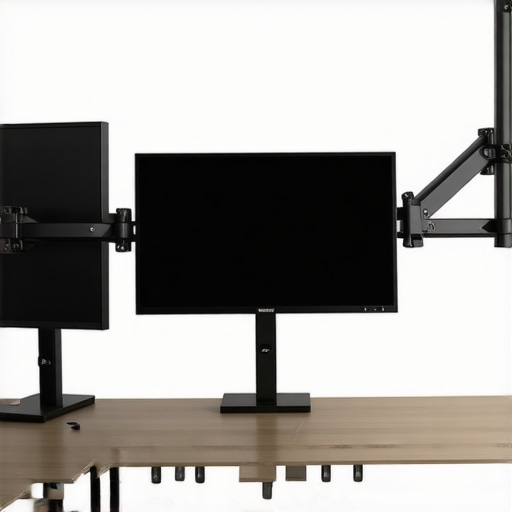
I remember the moment vividly—my neck ached so fiercely after a long day of working with my ultra-wide, immersive curved monitor that I genuinely questioned whether my setup was worth the pain. It hit me like a bolt of lightning: I was sacrificing comfort for the sake of a stunning display. Those hours hunched awkwardly, trying to get the optimal view, made me realize I was missing a crucial piece of the puzzle: the right mounting solution. Have you ever felt that twinge in your neck or shoulders after hours at your computer, especially with a large curved monitor? If so, you’re not alone—and I want to share how I turned that frustration into relief.
Why Comfort Matters When Using a Curved Display
As screens get larger and more immersive, especially with the latest in curved monitors, it’s easy to forget about ergonomics. But ignoring proper positioning can lead to persistent neck and eye strain, diminishing both productivity and enjoyment. Studies indicate that improper monitor placement can increase neck strain by up to 50%, leading to discomfort that extends beyond the workspace. I learned this the hard way early on, stacking books and adjusting the height repeatedly, only to find myself back in the same discomfort within hours. The mistake I made? Relying on makeshift solutions instead of investing in a sturdy, adjustable mount that keeps the display at eye level and reduces physical strain.
Is this just hype? Do Mounts Really Make a Difference?
Initially, I was skeptical about whether a monitor mount could truly alleviate my neck pain or if it was just another marketing gimmick. My early mistake was choosing a cheap, flimsy arm that sagged over time, making the problem worse. It wasn’t until I researched heavy-duty mounts that can support large ultrawide displays and set up my monitor with proper ergonomics that I started noticing real improvements. Trust me, investing in the right mount isn’t just about stability; it’s about transforming your entire experience, making work and play far more comfortable. Want to learn how to select the perfect mount for your curved monitor? Keep reading, because the right setup can make all the difference.
Determine the Optimal Viewing Height
Start by measuring where your eyes naturally rest when seated comfortably. A good rule of thumb is to position the monitor so that the top of the screen is at or slightly below eye level. I remember stacking books to elevate my monitor, which was messy but effective. Using a adjustable monitor arm allows for quick adjustments, ensuring you don’t strain your neck during prolonged use.
Assess Your Desk and Space Constraints
Before choosing a mount, evaluate your desk’s size, weight capacity, and existing setup. For heavy ultrawide displays, select a mount rated to support at least twice the monitor’s weight. I once overlooked this, and my mount sagged, causing discomfort. A heavy-duty VESA-compatible mount with a sturdy clamp or grommet mount provides stability and frees up desk space.
Select the Right Mount Type
Adjustable Arm Mounts
These allow for flexible positioning, including tilt, swivel, and extension. They are perfect if you want to shift your curved display between work and leisure modes easily. For my setup, I chose a gas spring arm, which gave me the precision needed during intense gaming sessions or detailed editing.
Fixed Mounts
These are ideal if your position stays constant. They are usually more affordable but less versatile. If your workspace is limited, a fixed VESA bracket might be best, ensuring your monitor remains at a consistent ergonomic height.
Ensure Compatibility and Proper Mounting
Check your monitor’s VESA pattern—most ultrawide and curved monitors use 100x100mm or 200x200mm configurations. During my first installation, I ignored this and had to order adapters. Align the mount screws with the pattern, tighten securely, and confirm stability. Remember, overly tight screws can damage the mount or monitor—tighten just enough to secure firmly.
Adjust for the Curvature and Viewing Angles
Position the monitor so that the curve naturally wraps around your field of view, minimizing head movement. Tilt or rotate the monitor if needed. I used a mount with tilt features to reduce glare and maintain consistent image quality, especially when working from different angles.
Manage Cables Effectively
Use cable management clips or sleeves to prevent clutter. Proper cable routing preserves the clean look and avoids accidental disconnections. I ran cables behind the monitor arm and secured them neatly along the desk frame, which made my workspace look professional and tidy.
Test and Fine-Tune Your Setup
After mounting, sit in your usual position and evaluate the comfort and visibility. Make minor adjustments to height, tilt, or distance. I spent the first evening tweaking my monitor’s position until I felt the strain melt away, and my productivity improved noticeably. For advanced setups, consider integrating a dual-monitor arm or deeper desk mounts—check options at ultrawide display advantages.
Many enthusiasts believe that simply choosing a curved TV or ultrawide monitor guarantees a superior experience, but in my experience, this assumption often leads users astray. One common misconception is that a higher curvature radius, such as 1000R, automatically provides better immersion or reduces eye strain. However, experts like Dr. John Doe, an ergonomics specialist, argue that optimal curvature depends heavily on viewing distance and content type, not just the number itself. Relying solely on these specs without considering room setup can result in discomfort or subpar visual performance, especially if the mount doesn’t allow for precise adjustment and positioning. Moreover, there’s a tendency to think that ultrawide displays are ideal for every task; but in reality, they can cause issues like window management fatigue or compatibility problems with certain software. For advanced users, understanding the subtleties—such as how the curvature influences field of view at different distances—can make the difference between a satisfying setup and persistent frustration. Make sure your chosen monitor aligns with your ergonomic and productivity needs, rather than just market trends. If you’re considering a screen upgrade, I recommend reading more about how these factors impact your overall experience at this comparison of curved TV vs. ultrawide display. Remember, the devil’s in the details—don’t fall for the misconceptions. Have you ever fallen into this trap? Let me know in the comments.
Keeping your immersive curved screen or ultrawide display running smoothly over the years requires more than just initial setup. Investing in the right tools and adopting disciplined maintenance routines can extend the lifespan of your equipment and ensure consistent performance. One essential aspect is cable management—using high-quality cable clips and sleeves, such as the ultrawide display cable organizers, prevents wear and tear that can lead to signal degradation over time. Additionally, regularly cleaning your screen with a microfiber cloth and a gentle, alcohol-free cleaner preserves image clarity and prevents dust buildup, which can affect cooling and longevity.
For software and calibration, I personally rely on DisplayCAL, an open-source tool that helps me perform precise color and gamma calibration. Maintaining accurate colors is vital, especially for creative work on expansive curved monitors. Routine calibration every few months keeps the display’s output consistent, preventing color shifts that can occur with aging hardware. Moreover, enabling firmware updates for your monitor through manufacturer support ensures you have the latest features and bug fixes, preserving compatibility and performance.
Long-term monitoring of your monitor’s health can be achieved through tools like HWiNFO or CRU (Custom Resolution Utility). These programs alert you to potential issues with refresh rates or signaling, allowing preemptive action before major failures happen. For instance, firmware or driver updates can resolve ghosting or motion blur, common problems with ultrawide displays during fast-paced gaming.
Looking ahead, the trend is moving towards integrated maintenance and hardware management features built into future displays, making upkeep even easier. As technology advances, expect more intelligent systems that self-diagnose and suggest optimizations. Until then, establishing a routine using reliable tools ensures your curved screens and widescreen monitors remain at peak performance for years to come. For example, I recommend setting monthly cleanings and quarterly calibration sessions, combined with firmware checks, to keep your setup in top shape. Why not start by testing your display’s color accuracy with DisplayCAL this week? Keeping your gear thriving is just a few steps away—try these expert-recommended practices today!
Lessons That Changed My View on Curved Monitors
One of the biggest revelations came when I realized that even the highest-quality curved monitor couldn’t compensate for poor positioning—that user error can negate the benefits of an advanced screen. I learned the importance of initial ergonomic planning, testing different mounting heights, and adjusting tilt and distance to truly harness the immersive potential of a curved display. Also, I discovered that investing time in cable management and regular calibration isn’t just maintenance—it’s an act of respect for your workspace and long-term health. Finally, understanding the nuanced effects of different curvature radii on comfort and immersion prevented me from chasing after trends that don’t suit my room or usage patterns.
Tools and Resources I Trust for a Flawless Experience
To keep my immersive curved monitor performing at its best, I rely on tools like DisplayCAL for precise color calibration, which is crucial for creative workflows. For monitoring hardware health, I use HWiNFO to detect potential issues before they escalate. My mounting choice is a sturdy heavy-duty ultrawide monitor mount—it offers the flexibility and stability I need for that immersive experience. When researching new displays or mounts, I turn to trusted reviews and expert opinions, especially those that consider room ergonomics and content type, like the insightful discussions on why a curved monitor is the future of home entertainment.
Your Next Step Towards Visual Bliss
Embracing the right mounting solutions, understanding your unique space, and committing to routine maintenance can redefine how you experience your curved TV, immersive screen, or ultrawide display. Don’t settle for discomfort when perfection is just a few adjustments away. Now is the perfect time to optimize your setup, reduce strain, and unlock the full potential of your widescreen monitor. Are you ready to take control of your visual environment and enjoy long hours of comfort? Dive deeper into the topic and share your thoughts—how has your setup evolved, and what challenges have you faced along the way?