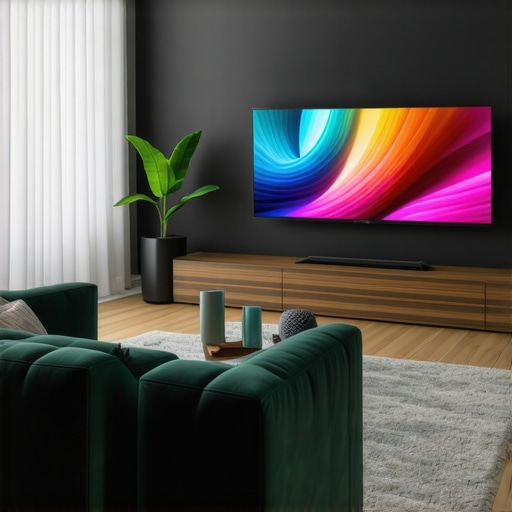
Imagine settling in after a long day, eager to unwind with your favorite show, only to be greeted by a dull, greyish screen that saps the vibrancy out of your entertainment. That frustrating moment hits home for many of us with curved TVs or ultrawide displays—the vivid, immersive experience we crave seems just out of reach because of poor contrast or a screen that looks washed out. I’ve been there myself, initially blaming my new tech or the room’s lighting, only to realize that simple adjustments could breathe new life into my display.
Why Your Curved Screen Might Be Looking Grey and Why It Matters Now
The world of home entertainment has transformed rapidly, with curved TVs and ultrawide monitors promising more immersive experiences. But if your screen appears dull or grey, it can seriously hinder your viewing pleasure, making everything look flat and uninspiring. Personally, I found that my once-vivid visuals lost their punch—colors looked washed out, shadows were hard to distinguish, and the whole experience felt lackluster. This not only affects movie nights but also impacts gaming, work, and even casual browsing.
Contrast is at the heart of this problem. If your display isn’t calibrated correctly, or if your settings are off, the darks won’t be deep enough, and the brights won’t shine through. Shockingly, a report from DisplayMate suggests that a significant portion of display issues are due to suboptimal contrast ratios, which can be fixed with a few tweaks. Yet, many users—myself included at first—fail to realize that these problems aren’t hardware flaws but can often be corrected with simple adjustments.
The good news? Rest assured, you can restore that crisp, vibrant clarity. Over the next sections, I’ll share three tried-and-true fixes I used to combat the greyness on my own curved TV, turning it from a source of frustration into a centerpiece of visual delight. If you’ve been battling this dullness, keep reading—your perfect picture is within reach.
Before diving into these fixes, I want to ask: Have you experienced a similar disappointment where your screen’s contrast just didn’t seem right anymore? If so, you’re not alone. Let’s get to the bottom of this and bring your display back to life.
Start with Basic Settings Adjustment
Begin by accessing your display’s menu to locate picture settings. Set the brightness to a comfortable level—usually around 50-60%—to ensure dark areas aren’t too washed out. Adjust contrast to about 80-90% so bright highlights pop without overpowering the scene. For color, set saturation and hue to default or midpoints, then tweak gradually to match natural tones.
Apply Specific Calibration Tools
Use built-in presets like “Cinema” or “Game” mode for a starting point, then fine-tune further. For more precise calibration, download a calibration disc or utilize software like CalMAN or DisplayCAL. These tools assess color accuracy and gamma levels, guiding you through adjustments that bring out the deepest blacks and most vibrant colors.
Optimize Viewing Environment
Lighting plays a crucial role. Reduce ambient light or eliminate glare—use matte screen protectors if necessary. Adjust room lighting so it doesn’t wash out your display, and position yourself at an optimal angle—about 1-2 meters away with a straight-on view.
Experiment and Fine-Tune
Don’t be afraid to tweak settings multiple times. For example, I once spent an evening adjusting contrast and gamma for my ultrawide monitor. After several iterations, shadows became more detailed, and whites cleaner. Remember, calibration is subjective; aim for what looks best to your eyes rather than obsessing over numbers.
Leverage Advanced Calibration Techniques
If you want to go beyond basics, consider hardware calibration devices like the X-Rite i1Display Pro. These tools measure the display’s output precisely, allowing you to generate custom profiles that ensure consistent color reproduction across all your content. This step is especially helpful if you do photo editing or other color-sensitive work.
Maintain Your Calibration
Calibration isn’t a one-time fix. Over time, screens drift, so revisit your settings every few months. Regular calibration ensures your vivid colors and deep contrasts stay intact, preserving your immersive viewing experience.
Keep in mind that the shape and curvature of your monitor influence how settings affect your view. Curved screens, for example, require unique adjustments to account for their geometry. For a deep dive into how curved monitors can enhance your visual experience, check out this comprehensive overview.
Many enthusiasts believe that choosing a widescreen monitor or a curved TV is simply a matter of preference, but “let’s dig deeper” into some nuanced misconceptions that can impact your immersive experience. A prevalent myth is that larger, ultrawide screens automatically deliver better immersion—that’s only partly true. Proper calibration, viewing distance, and understanding the technology behind curved displays are critical for truly benefiting from these innovations. For instance, some assume that all curved screens reduce eye strain, but without correct curvature and calibration, they can induce discomfort. The key is realizing that not all curved monitors are equal; low-quality curves or improper setup can negate the intended ergonomic advantages. Moreover, many overlook that the field of view (FoV) benefits of ultrawide displays are heavily influenced by the content’s framing and your seating position. If you’re gaming or working with windows spread across a wide canvas, the curvature and ratio matter greatly, but many settle for the hype instead of optimizing each parameter.
A common trap is the belief that ultrawide monitors are only beneficial for gaming or video editing. While they excel in these areas, their productivity advantages for multitasking are often underestimated—think of how editors, developers, and designers leverage that extra horizontal space to streamline workflows. However, an advanced mistake is ignoring the importance of monitor mounting and desk ergonomics, which can diminish the perceived benefits. Using sturdy mounts like those outlined in the “4 strong ultrawide monitor mounts” article can stabilize your setup, ensuring the immersive experience isn’t compromised by wobbling or misalignment.
Have you ever fallen into this trap? Let me know in the comments.
Why Do Some Curved Monitors Fall Short Despite Their Visual Appeal?
This is where many enthusiasts get misled. The allure of a curved display often overshadows the importance of technical specs such as panel type, curvature radius, and HDR capabilities. A 1000R curvature might feel immersive, but if the panel uses inferior IPS technology or lacks proper calibration, the visual payoff diminishes significantly. Additionally, the curvature’s effectiveness is highly dependent on viewing distance and angle. Setting up a curve that’s too aggressive for your desk space can distort images and cause discomfort, negating the promised immersive effect. It’s worth consulting detailed guides, like the one highlighting “why a curved monitor is the future,” to align expectations with real-world performance. Remember, immersive screens aren’t just about size and curvature; they’re about a cohesive synergy of technology, setup, and content optimization.Maintaining optimal performance of your widescreen monitor, curved TV, or ultrawide display requires more than just initial setup. It demands the right tools and consistent vigilance. I personally rely on hardware calibration devices like the X-Rite i1Display Pro because they provide precise color profiling, ensuring my display’s vibrant colors and deep contrasts are preserved over time. This device connects via USB and, with accompanying software, measures your screen’s output, generating a custom profile that compensates for any drift, so your immersive viewing remains consistent. For software-based adjustments, I use DisplayCAL, an open-source calibration tool that allows detailed gamma and color temperature fine-tuning, vital for high-quality ultrawide screens used in photo editing or cinematic viewing. Regular calibration, ideally every three to six months, guards against color shifting and brightness decay, especially as displays age. Additionally, I recommend setting up a consistent review routine—periodically checking contrast and color accuracy with test images or calibration patterns—so you catch performance drops early. As display technologies evolve rapidly, future trends suggest integrating AI-powered calibration assistants that automatically optimize settings based on ambient light and content type, pushing your immersive experience even further. To keep your setup top-notch, consider investing in a mount like the ones discussed in this guide on ultrawide monitor mounts for stabilizing larger screens and preventing wobble, which can compromise image clarity over time. How do I maintain my display’s performance over time? I schedule bi-annual calibration checks and stay informed about the latest calibration tools and best practices in the enthusiast community. This proactive approach ensures my immersive screen continues to deliver stunning visuals, whether I’m gaming, editing, or binge-watching. Given how quickly display tech advances, I predict that AI-driven calibration will become standard, making maintaining optimal setup more effortless and precise—so stay tuned! Next, I recommend trying out advanced calibration routines with hardware tools to see the immediate, noticeable difference in your visual quality.
The Snags I Didn’t Expect When Fine-Tuning My Curved Screen
Even after extensive research, I was caught off guard by how much the small details impacted my immersive experience. I underestimated how a slight tilt could distort image perception, making colors seem off. I also learned that my initial calibration overlooked ambient lighting nuances, which could wash out even the best settings. These overlooked factors reminded me that optimizing a widescreen monitor or curved TV is more than just adjusting settings; it’s about crafting a holistic viewing environment.
Tools That Elevated My Visual Journey
I personally rely on the X-Rite i1Display Pro for its precise color profiling—it’s a game-changer for maintaining color accuracy over time. For software, DisplayCAL offers detailed calibration routines that fine-tune gamma and white point, ensuring my ultrawide display delivers consistent, vibrant visuals. Additionally, investing in a sturdy monitor mount like those discussed in this guide has stabilized my setup, preventing wobbles that could compromise image clarity. These tools collectively revolutionized my setup, transforming it from good to truly immersive.
Your Next Step Toward Visual Mastery
Don’t settle for less—your perfect immersive screen experience is within reach. With the right calibration, environment, and tools, you can turn a dull display into a vibrant, eye-friendly centerpiece. Remember, technology keeps evolving, and staying updated ensures your setup remains at its peak. I encourage you to experiment with calibration routines, explore new accessories, and share your own discoveries. After all, optimizing a widescreen monitor or ultrawide display isn’t a one-time task but an ongoing journey toward perfection. Have you ever encountered unexpected glare or color shifts after setup? Share your experiences and let’s learn together.