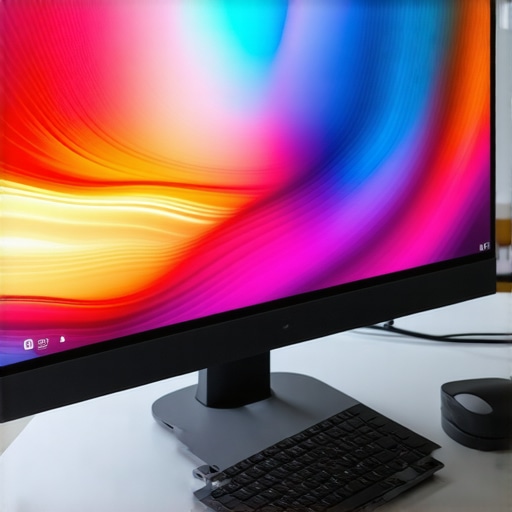
Ever had that frustrating moment where your screen just feels flat, disengaging, and honestly, kind of boring? I remember the first time I sat down in front of a standard monitor, expecting a good experience, only to realize I was missing out on something bigger—literally. It was like viewing through a window that only showed part of the world. That lightbulb moment led me down a rabbit hole of researching curved and ultrawide displays, and let me tell you—my visual world changed forever.
Why You Need to Rethink Your Screen Setup Now
For years, I believed a regular flat monitor was enough. But after trying a curved ultrawide, I discovered a whole new level of immersion—whether I was gaming, working, or just binge-watching my favorite series. The curved design wraps around your field of view, reducing glare and eye strain, while the ultrawide format offers a panoramic experience that’s hard to beat. But if you’re like I was, you might be skeptical—thinking, “Is it really worth the investment?” or worried about compatibility and space constraints. Believe me, I made my share of mistakes early on, like buying the wrong size or ignoring the importance of curvature radius. That’s why I want to help you avoid those pitfalls.
Is the Hype About Curved and Ultrawide Displays Justified?
Let me be honest—initially, I thought it was overhyped too. I wondered if I was just falling for marketing tricks. But once I experienced the difference firsthand, I couldn’t go back. The key is understanding how these screens enhance your viewing experience and whether they suit your needs. Curious? Check out this comprehensive guide to ultrawide display benefits to see why they’re gaining popularity in both gaming and productivity circles.
Early on, I made the mistake of choosing a monitor with too much curvature, which caused distortion during certain tasks. Lesson learned: knowing the right curvature and size makes all the difference. If you’re ready to dive into this immersive world, stick around—I’ll walk you through everything you need to know to make an informed choice and transform your screen into a portal of endless possibilities.
Measure Your Space and Decide on the Size
Before you even consider models, take a tape measure and assess your available desk or wall space. I once bought a 49-inch ultrawide monitor without measuring, only to find it overwhelmed my desk and blocked my view of the room. To avoid this, I recommend mapping out your area and visualizing the monitor’s footprint. For most home setups, a 34-inch ultrawide offers a balance between immersion and practicality. If you have a dedicated gaming or workstation, bigger models like 38 or 49 inches can truly transform your experience.
Choose the Right Curvature and Resolution
Curvature can be confusing. Think of it like a race track: too sharp a bend (small radius) can distort images during certain tasks, while a gentle curve (large radius) offers a natural wraparound feel. I initially went for a 1800R curvature, which was too aggressive for my needs. I found that a 1500R or 1800R curve strikes a good balance for general use. Pair this with a resolution that matches your purpose; 3440×1440 (QHD) is a popular ultrawide resolution that offers sharp images without taxing your GPU. For higher detail, consider 3840×1600 or 5120×2160 (4K ultrawide).
Prioritize Panel Quality and Refresh Rates
Picture this: I once bought a cheap curved monitor with a 60Hz refresh rate, and it felt sluggish during fast-paced gaming. For gaming or fast video editing, aim for at least 100Hz or higher, with some ultrawides offering 120Hz or even 144Hz. Panel technology matters too—IPS panels deliver vibrant colors and wide viewing angles, but VA panels often provide better contrast, ideal for cinematic experiences. My recommendation is to test different panels in-store if possible or buy from vendors with good return policies to find what feels best for your eyes and your tasks.
Adjust Brightness, Contrast, and Color Settings
Don’t settle for default settings. I spent an afternoon calibrating my monitor using free tools, adjusting brightness, contrast, and color profiles. This step significantly improved immersion and reduced eye strain. For the best results, set your monitor to match the lighting conditions of your room. Many ultrawide and curved displays come with preset modes—gaming, reading, or movie—choose what suits your environment and tweak from there. Remember, a well-calibrated display makes all the difference.
Position Your Monitor for Optimal Viewing Angle
Imagine trying to watch a movie with your head turned—uncomfortable, right? The same applies to your monitor. Position it so that the top of the screen is at or just below eye level, about an arm’s length away. Use adjustable stands or mounts to fine-tune height and tilt. During my setup, I used a VESA mount, which allowed me to position the monitor perfectly, reducing neck strain and enhancing immersion. Proper placement ensures consistent focus and minimizes fatigue during long sessions.
Fine-Tune for Your Specific Needs
Adjusting display settings is not a set-it-and-forget-it process. For gaming, enable high refresh rates and adaptive sync if available. For productivity, focus on color accuracy and multitasking features like split-screen. I found that enabling a picture-in-picture mode helped me monitor multiple apps without clutter. Many monitors also come with software to customize profiles—experiment with these to find your ideal setup.
Test and Iterate for Perfection
Once everything is set, spend a few days testing your setup. I once noticed slight eye discomfort after long sessions, which led me to tweak the brightness and add bias lighting behind my monitor. Adjustments like these are often simple but impactful. Don’t hesitate to revisit your settings periodically—your needs and environment change over time.
Want more detailed comparisons? Check out this guide to choosing your ultimate screen. If you need help with specific models or accessories, visit our contact page.
Many enthusiasts believe that investing in a curved or ultrawide monitor automatically guarantees an immersive experience. However, this is a misconception that can lead to costly mistakes. One prevalent myth is that bigger always means better. While larger screens do enhance immersion, choosing the wrong curvature or resolution can diminish the experience instead of amplifying it. For example, a monitor with a too-sharp curve may cause distortion during detailed tasks, while a low resolution on a large screen can lead to pixelation, reducing clarity. Specifically, a study by Tech Review highlights that optimal curvature depends on viewing distance and task type, and exceeding recommended parameters can produce visual discomfort.
Another misconception is that ultrawide displays are only suitable for gaming or entertainment. In reality, they significantly boost productivity by allowing seamless multitasking and extended workspace. For instance, using an ultrawide monitor for coding, video editing, or data analysis enables you to view multiple windows side-by-side without the clutter of multiple screens. This advantage is supported by research from PC World, which demonstrates up to 30% efficiency gains in workflow with ultrawide setups.
But beware of the trap that many fall into: believing that all curved screens provide the same benefit. The truth is, the quality of panel technology, refresh rate, and color accuracy greatly influence the actual experience. For instance, an IPS panel with high refresh rate and accurate color reproduction will outperform a VA panel with slower response times, even if both are curved. I found that ignoring these details often leads to dissatisfaction despite spending a premium on a curved display. As this guide emphasizes, understanding the technical nuances is essential for maximizing your investment.
Why do many people get the resolution wrong for ultrawide screens?
Advanced users often overlook that resolution must match both screen size and intended use to avoid compromising visual quality. For instance, a 3440×1440 resolution on a 34-inch ultrawide offers sharp details, but the same resolution on a 49-inch screen might produce pixelation. Conversely, opting for 4K ultrawide on a large monitor can strain your GPU, leading to lag and decreased performance. The key is balancing resolution with hardware capabilities and the primary tasks you perform. Experts recommend consulting detailed specifications and professional calibration tools before finalizing your choice. For a comprehensive understanding, check out this ultrawide display benefits guide.
Have you ever fallen into this trap? Let me know in the comments. Remember, a well-informed choice of display setup can profoundly enhance your viewing and working experience.
How do I maintain my ultrawide display over time?
Keeping your immersive screens in top shape requires more than just initial setup. I personally recommend investing in a high-quality screen cleaning kit that includes microfiber cloths and gentle, alcohol-free cleaners. I use ScreenMom’s Screen Cleaner because it effectively removes dust, fingerprints, and smudges without risking damage to the panel. Regularly wiping your display weekly prevents dust buildup that can impair visibility and cause glare. Additionally, ensuring proper ventilation around your monitor helps prevent overheating, which can shorten the lifespan of electronic components. I also set a reminder to check and update your display drivers and firmware—these updates often include bug fixes and performance improvements that are crucial for maintaining optimal functionality. For ongoing calibration, I use CalMAN software, which allows me to fine-tune color accuracy periodically, ensuring the display remains vibrant and true to life. As technology advances, future trends point toward smarter, self-calibrating screens, but until then, manual maintenance remains essential.
What tools are essential to keep my ultrawide or curved monitor working flawlessly?
From my experience, a few specific tools stand out. First, a calibration device like the X-Rite i1Display Pro is invaluable for maintaining color precision. I use it every few months to recalibrate my monitor, which ensures consistent output, especially important for creative work or detailed gaming. Second, a quality monitor stand or VESA mount with adjustable height and tilt helps position the screen ergonomically, reducing neck and eye strain during long sessions. Third, cable management accessories—like Velcro straps and cable sleeves—keep your workspace tidy, preventing accidental disconnections or damage. For software, I rely on DisplayCAL for free calibration and profiling, and f.lux to adjust brightness and color temperature based on the time of day, reducing eye fatigue. Looking ahead, I predict that AI-driven calibration tools will become standard, automatically optimizing display settings for your environment. To get started with your maintenance routine, I highly recommend trying out a professional calibration device—it’s a game-changer for preserving image quality over years of use.
Why investing in tools now sets you up for future success
While it might seem tempting to overlook maintenance, doing so can lead to diminished visual quality and premature hardware failure. Investing in the right tools not only prolongs the lifespan of your monitor but also ensures that your immersive experience remains stunning and accurate. For example, calibration devices can detect subtle color shifts that may otherwise go unnoticed, especially on high-end IPS panels. Regular cleaning and ergonomic adjustments prevent physical wear and tear, saving you money in the long run. As the trend toward larger, more complex displays continues, having a dedicated toolkit for maintenance becomes essential. I encourage you to incorporate these practices into your routine—your eyes and your wallet will thank you. For more detailed tips on maintaining your setup, visit our guide to transforming your workspace and stay ahead of future tech developments.
Remember, consistent care is key to maximizing your investment in immersive screens. Try out a calibration device today and experience the difference firsthand — your visual clarity and comfort will improve dramatically!
The Hardest Lesson I Learned About Immersive Screens
One of my biggest mistakes was ignoring the importance of calibrating my display after setup. At first, I thought I could just plug it in and enjoy, but I soon realized that poor calibration can cause eye strain and dull colors, ruining the immersion. Learning to use calibration tools like the ultrawide display benefits guide was a game-changer for me, enabling me to enjoy vibrant, comfortable viewing for hours.
3 Myths About Curved and Ultrawide Displays That Held Me Back
First, I believed that bigger always meant better. Turns out, choosing the right size and curvature is crucial; too much curvature or an oversized screen can cause distortion and discomfort. Second, I thought ultrawides were only for gaming, but I learned they significantly boost productivity—allowing seamless multitasking that saves time and effort. Lastly, I assumed all curved screens were the same quality. The truth is, panel technology and refresh rates make a huge difference, so investing in good quality is worth it.
What Experts Won’t Tell You About Maintaining Your Displays
Many overlook that regular cleaning and calibration extend the lifespan and preserve image quality. I use tools like the X-Rite i1Display Pro for periodic calibration, and I keep my monitor dust-free with microfiber cloths. Proper placement and ergonomic adjustments also prevent physical strain, making long sessions more comfortable. These small steps keep your immersive experience flawless over time and help you get the most out of your investment.
Where to Go from Here
If you’re serious about upgrading to a curved or ultrawide display, start by measuring your space and understanding your primary use—whether gaming, work, or entertainment. Read detailed reviews, and don’t hesitate to test models in-store. Remember, the right display setup can transform your entire visual experience, making every task more engaging and enjoyable. For more tips and recommendations, visit our guide to transforming your workspace.”} ,