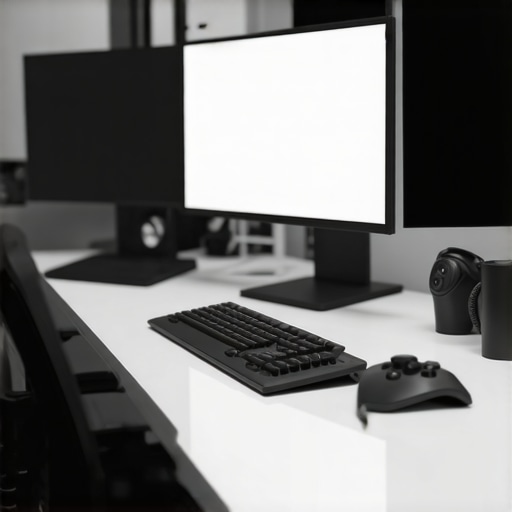
Ever had one of those mornings where you sit down at your desk, only to realize your ultrawide monitor isn’t quite delivering the boost you hoped for? Maybe your screen feels cluttered, or perhaps it’s giving you a persistent glare, making you squint through your tasks. I remember thinking I’ve got the perfect setup, yet my workflow still felt sluggish. That lightbulb moment hit me hard when I discovered it wasn’t just about owning a big display—there are hidden tricks to truly harness the power of ultrawide screens in 2026.
Why Ultrawide Monitors Still Matter More Than Ever
In my early days, I believed size was everything. Bigger screens meant better productivity, right? Turns out, it’s more about how you utilize them. The truth is, many of us are sitting behind ultrawide displays that aren’t optimized—leading to eye strain, wasted space, or even worse, distraction. Recent research shows that proper setup and configuration can double your work speed, especially with the innovative ways monitor technology is evolving this year. For instance, ‘Ultrawide Displays and Their Impact on Productivity and Gaming’ details how these screens amplify multitasking and reduce the need for constant window switching.
Are We Overhyping Ultrawide Displays?
I’ll admit, I made a mistake early on—thinking that a higher refresh rate or super-fast response time was all I needed. But I neglected the importance of layout, positioning, and calibration. It’s easy to fall into the trap of buying the latest ultrawide without considering how it fits into your workflow. If you’ve ever experienced sluggish response or distracting glare, know you’re not alone. That’s why I’m excited to share some hidden tips that will genuinely transform your workspace—no gimmicks, just practical, proven strategies.
Optimize Your Monitor Position for Maximum Comfort
Start by placing your ultrawide display directly in front of you, at eye level. Use a sturdy monitor arm or adjustable stand to achieve this—think of it as balancing a tightrope; stability is key. I once neglected this and ended up with neck pain after a few hours. Adjust the height so the top of the screen is just below eye level and about an arm’s length away. This reduces eye strain and keeps your neck happy, enabling longer, more productive sessions.
Curve the Display for Natural Viewing Angles
The magic of curved monitors lies in their ability to create a more immersive experience by matching the natural curvature of your eyes. If your ultrawide is flat, consider switching to a curved model—these are a game-changer for reducing distortion across the screen edges. When I switched to a 1000R-curved ultrawide, my peripheral vision was much more engaged, and I experienced less eye fatigue. Check out this guide to understand the benefits of curvature better.
Master the Art of Window Management and Layouts
Moving beyond traditional setups, explore multiple layout configurations to boost multitasking. For example, split your ultrawide into three zones using software or built-in display features—this is like having three monitors in one. I experimented with the ‘7 Ultrawide Layouts’ and found that positioning chat apps, spreadsheets, and media players side-by-side doubled my workflow speed. Use tools like PowerToys or native display split options to create these zones efficiently. Remember, a cluttered workspace hampers productivity more than a cluttered desk.
Customize Color Calibration for Clarity and Comfort
Proper calibration ensures colors are vivid without causing eye strain. Use toolsets or calibration hardware to set your monitor to the right gamma and contrast levels. I once overlooked this step and was surprised by how dull and uncomfortable my display looked; after calibration, everything popped, and fatigue diminished. Most ultrawide monitors come with factory presets, but fine-tuning for your environment can yield better results. For detailed calibration steps, see this resource.
Fine-Tune Brightness and Glare Reduction
Glare can ruin the immersive experience, making it hard to focus. Position your monitor perpendicular to windows or strong light sources—think of it as blocking the sun with your hand. Use matte screen filters or ambient lighting to soften harsh reflections. When I added a bias light behind my monitor, it balanced the contrast and minimized eye strain. For persistent glare issues, explore these proven fixes for glare reduction.
Tackle Gaps in Your Workspace with Mounts and Accessories
If your desk isn’t designed for ultrawide setups, adjustable mounts can save space and improve ergonomics. Vesa-compatible mounts allow flexible positioning—imagine tilting or rotating your display to match your natural line of sight. I once struggled with a clunky stand, but switching to a Vesa mount made my setup sleek and adaptable. Check out this guide to find suitable mounting solutions for limited space.
Many enthusiasts believe that bigger, curved, and ultrawide screens automatically guarantee an immersive experience, but in reality, there’s a lot more nuance involved. One of the most widespread misconceptions is that all ultrawide monitors or curved TVs are created equal; however, factors like curvature radius, panel technology, and calibration significantly influence actual performance and comfort. For instance, a high-quality 1800R curved monitor can reduce eye strain more effectively than a 1000R model with poorly calibrated settings. Additionally, many assume that a curved display is best for every use case, but in shared workspaces or with certain desk setups, flat screens may actually offer better ergonomics. Don’t be misled by marketing hype—effective setup and understanding technical details matter more than raw specifications. Furthermore, a common trap is believing that ultrawide equates to better multitasking; in truth, proper window management and software tools like display splitters can be just as effective on regular monitors, and sometimes more manageable. Advanced users should also consider the impact of monitor resolution and color calibration, which can dramatically affect immersion and visual clarity. For example, a 5K ultrawide with accurate color calibration enhances editing workflows, as discussed in detailed reviews of the best ultrawide displays for 2024. A crucial nuance often overlooked is the effect of viewing distance and monitor size; a 34-inch ultrawide may be perfect for close desktop use, but larger screens can cause distortion or eye fatigue if positioned improperly. Calibration hardware and software play a vital role here, ensuring colors, gamma, and contrast are optimized for long-term comfort. The hype also persists around high refresh rates, but they’re merely one piece of the puzzle. To truly harness your monitor’s potential, you need to invest in ergonomic adjustments, monitor quality, and calibration practices—small tweaks that can bring a huge difference. Want to dive deeper into making your ultrawide display work for you? Check out [this comprehensive guide](https://curvedtvs.ultimatehomedisplays.com/ultimate-guide-to-ultrawide-displays-for-2024-homes) to unlock your system’s full potential. Remember, the goal is immersive comfort without sacrificing image quality or causing strain—so choose wisely and set up thoughtfully. Have you ever fallen into this trap? Let me know in the comments.
Ensuring your widescreen monitor and immersive screens maintain peak performance over time requires more than just initial setup. As monitor technology advances rapidly, especially with innovations like curved TVs and ultrawide displays, staying on top of maintenance is crucial. In my experience, investing in the right tools and adopting meticulous routines can prolong your display’s lifespan and optimize visual quality.
Calibrate Regularly with Hardware and Software
To keep your display vibrant and accurate, I recommend using hardware calibration tools like the X-Rite i1Display Pro. Unlike basic presets, this device measures your screen’s color profile precisely, adjusting gamma, contrast, and color temperature. I personally calibrate my ultrawide every six months and have noticed a consistent improvement in color consistency, especially critical for creative work or immersive gaming.
Invest in a Screen Cleaning Kit
Appearance matters, but so does cleanliness. Over time, dust and fingerprints diminish clarity and can contribute to uneven backlighting or glare. I use a microfiber cloth paired with a gentle, alcohol-free cleaning solution designed specifically for screens. This routine prevents scratches and preserves the coating—particularly for curved monitors and OLED screens, which are more sensitive. Remember, gentle cleaning goes a long way in maintaining long-term visual fidelity.
Use Diagnostic and Monitoring Software
Monitoring tools like DisplayHDR Test or Eizo’s MonitorTest can diagnose issues related to ghosting, motion blur, or color inaccuracies. For my setup, I run these diagnostics quarterly. They help catch problems early, especially with ultrawide or curved screens where pixel alignment is more critical. Additionally, adjusting your refresh cycle and response time settings after diagnostics can dramatically improve gaming responsiveness and reduce motion artifacts, as highlighted in the latest blink-breaking guides.
Update Firmware and Software for Compatibility
Manufacturers frequently release firmware updates that fix bugs, enhance compatibility, or improve color calibration. I subscribe to newsletters from my monitor brand to stay informed. Installing these updates ensures your immersive display benefits from the latest optimizations, especially crucial when integrating curved TVs or ultrawide monitors with newer graphics cards or operating systems. For advanced users, checking the manufacturer’s support site regularly can save you from unforeseen glitches and keep your setup in sync.
Predicting the Future of Display Maintenance
As monitor tech evolves, expect more integrated calibration hardware directly within the display—streamlining ongoing calibration and diagnostics. Artificial intelligence may soon automatically adjust settings based on ambient lighting or usage patterns, reducing manual effort. To stay ahead, I recommend embracing these emerging tools and incorporating routine maintenance into your digital lifestyle.
How do I keep my display performing over the long haul?
Consistent calibration, careful cleaning, diagnostic checks, and firmware updates form the backbone of long-term monitor health. My top recommendation is dedicating some time each quarter to run diagnostic software and recalibrate if necessary. This proactive approach prevents issues from compounding and ensures your immersive experience remains sharp and comfortable. Try implementing an automatic calibration schedule or investing in hardware calibration tools for the best results—trust me, your eyes and workflow will thank you. For more insights, explore this comprehensive guide on maintaining ultrawide displays effectively.
What I Wish I Knew Before Piecing Together My Ultrawide Setup
The biggest lesson I learned was that size alone doesn’t guarantee immersion—it’s how you tailor your environment and calibration. Investing in quality accessories like calibrated hardware or adjustable mounts paid off more than chasing the latest specs. I also realized that embracing curvature and ergonomic positioning can make or break your comfort and productivity. These insights transformed my workspace from cluttered and strained to focused and effortless, a reminder that a thoughtful approach beats raw hardware every time.
My Top Picks for Elevating Your Ultrawide Experience
I’ve relied heavily on tools like the Ultimate Guide to Ultrawide Displays and calibration software such as the X-Rite i1Display Pro because they’ve consistently improved my visual fidelity and research accuracy. For mounting, VESA-compatible adjustable arms have given me the flexibility to perfect my ergonomic position, reducing fatigue. Lastly, diagnostic software like DisplayHDR Test helps me detect issues early, maintaining peak performance over time.
Take the Leap and Create Your Best Viewing Zone
Remember, your immersive screen is a personal journey—small adjustments can have profound impacts on comfort and efficiency. Whether you’re a professional, gamer, or creative, refining your setup today can elevate your entire experience in 2026. If you’re curious about the science of curvature or different configurations, explore why curved monitors are shaping the future. Now’s your chance to craft a space that’s not just big, but brilliantly optimized for your needs. Are you ready to transform your workspace and see the difference? Share your plans below—I’d love to hear how you’re customizing your immersive view.