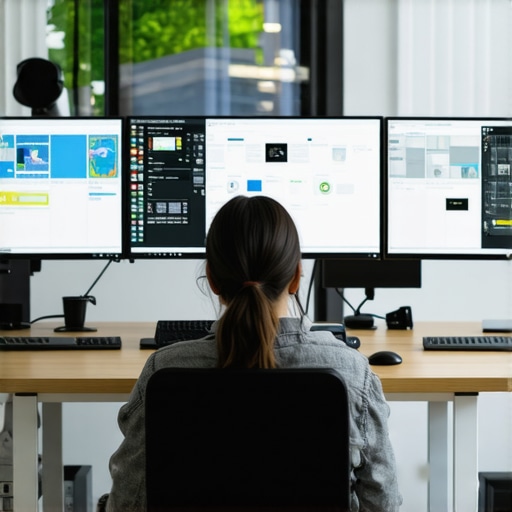
Have you ever been deep into your work, only to realize you’ve clicked open a hundred tabs, each one vying for your attention, leaving your browser chaos in its wake? That sinking feeling when your eyes dart from one tiny window to the next, trying to find where you left off. I’ve been there, spinning my wheels with a maze of dual monitors and endless tab switches, only to end the day exhausted and mentally drained.
The Moment I Realized My Setup Was Destroying My Focus
One hectic afternoon, I was juggling multiple projects, with a pile of tabs open—emails, research articles, design tools—all spread across two screens. Suddenly, my screen flickered. I lost my place. Frustration mounted. It hit me—my setup was fighting me. The clutter, the constant task-switching, it was more than inconvenient; it was killing my productivity and causing serious tab fatigue.
This revelation led me on a quest to find a smarter way. Not just for efficiency, but to reclaim my focus and reduce screen-related strain. That’s when I discovered the power of ultrawide displays combined with a few simple shortcuts—game changers in my daily routine.
Why You Should Care About Tab Fatigue (And How Your Monitor Might Be the Culprit)
Tab fatigue isn’t just about being overwhelmed; it impacts your focus, causes eye strain, and even hampers your ability to think creatively. According to a study by the National Institutes of Health, multitasking across multiple screens can significantly reduce cognitive performance. The culprit is often your display setup—mounting multiple monitors can seem like an efficiency boost, but if poorly managed, they become a barrier instead of an aid.
Early on, I made the mistake of stacking dual monitors without proper mounting, leading to wobble and glare, which only increased my eye strain. It’s all too easy to fall into overspending on the latest hardware without considering how to optimize your workspace for your workflow. That’s why I want to share proven shortcuts that turn your ultrawide display into a productivity powerhouse and slash through that 2026 tab fatigue.
If you’ve found yourself buried under a mountain of tabs or struggling with the clutter, stick around. We’re about to explore how a few well-chosen tricks can transform your screen experience—making work smoother, faster, and less exhausting. Ready to rethink your setup? Read on for the solutions that changed everything for me—and could do the same for you.
Choosing the Right Ultrawide Display for Your Workspace
Start by selecting an ultrawide monitor that matches your workflow. Look for models with a curvature of 1000R, which mimics the natural arc of your eyes, reducing strain and providing immersive viewing. For editing or design work, prioritize high color accuracy and resolution, like 5K or 6K displays. Read more about why 1000R-curved TVs are replacing flat panels to understand the benefits. Make sure your desk can support the monitor’s size comfortably, avoiding clutter that hampers workflow.
Optimize Your Mounts for Stability and Flexibility
Using heavy-duty mounts is essential for stability, especially when investing in large ultrawide displays. Mounting your screen with a flexible arm allows for easy repositioning, personalized angles, and avoids desk wobble. For a sturdy setup, check out these heavy-duty ultrawide mounts. Proper mounting not only frees up desk space but also reduces neck and eye strain by positioning the screen at eye level.
Master Tab Management with Multi-Window Layouts
Divide your ultrawide into dedicated zones for different tasks. For example, use the left third for email, center for main work, and right third for reference materials. This reduces the need to switch tabs constantly. I once tried a 5-layout, splitting my 49-inch ultrawide into sections, which doubled my workflow speed. To recreate this, explore these layout ideas. Practicing disciplined window management decreases cognitive overload and tab fatigue.
Utilize Keyboard Shortcuts for Seamless Navigation
Speed up window switching by mastering shortcuts like Alt+Tab on Windows or Command+Tab on Mac. You can also assign custom hotkeys for specific applications. During a hectic project, I mapped shortcuts to jump directly to reference documents, saving precious seconds. Check out these tips to further streamline your workflow.
Adjust Your Display Curvature and Brightness
Optimal curvature minimizes eye strain during long sessions. Experiment with different curves like 1000R or 1800R to find what feels most natural. Additionally, calibrate brightness and contrast to match ambient lighting. For rooms with natural sunlight, explore glare reduction techniques. Proper calibration ensures your eyes aren’t constantly fighting glare or harsh reflections, maintaining focus and comfort.
Customize Your Software Environment for Focus
Use virtual desktops or workspace profiles to group related applications. Resist the temptation to keep every app open all at once; instead, toggle between dedicated setups. During a critical deadline, I created a specific workspace with only my editing tools and reference tabs visible, which kept distractions at bay. Tools like these customizations enhance focus and efficiency.
Refine Your Environment for Comfort and Focus
Position your monitor directly in front of you, about an arm’s length away. Adjust height so the top of the screen aligns with your eye level. Use adjustable stands or wall mounts to achieve this. I initially kept my ultrawide too low, causing neck fatigue; after raising it, my posture improved significantly. For detailed ergonomic tips, visit mounting solutions.
Implementing these concrete steps has been transformative in my daily productivity. Switching from a cluttered multi-monitor desk to an immersive ultrawide setup, complemented by optimized ergonomics and workflow techniques, has cut my tab fatigue and boosted my focus. Integrate these strategies gradually, and watch your workspace evolve into a seamless, efficient environment tailored for high productivity and reduced eye strain.Many enthusiasts and professionals assume that curved monitors, ultrawide screens, and immersive displays are simply about aesthetic appeal or slight ergonomic benefits. However, there’s a nuanced landscape that often gets overlooked. Contrary to popular belief, not every curved monitor is designed equally, and some common myths can lead users astray. For instance, many think that all curved screens automatically reduce eye fatigue, but this depends heavily on the curvature radius and individual eyesight compatibility. Recent studies, like those from the Ultimate Home Displays research, reveal that improper curvature can sometimes increase distortion or cause discomfort, especially if your workspace isn’t aligned properly. Additionally, many believe ultrawide displays are just a luxury—yet, when configured correctly with dedicated zones, they can significantly boost productivity and multitasking efficiency, as shown in our comprehensive analysis. Beyond the myths, a critical mistake is overlooking calibration and setup nuances. For example, a slight tilt or improper height can negate the ergonomic advantages of a curved or ultrawide screen, leading to new strain issues. Remember, it’s not just about the hardware but how you integrate it into your workflow. The key to truly benefiting from these immersive techs lies in understanding these subtle intricacies—like assessing if your workspace can support the curvature’s focal benefits or if the monitor’s size matches your typical viewing distance. For advanced users, paying attention to factors such as viewing angles and color fidelity calibration is essential for optimal realism and comfort, especially during long sessions. In essence, the real edge comes from mastering these nuanced aspects rather than settling for surface-level features. Have you ever fallen into this trap? Let me know in the comments, and share your experiences with optimizing immersive screens. For more insights on choosing your perfect display, check out our guide comparing curved TVs and ultrawide monitors.
How do I maintain my immersive screens over time?
To ensure your curved monitors, ultrawide displays, and immersive screens stay in peak condition, regular maintenance paired with the right tools is essential. Start with a microfiber cloth designed for electronics—this will prevent scratches while cleaning dust and fingerprints from your screen surfaces. For stubborn smudges, use a 70% isopropyl alcohol solution lightly applied to the cloth, avoiding liquids directly on the display. I personally prefer the Ewbank Screen Cleaner Kit, as it provides a gentle cleaning formula that preserves the integrity of the monitor’s coating and reduces glare.
Additionally, employing software tools like DisplayFusion helps manage multi-zone window layouts on ultrawide setups, keeping your workspace organized and reducing physical wear caused by constant manual repositioning. Regularly updating your graphics drivers ensures smooth rendering, prevents screen tearing, and maintains color accuracy—an important factor for color-sensitive tasks like editing or gaming.
Invest in a quality surge protector to safeguard your equipment from power fluctuations, which can degrade display components over years of service. Periodically calibrate your monitor using tools like CalMAN or built-in OS calibration utilities to maintain accurate color and brightness settings, especially if your work demands precise visual fidelity. Keeping your cables neat with Velcro straps prevents wear and accidental disconnections, ensuring a long lifespan for your investment.
Predicting future trends in maintenance and tools
The trend is moving toward smarter, automated calibration and self-cleaning screens. Upcoming models may integrate UV-C sterilization and AI-based brightness adjustment that learns your ambient light preferences over time. These innovations will lessen the maintenance burden while enhancing your immersive experience.
What challenges do I face in long-term upkeep?
One significant hurdle is dust accumulation within the display’s curves or behind the screen, which can cause overheating or image degradation if left unchecked. Regular cleaning, combined with environmental precautions like air purifiers and controlled humidity, extends your display’s lifespan. Also, wearing out of protective coatings over years can lead to increased glare or burn-in in OLED-based curved TV-like models, making calibration even more critical. Conduct periodic visual checks and promptly address issues like flickering or dead pixels with manufacturer support.
Finally, dedicate time to review manufacturer firmware updates and apply them to improve display stability and feature set. Staying proactive with these practices ensures your immersive screens remain tools of productivity and entertainment for years, not months.
Start by integrating a routine cleaning schedule using recommended tools, and then explore advanced calibration software to fine-tune your display. Early adoption of these maintenance habits will keep your setup performing flawlessly and save costs in the long run—consider trying out these expert tips for comprehensive maintenance strategies.
Over the years, I’ve learned that the true power of a curved monitor,widescreen monitor,curved tv,immersive screen,ultrawide display isn’t just in its specs but in how you master its intricacies. My biggest takeaway? Small adjustments and insider hacks can elevate your entire experience far beyond what raw hardware alone can achieve.
What I Wish I Knew When I Started Setting Up My Immersive Screen
- Proper Calibration Matters More Than Size: I once bought a massive ultrawide without calibrating it, only to find colors looked washed out and contrast was off. Learning to calibrate with tools like calibration utilities transformed my visuals completely.
- Ergonomics Trumps Everything: Positioning your monitor at the right height and distance can reduce eye strain and neck fatigue. I discovered that raising my monitor to eye level made long work sessions far more comfortable—something many overlook in their setup.
- Investing in Quality Mounts Pays Off: Using a heavy-duty, adjustable mount not only saved space but allowed me to effortlessly switch between tasks, fostering better productivity. The difference between a wobbling stand and a sturdy arm is night and day.
- Consistent Maintenance is Key: Regularly cleaning the screen with safe tools prevents dirt buildup and glare issues, preserving your display’s clarity over years. Simple habits like these have kept my immersive screens looking brand new.
Curated Tools and Resources That Made a Difference
- CalMAN: An expert choice for precise calibration, trusted for its accuracy across various display types. It’s worth the investment if you want pixel-perfect visuals.
- DisplayFusion: A game-changer for managing multiple windows on ultrawide displays, helping minimize clutter and tab fatigue through custom zones.
- NeatNest: A stylish and sturdy mounting solution that reduces desk clutter and allows effortless monitor positioning, proven to improve posture and reduce strain.
- Our Interior Design Guides: Practical advice on lighting and furniture layout to complement your immersive screen environment, enhancing comfort and focus—check this resource.
The Future Looks Bright for Embarking on Your Setup Journey
The most rewarding step is taking action today—adjusting your workspace, calibrating your display, and adopting smart management habits. Remember, you’ve already got the foundation with a quality configuration; now, it’s about fine-tuning for perfection. The key is patience and curiosity. Why settle for good when you can craft an immersive environment that fuels your creativity and boosts your productivity every day?
Are you ready to transform your workflow and maximize your immersive screen experience? Share your current setup or ask questions below—I’d love to hear about your journey towards an optimized workspace!
This post really hits home for me, especially the part about managing tab fatigue. I used to have a setup with multiple monitors, which seemed efficient at first, but I often found myself overwhelmed and losing track of where I was in my workflow. Switching to a large ultrawide monitor and implementing dedicated zones has completely changed how I work. I now partition my screen into specific sections for email, coding, and reference materials, which minimizes the constant tab switching and helps me stay focused. Ergonomics is also a game-changer—once I adjusted my monitor height and angle, my neck and eyes felt much better after long sessions. One thing that helped me a lot was using software like DisplayFusion to manage window layouts easily. Has anyone experimented with virtual desktops or workspace profiles for even better focus? I’d love to hear what tools or techniques others have found most effective for reducing visual clutter and maintaining productivity over time.