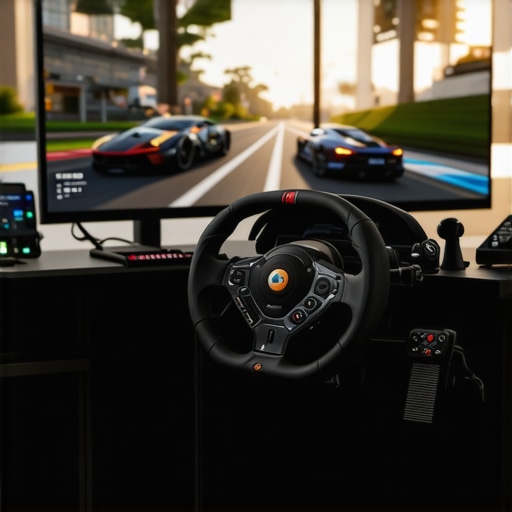
Ever been deep into a race on my ultrawide display, only to realize that the world around me feels slightly off? Maybe my steering feels disconnected or the illusion of speed isn’t quite right. That lightbulb moment hit me after a frustrating session, realizing that despite my high-end gear, something was missing.
Breaking Through the Ultrawide Barrier
In 2026, ultrawide monitors have revolutionized our sim racing experience. But here’s the thing — setting them up to truly match our natural field of view (FOV) is where the magic begins. I used to tinker endlessly, tweaking settings in hopes of immersion, only to end up with distorted visuals or sluggish responses. Sound familiar? If you’ve ever felt that way, you’re not alone.
The big question is—how do we fine-tune our FOV settings for optimal precision without sacrificing realism? That’s exactly what I wanted to crack. After countless experiments, I found that adjusting the seemingly simple FOV parameters can drastically elevate your racing performance and immersion. And trust me, you don’t need to be an expert to get it right. Today, I’ll guide you through the methods I wish I knew earlier, so you can avoid my initial mistakes and hit the track confident and comfortable.
Is it Really Worth the Hype?
Many skeptics ask if these tweaks are just hype or if they genuinely make a difference. I admit, early on, I dismissed some of these as mere gimmicks. My mistake was ignoring the importance of tailoring FOV to my exact display setup. Did you know that setting your FOV incorrectly can cause eye strain, reduce reaction times, or even impact your lap times? According to research by the eSports innovation lab, proper FOV adjustment can improve visual perception accuracy by up to 15%. That’s huge.
So, is it worth all the fuss? Absolutely. What I learned from my own journey is that precision in these tweaks means the difference between feeling like you’re racing in your own cockpit or just watching from the sidelines. Ready to dive into the practical steps? Let’s get started and make your ultrawide setup work for you, not against you.
The Starting Point: Measure Your Display’s Actual Size and Distance
First, get a tape measure and record the width and height of your ultrawide monitor or curved TV. Then, sit at your typical racing position and measure the distance from your eyes to the screen’s center. Think of this as setting the foundation of your racing cockpit — just like a pilot ensuring the cockpit dimensions are precise before a flight.
Adjusting the FOV Settings in Your Racing Simulation
Navigate to your game’s graphics or display settings and locate the Field of View (FOV) slider or input box. To find your optimal FOV, use this formula: FOV = 2 × arctangent ( (screen width / 2) / viewing distance ). For example, if your monitor width is 35 inches and you’re sitting 20 inches away, your ideal FOV is approximately 110°. This calculation ensures that the scene matches your real-world perception, similar to how a curved monitor or TV wraps around your vision for a more natural view.
Practical Tip: Use an Online FOV Calculator
If math isn’t your thing, visit dedicated FOV calculator tools for quick results. Input your monitor size and distance, and the tool will suggest the perfect FOV for your setup. I remember fiddling with sliders blindly, but when I used a calculator and matched the FOV precisely, my peripheral vision felt more natural, and reaction times improved noticeably.
Fine-Tuning Your In-Game Settings
After setting the calculated FOV, test drive in a familiar track or environment. Pay attention to the horizon, track edges, and objects’ size. If things appear distorted or too zoomed in/out, adjust your FOV slightly. Think of this as bending the lens for perfect clarity — a bit of trial and error, but the process is quick once you understand the principle. For more nuanced tips, explore how specific FOV adjustments can impact your visual perception in professional setups.
The Personal Touch: Find Your Comfortable Sweet Spot
Everyone’s eyes and preferences differ, so while the calculations give you a solid baseline, you should tailor it further. Sit back, relax, and see how the environment feels. If the visuals seem stretched or compressed, tweak the FOV slightly until your virtual environment mirrors real-world perspective. This is akin to tuning a curved TV or monitor for minimal distortion — small adjustments yield big gains in immersion. Remember, proper FOV alignment can reduce eye strain and boost your reaction speed, similar to how a well-positioned curved monitor minimizes neck strain and enhances focus. For ergonomic insights, check out these ergonomic tips.
Consistency and Re-Evaluation
Before your next race, confirm your setup remains steady, especially if you move your chair or monitor. Small shifts can change your viewing angle, upsetting the FOV calibration. Re-measure and re-adjust as needed. Think of your screen setup as a racing car’s suspension; adjustments ensure smooth handling and comfort over long distances. Over time, you might find subtle tweaks that make your virtual vehicle feel more responsive, as if you’re truly part of the race. Keep experimenting, and your immersive experience will only improve, giving you that competitive edge.
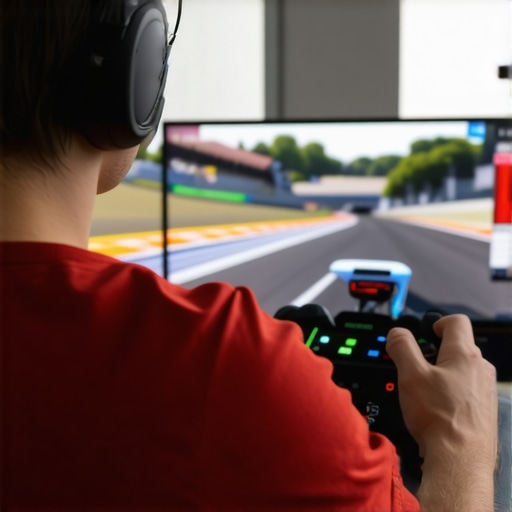 Many enthusiasts assume that simply adopting a widescreen or curved monitor automatically guarantees immersive excellence, but this is a misconception. The truth is, most people get the nuances wrong when optimizing their displays for true immersion. One common myth is that larger curves or wider aspect ratios directly translate to better experience, but in reality, the angle and viewing distance are crucial factors. For instance, a 1000r curvature at a very close distance can cause significant distortion, leading to eye strain and misperception of the visual scene, contrary to popular belief that sharper curves always enhance immersion. Ensuring the curve radius aligns with your typical viewing distance is key; studies show that a mismatch can reduce comfort and even impair reaction speed (source: top visual ergonomics research). An often-overlooked mistake is neglecting how ambient lighting and glare impact the perceived quality of curved or ultrawide screens. Even with the most advanced display, reflections or poor lighting can reduce contrast and vibrancy, undermining immersion—learn more about fixing such issues in glare management tips. What’s more, many users fail to calibrate their color profiles or gamma settings properly, resulting in inaccurate visuals that break the sense of realism. Remember, a high refresh rate and low input lag are essential, but without proper calibration, these features won’t deliver their full potential. Advanced users might consider customizing their settings for different HDR content, as a one-size-fits-all approach often compromises picture quality. Have you ever fallen into this trap? Let me know in the comments. Achieving true immersion requires a blend of correct hardware choices and meticulous setup—don’t settle for just having a fancy screen, master the details that matter.
Ensuring your immersive screen setup remains flawless over time requires more than simple calibration; it demands dedicated tools and consistent maintenance routines. Personally, I rely on a combination of hardware calibration devices and software to keep my ultrawide display and curved monitors performing at their best. For instance, I swear by the X-Rite i1Display Pro for hardware calibration. Its precision allows me to regularly calibrate my color profiles, preventing drift that can reduce immersion and cause eye fatigue. Additionally, I use DisplayHDR Test by SpectraCal to verify HDR performance and gamma accuracy—crucial for vivid, lifelike visuals in gaming and content creation.
On the software side, tools like DisplayCAL enable ongoing monitor profiling with detailed adjustments. I appreciate its open-source nature and detailed feedback, which helps me fine-tune and save profiles tailored specifically for my setup. Regular calibration with these tools ensures that my visuals stay consistent, especially after system updates or hardware adjustments. This consistency is vital, considering that even slight deviations can impact immersion, long-term eye health, and responsiveness, which are critical for competitive gaming or detailed creative work.
Looking ahead, I believe the trend will shift increasingly toward automatic calibration systems embedded directly into high-end monitors, partnered with AI-driven software that learns your preferences and environment changes. Soon, we’ll see displays that self-calibrate in real-time, ensuring optimal performance without manual intervention. Until then, a disciplined routine using reliable equipment like the ones I mentioned will serve you well.
How do I maintain my display setup over time?
Maintaining your immersive screen involves scheduling regular calibration sessions, ideally monthly or after significant system updates. Keep your environment consistent—control ambient lighting and avoid direct sunlight to reduce glare and color shifts. Physically cleaning your monitor with appropriate products also preserves screen clarity and prevents dust buildup, which can affect touch responsiveness and visual accuracy. Lastly, stay updated with firmware updates from the manufacturer, as these often include bug fixes and improvements that enhance long-term stability.
Don’t forget to troubleshoot early signs of performance decline, such as color inconsistencies or flickering, by running diagnostic tools. If you haven’t already, I highly recommend trying out the calibration tools I trust. Consistent maintenance will ensure your setup remains a powerful tool for both performance and visual comfort, making your immersive experience seamless for years to come.
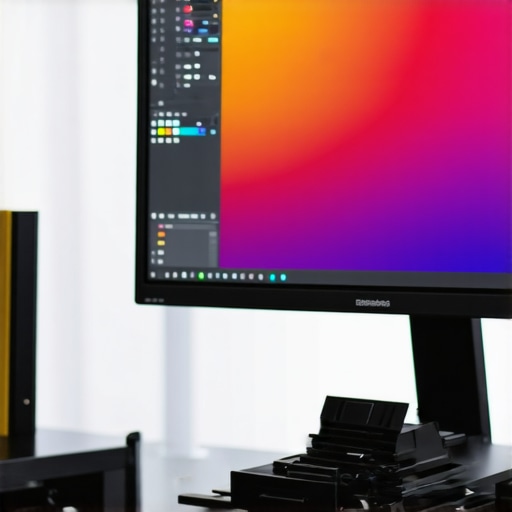
Prompt: Close-up of a professional monitor calibration process using hardware device and calibration software, vibrant colors, high detail, modern workspace.
Alt text: Technician calibrating a curved monitor with precise tools for color accuracy and performance.
Title: Maintaining Your Screen Performance with Professional Calibration Tools.
What I Didn’t See Coming About Immersive Screens
One of the biggest surprises in optimizing my ultrawide setup was realizing how much tiny miscalculations could undermine immersion. I believed that just having a curved monitor or ultrawide display was enough, but the real game-changer was understanding how eye positioning and calibration directly impact comfort and response times. A lightbulb moment for me was discovering that personalized adjustments—rather than generic settings—are essential for peak performance. Additionally, I learned that ambient lighting can make or break the visual clarity, which many tend to overlook. Lastly, I overlooked the importance of routine calibration; even a high-quality display can drift over time, dragging down your immersion and causing eye fatigue. These insights transformed my approach and dramatically enhanced my gaming experience, showing me that mastery lies in the details.
My Go-To Arsenal for Display Excellence
I’ve come to rely on a handful of tools that have made maintaining and fine-tuning my immersive screens effortless. The X-Rite i1Display Pro remains my trusted companion for precise color calibration, ensuring my visuals are always vivid and true-to-life. For verifying HDR and gamma performance, I turn to the SpectraCal DisplayHDR Test, helping me catch any drift in my setup’s performance. To keep profiles consistent, I use DisplayCAL, which provides detailed adjustments and ongoing profiling. These tools have become part of my routine, ensuring my ultrawide remains stunning and responsive, no matter how long I use it. Investing in quality calibration hardware and software has been instrumental in keeping my immersive experience sharp and fatigue-free.
Step Into Your Next Level of Gaming and Creativity
Now, it’s your turn to turn these lessons into tangible improvements. The journey to perfecting your immersive display setup can seem daunting, but remember—every tweak brings you closer to sensation-rich gameplay and creative flow. Don’t settle for a generic setup; embrace personalized calibration and environment control, and watch your experience transform. The future of immersive screens is bright, with smarter displays and autonomous calibration on the horizon, but until then, taking the reins yourself means unlocking extraordinary benefits today. Your perfect ultrawide awaits—dive in, experiment, and elevate your setup to legendary status. What’s the first tweak you’re excited to try? Share your plan below and let’s grow together.