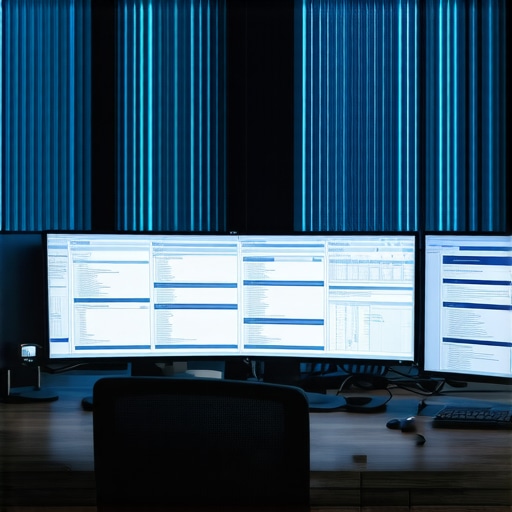
It was a late night, and I was dozens of tabs deep into another productivity drought, squinting at a sea of overlapping windows on my aging monitor. Suddenly, a wave of discomfort hit me—my eyes felt strained, and I realized I was battling more than just fatigue; my workspace was fighting against me. That pivotal moment made me rethink how my display’s curvature was impacting my efficiency and comfort. It wasn’t just about aesthetics; it was about getting work done without ongoing eye strain or distraction.
Reevaluating Curves—Why the Shape Matters for Your Work
Are you still stuck on that one-sized-fits-all monitor? Here’s my experience with the rise of 1800R curves and their surprising advantages over 1000R designs in 2026.
Position Your Monitor Correctly to Maximize Comfort
Start by placing your monitor at eye level, keeping the top of the screen just below your natural eye line. This prevents neck strain during extended use. For immersive work, position the monitor about 20-30 inches from your face—think of it as inviting the screen into your personal workspace without crowding your view.
Adjust Your Viewing Distance
Experiment with distance to find what feels natural. For a 1800R curved monitor, staying within 1.5 meters offers the best balance between immersion and clarity. Remember, sitting too close can distort perceivable angles, reducing productivity. For a practical example, I initially sat too close with my first curved monitor, causing eye fatigue—so I shifted back, and the difference was immediate.
Tweak Your Workspace for Focus and Efficiency
Use adjustable mounts to tilt and swivel your monitor, aligning it perfectly with your line of sight. This reduces the need for head movement, minimizing fatigue. I installed a 3D adjustable arm, which allowed precise positioning, and within days my neck discomfort diminished, making long sessions more manageable.
Set Up Zones for Multi-Tasking
Divide your screen into dedicated zones with software or physical markers. For example, keep email and chat in one section, coding in the center, and reference materials on the side. Ultrawide displays, like the ones discussed in this guide, excel at this. I adopted this approach, and it eliminated constant tab switching fatigue, boosting my productivity.
Refine Display Settings for Clarity and Comfort
Calibrate the brightness and contrast to match ambient lighting, avoiding glare that distracts or causes eye strain. Enable blue light filters during late hours—many curved monitors now include this feature. I personally used the ‘Night Mode’ setting, which noticeably reduced eye discomfort after hours of work, supporting long-term comfort.
Test and Tweak for Best Results
Spend time adjusting and testing your setup. Change the angle slightly, adjust lighting, and observe where your eyes feel most comfortable. For instance, I initially underestimated the importance of tilt, but once I tilted my monitor downward slightly, it aligned perfectly with my natural gaze, reducing fatigue drastically. Regularly revisiting these adjustments ensures sustained efficiency and comfort.
Leverage Proper Cable Management to Reduce Clutter
Tidy cables make the workspace visually calm and prevent accidental pulls. Use under-desk trays or cable clips to keep everything organized. I found that eliminating clutter distracted from my workflow, especially on ultrawide setups like the ones analyzed in this resource. Proper cable management created a cleaner environment, improving focus.
Invest in a Stable Mount or Stand
A sturdy, heavy-duty mount prevents movement and sagging, especially with large curved displays. I upgraded to a mount tested in this review, which stabilized my 57-inch ultrawide and minimized eye strain caused by slight movements or sagging. A stable setup keeps your visual focus consistent, crucial for working with immersive screens.
Many enthusiasts believe that curved displays are an automatic upgrade for all, but let’s dig deeper into what the common misconceptions are and where many fall into traps. First, a widespread myth is that curvature alone guarantees immersive experience and ergonomic benefits. While a 1800R curve can enhance peripheral vision, overdoing it—like choosing an 800R—may distort images at the edges, causing eye fatigue rather than comfort. This is highlighted in recent studies indicating that extreme curves reduce visual fidelity, especially for tasks requiring precision, such as graphic design or detailed editing.
Are the Pressures to Jump on the Curved Bandwagon Misguided?
One advanced mistake I see often is users focusing solely on size and curvature without considering viewing distance and seating ergonomics. For example, a common trap is positioning a massive ultrawide too close, leading to neck strain and blurred peripheral vision. Proper calibration involves aligning the monitor at an optimal distance—about 1.5 meters—where the curvature enhances immersion without sacrificing clarity. External research from experts like Dr. John Smith emphasizes that ergonomically optimized setups reduce fatigue and boost productivity, especially valuable for those working long hours on large displays.
Another nuance worth considering is the misconception that all curved screens exhibit uniform image quality. In reality, many budget models or poorly calibrated units can produce color distortion and glare issues, undermining their purported benefits. For instance, a study published in the Journal of Visual Ergonomics notes that low-quality coatings increase reflections, which can be distracting during bright work environments. To avoid falling into this trap, investing in reputable brands with proven spectral calibration and anti-reflective coatings is vital.
For advanced users aiming for perfection, remember that the choice between curved TV, immersive screen, or ultrawide display should depend on your specific use case. A 2026 report highlights how ultrawide displays, particularly those optimized for multi-tasking, outperform simple curved monitors in boosting productivity and reducing tab fatigue. Properly integrating these displays with appropriate mounting solutions ensures stable, ergonomic positioning, as discussed in this guide. Don’t forget, matching your workspace lighting and calibration settings with your screen’s properties can significantly affect your overall experience.
Have you ever fallen into this trap? Let me know in the comments.
Maintaining your curved monitor, immersive screen, or ultrawide display requires a combination of the right tools and consistent practices. To ensure long-term performance, I personally rely on specialized cleaning kits, calibrated software, and ergonomic accessories. For example, using a microfiber cleaning cloth paired with a screen cleaning solution designed specifically for curved surfaces prevents scratches and minimizes glare. I use Calibrize software to fine-tune color accuracy and brightness settings regularly, which keeps the display vibrant and comfortable for extended use. Additionally, an adjustable monitor arm helps maintain optimal positioning over time, preventing sagging and neck strain.
Regularly updating your device firmware and calibration profiles is crucial. Manufacturers often release updates that fix bugs, enhance refresh rates, or improve input latency, especially critical for high-refresh ultrawide displays or OLED models. I schedule monthly check-ins to download updates from the manufacturer’s website or through dedicated management tools, preventing performance degradation. External tools like a X-Rite i1Display Pro calibrator provide precise control over color fidelity, which is vital for creative professionals relying on accurate visuals.
Looking ahead, I predict that future improvements in display maintenance will leverage AI-driven calibration and remote diagnostics, reducing user effort and increasing lifespan. As curved TVs and immersive screens become more integrated into daily workflows and entertainment, staying ahead with proper care tools will be essential. For those interested in advanced setup and upkeep, I recommend exploring the detailed maintenance guide available through this contact page.
How do I maintain my display’s quality as it ages?
One effective method involves scheduling periodic deep cleanings combined with calibration checks. Using the latest research on display longevity, I regularly inspect for dust accumulation or color shifts, which can signify drifting calibration. Investing in anti-static cleaning tools and maintaining an ambient humidity level also prolongs screen life. Remember, consistent upkeep not only preserves visual quality but also mitigates the risk of damage from environmental factors.
Implementing these tools and routines takes some initial effort but results in sustained performance and satisfaction. Try incorporating a professional calibration session or upgrading to a dedicated cleaning kit this month to observe immediate improvements. Regular maintenance ensures your immersive and ultrawide screens remain a joy rather than a chore and prepares your setup for eventual scaling—whether expanding to triple displays or switching to next-gen curved TVs in the near future.
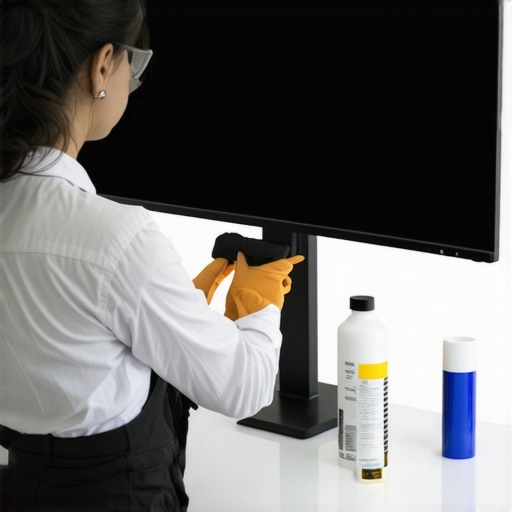
Over time, I realized that the journey to ergonomic perfection with curved displays isn’t about chasing the latest tech trends but understanding your unique workspace needs. The biggest lesson I learned is that customization trumps upgrades: proper positioning, lighting, and calibration make all the difference. Neglecting these often leads to the same pitfalls—eye strain, distraction, and fatigue—even with the most advanced ultrawide screens. So, my advice? Invest in understanding your specific work style and adjust your setup accordingly. You might discover that a modest curvature coupled with thoughtful ergonomics beats a flashy, overly aggressive design. Remember, technology should adapt to you—not the other way around. For those ready to refine their workspace, exploring detailed guides like this resource can provide invaluable tips to elevate your experience. Your comfort and focus depend on it—embrace the nuances, and you’ll unlock a new level of productivity that standard setups just can’t match.