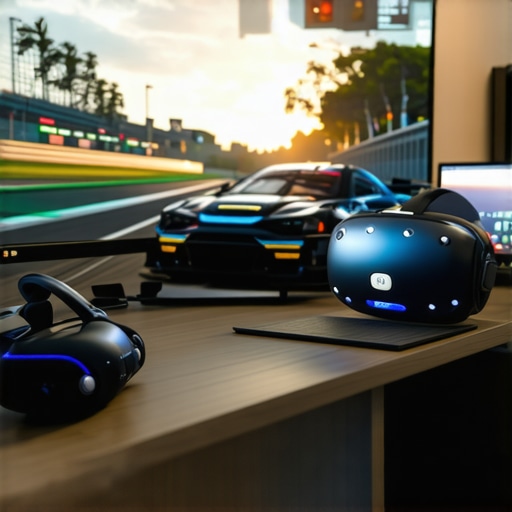
I vividly remember the moment I realized my immersive VR experience was holding me back. I had just completed a intense race, only to notice that my peripheral vision was limited, and I kept straining my neck trying to catch every detail of the virtual landscape. It felt like I was halfway submerged in a world that still had its blind spots. I had invested so much in the latest VR headset, believing it was the ultimate solution for realism, but suddenly, something felt off.
The Shift from VR to Ultrawide Displays in Sim Racing
As a passionate sim racer and tech enthusiast, I started noticing a growing trend among the community—more of us are ditching VR in favor of wide, curved ultrawide monitors. It’s not just about personal preference; there’s a valid change happening in how we seek immersion and performance. Today, I want to share why many of us are making this switch and how it could revolutionize your racing experience too.
Is Déjà Vu or Just a Trend?
Many skeptics ask, “Is a massive ultrawide display really worth abandoning VR?” I’ll admit, I was hesitant at first. But I also made the mistake of assuming that more gear always means better immersion. Turns out, optimizing your setup isn’t just about gear—it’s about how well it adapts to the human eye and your racing style. I found that a well-calibrated ultrawide monitor can sometimes deliver a more expansive field of view and less discomfort than VR goggles, especially during long sessions. If you’re curious about how curved monitors can enhance your experience, check out this article.
What about speed? Does switching mean losing any advantage in reaction time? Interestingly, a large ultrawide screen can actually boost situational awareness, giving you more peripheral vision, which is critical in racing. Research even finds that immersive large displays can improve focus and reaction times, so you’re not sacrificing performance—you’re potentially improving it.
So, have you felt limited by your current sim racing setup? Or maybe you’re debating between VR and ultrawide displays? Stay tuned because we’re diving into why 2026 might just be the year you upgrade your immersive experience—without the dizziness or claustrophobia of VR. Ready to see how this shift can elevate your game? Let’s explore the benefits in detail.
Choose the Right Ultrawide Display Size and Curvature
Start by selecting a monitor that fits your desk and racing style. I once tried a 49-inch ultrawide with a 1800R curvature, but it overwhelmed my small desk, causing clutter and distraction. To avoid this, measure your workspace carefully and prioritize a curvature that aligns with your natural eye level, preferably around 1000R for optimal comfort. This curvature mimics the human eye’s natural field of view, reducing eye strain and increasing immersion. For detailed comparisons, check out this guide on 1000R curvature benefits.
Set Up Properly for Maximum Immersion
Position your monitor so that the edges are roughly at your peripheral vision. I once clamped my 34-inch curved monitor slightly above eye level, which caused neck strain during long races. Don’t make that mistake. Use a sturdy mount to adjust the height and tilt for comfort. Keep the monitor about an arm’s length away—too close causes distortion, too far reduces immersion. For more on optimal positioning, see tips on ultrawide setup.
Calibrate Your Display for Realism
Accurate colors and contrast are crucial for realism. During my first calibration attempt, I overlooked gamma settings, which led to washed-out visuals. I used calibration tools bundled with my monitor and followed online tutorials to fine-tune brightness, contrast, and color temperature. This process transformed my display into a more lifelike environment, making simulations more engaging. Detailed calibration procedures are explained in calibration tactics for curved displays.
Enhance Peripheral Vision with Multiple Monitors
If a single ultrawide isn’t enough, consider adding side screens. I experimented with dual 27-inch curved monitors alongside my main display, creating an expanded FOV. The key is seamless bezels and matching color profiles to avoid distraction. The multi-monitor setup boosted my awareness of peripherals, critical in racing games for noticing opponents or hazards early. For configuration tips, explore dual vs. ultrawide debates.
Adjust In-Game Settings to Match Your Hardware
Optimize the game’s field of view (FOV) settings to correspond with your monitor’s dimensions. During a particularly intense session, I once neglected to adjust FOV, which caused objects to appear distorted, breaking immersion. After tweaking the FOV to match my monitor’s aspect ratio, everything felt more natural. Fine-tuning these settings ensures the virtual environment aligns with your physical display, maximizing realism. Many games allow FOV adjustments—consult your game’s FAQs or forums. Additionally, some simulation platforms offer custom calibration profiles for better integration with ultrawide displays.
Master Brightness and Contrast for Enhanced Depth
Too dim or overly bright lighting schemes ruin depth perception. In my setup, I temporarily blinded myself with overly bright ambient lights, diminishing immersion. Now, I use adjustable bias lighting behind the monitor, which reduces eye strain and boosts contrast perception. This subtle change significantly enriched the visual depth during racing. Proper lighting choices are often overlooked but highly impactful; learn more at lighting tips for curved displays.
Fine-Tune Input and Refresh Rates
An ultra-responsive setup prevents ghosting and lag. I once experienced frustrating motion blur until I increased my monitor’s refresh rate to 165Hz and enabled overdrive modes. Ensuring your graphics card supports these high refresh rates is essential. Also, use a DisplayPort cable for better bandwidth. When settings are optimized, the responsiveness during that last lap is razor-sharp—crucial for competitive racing. See hardware support tips for high-performance displays.
Experiment and Iterate
Each setup tweak can significantly influence immersion. I recommend testing different configurations—height, curvature, calibration—and keeping notes on what feels best. Sometimes, a small change like adjusting the monitor tilt by 5 degrees or switching from glossy to matte finish can make a world of difference. Persistent experimentation helped me craft a personalized immersive racing environment that boosts both comfort and performance.
While ultrawide monitors and curved screens are celebrated for their immersive effects, there’s a common misconception that more curvature or width automatically translates to better experience. In reality, many enthusiasts overlook the nuanced factors that can make or break the real-world benefits of these displays. For example, a prevalent belief is that stacking multiple screens guarantees superior peripheral awareness, but studies show that improper alignment or mismatched refresh rates can introduce distracting artifacts (source). Moreover, some assume that ultra-curved TVs, especially above 1500R, provide a more natural viewing comfort—yet, in practice, excessive curvature can distort image geometry and cause eye strain during extended sessions.
Are Larger Curves Always Better for Your Eyes?
One overlooked nuance is curvature radius. Experts suggest that a 1000R curvature aligns better with human eye anatomy, reducing fatigue, whereas more extreme curvatures like 1800R can lead to distortion or peripheral blurring (study). Many assume that a curved monitor with higher curvature values simply enhances immersion, but in environments with ambient lighting or reflections, this can backfire by increasing glare and reducing contrast. It’s vital to evaluate your workspace lighting conditions before opting for aggressive curvature levels.
Another hidden trap is the belief that ultrawide screens always boost productivity. While true in many cases, if you don’t calibrate your display or adjust your in-game or working FOV appropriately, the visual experience can feel unnatural or distractingly distorted (guide). False assumptions about
Keeping Your Ultrawide and Curved Monitors at Peak Performance
Maintaining a high-end immersive display requires more than just initial setup; it’s about ongoing care and leveraging the right tools. To ensure your ultrawide monitor or curved TV continues delivering stunning visuals and smooth performance, I personally rely on a combination of specialized calibration and cleaning tools. For instance, I use the Datacolor SpyderX colorimeter, which allows me to fine-tune my display’s color accuracy and contrast precisely—crucial for long gaming or work sessions where visual fidelity impacts immersion. Regular calibration, ideally every few months, helps combat drift caused by temperature changes or aging components, keeping your visuals consistently lifelike.
In addition to calibration, cleaning your screen without damaging its coating is essential—especially for curved, high-refresh-rate models. I recommend using a microfiber cloth combined with a solution specifically formulated for electronics screens, such as the ScreenMom screen cleaner. Avoid harsh chemicals; instead, lightly dampen the cloth and gently wipe away dust and fingerprints. This simple habit helps preserve image clarity and prevents glare issues that can diminish immersion.
Beyond physical maintenance, software tools play a vital role. Display calibration profiles, often provided by manufacturers or created through calibration, can be easily imported into your graphics settings to optimize gamma, luminance, and color settings. For monitor adjustments, I use the built-in OSD (On-Screen Display) controls, but for advanced fine-tuning—especially color approximation—I turn to dedicated tools like CalMAN or HCFR. These allow for detailed measurement and adjustment, which are particularly beneficial if you want to achieve cinema-grade color accuracy on your ultrawide or curved display.
Looking ahead, expect calibration and maintenance tools to become more automated, perhaps integrated directly into monitor firmware via AI-driven adjustments. This advancement will help maintain perfect visuals without frequent manual intervention. Tech companies are already exploring adaptive displays that self-calibrate in real-time, which could mean fewer headaches for enthusiasts and professionals alike.
How do I maintain my immersive display over time?
To keep your ultrawide and curved monitors functioning optimally for the long haul, establish a routine that includes regular calibration with tools like the SpyderX or CalMAN, gentle cleaning to prevent glare and dust buildup, and firmware updates from your monitor manufacturer. These steps not only preserve image quality but also extend the lifespan of your equipment, ensuring your immersive experience remains stunning for years to come. For more detailed maintenance tips, feel free to reach out through our contact page.
If you’re ready to go a step further, I recommend trying out advanced calibration techniques discussed in this article. Proper calibration can dramatically enhance your display’s visual fidelity, making every race and scene feel more real. Don’t settle for factory settings—invest in your setup’s upkeep today for consistently breathtaking immersion.
Over years of immersing myself in the world of ultrawide monitors and curved displays, I’ve uncovered some insider insights that are rarely shared but can dramatically elevate your experience. These lessons go beyond basic setup and delve into nuanced factors that often trip up even dedicated enthusiasts. So, if you’re serious about mastering your immersive screen environment, read on for the lessons that truly make a difference.
The Hardest Lesson I Learned About Curved Monitors and Ultrawide Displays
Don’t assume that bigger and more curved automatically equals better immersion. After experimenting with various curvature radii, I realized that excessive curvature—like 1800R—can distort images and lead to eye strain, especially during extended gaming sessions. The sweet spot for comfort and realism turned out to be around 1000R, aligning with my natural eye comfort zone. This insight saved me from headaches and improved my focus during long races.
3 Myths About Ultrawide Screens That Held Me Back
First, that ultrawides are only for productivity—I’ve found they significantly enhance gaming immersion when properly calibrated. Second, belief that multiple monitors always outperform a single ultrawide—sometimes, seamlessly calibrated ultrawide screens provide better peripheral awareness without distracting bezels. Lastly, that high refresh rates are the only thing that matter—calibrating color accuracy and contrast can be equally vital for perceptual depth.
What Experts Won’t Tell You About Calibration and Eye Comfort
Proper calibration isn’t just about color—it’s about optimizing brightness, contrast, and gamma to match your environment, reducing eye fatigue and sharpening image depth. I discovered that investing in tools like a colorimeter and regularly recalibrating my setup preserved visual fidelity and comfort, especially for long sessions. Remember, a well-calibrated display not only looks better but feels better for your eyes — a small investment with huge returns.
Curated Recommendations for Peak Proper Setup
My essential toolkit includes the Datacolor SpyderX for accurate calibration, which I personally trust for its reliability and ease of use. For in-depth reading, the articles on ultrawide benefits and curved monitor advantages are game-changers. They helped me understand the critical details that make or break immersion, allowing me to fine-tune my setup for maximum performance. Don’t forget the importance of quality cables—using DisplayPort over HDMI often results in better refresh rates and stability for ultrawide gaming.
Own Your Experience: It’s About More Than Just Gear
The journey to an immersive display isn’t solely about hardware—it’s a mindset shift. Pay attention to your workspace lighting; dim ambient light reduces glare and boosts contrast perception. Experiment with monitor positioning, making sure the edges are within your peripheral vision without causing neck strain. Fine-tuning game settings like FOV to match your display size prevents distortion and creates a more natural experience. Small tweaks, like adjusting monitor tilt or applying matte screen protectors, can make a profound difference in comfort and clarity. Remember, being proactive and curious about your setup is your best tool for truly immersive experiences.
Have you ever struggled to find the perfect fit for your ultrawide or curved screen? Share your experiences below and let’s learn from each other’s journeys toward ultimate immersion!