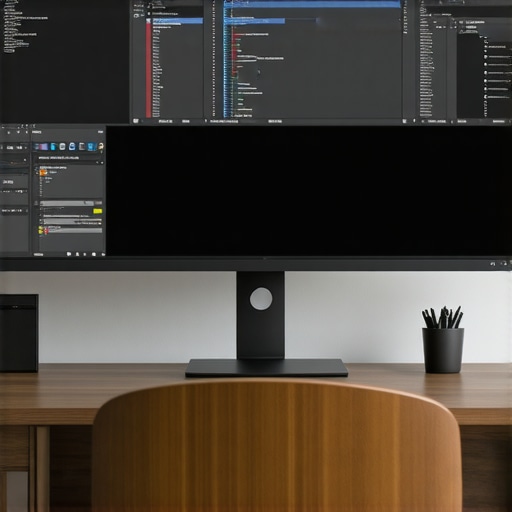
I remember the moment vividly. I was mid-project, juggling multiple windows, when my neck and eyes suddenly protested. It was like fighting a losing battle with a cluttered desk of screens that never quite fit. Then, it hit me: why am I still relying on dual screens that make my workflow feel like a circus act? That lightbulb moment changed everything.
Breaking Free from the Dual-Screen Trap
In 2026, more professionals and gamers are discovering that a single, well-designed ultrawide monitor can outperform a setup of multiple displays. It’s not just about aesthetics; it’s about *performance*, *comfort*, and *efficiency*. I decided to give it a shot after reading a revealing article that showed how ultrawide displays can reduce eye fatigue and improve focus (source: [Ultimate Home Displays](https://curvedtvs.ultimatehomedisplays.com/ultrawide-displays-and-their-impact-on-productivity-and-gaming)). That’s the promise I want to share with you today—how a 34-inch ultrawide can be a game-changer.
Is This Just Trendy Hype or Truly Worth It?
Honestly, I made a rookie mistake early on—I assumed that bigger was better, rushing into a super-wide setup without research. Turns out, not all ultrawides are created equal, and patience pays off. I’m here to tell you that selecting the right ultrawide monitor isn’t just about size; it’s about how it integrates into your workflow and entertainment experience. Want to see if this upgrade makes sense for you? Let’s explore the real reasons why this could be your best move in 2026.
Choose the Right Screen Size and Curvature
Start by identifying your workspace dimensions. Aim for a monitor that covers your field of view without causing strain. I once ordered a 49-inch ultrawide without measuring my desk, leading to a wobbly setup. To avoid this, measure your space and select a monitor with a curvature that matches your natural eye arc, typically 1800R or 1000R. This creates an immersive experience, akin to sitting in a cinema, but tailored to your environment—learn more about why 1800R is ideal for group viewing.
Position Your Screen Correctly
Place the monitor directly in front of you, about an arm’s length away. Use a mounting arm or stand that allows tilting and height adjustments so that the top of the display aligns with your eye level. I initially placed mine too low, causing neck discomfort; raising it improved posture and focus instantly. For curved displays, proper positioning is crucial to prevent distortion and reflections—consider strategies to reduce glare.
Optimize Connection and Settings
Use native high-speed cables—HDMI 2.1 or DisplayPort 1.4—to ensure optimal image quality and refresh rate. Set the resolution to match the monitor’s specifications, such as 3440×1440 or 5120×2160 for 5K2K ultrawides. Adjust contrast, brightness, and color calibration for vibrant, accurate visuals. I experimented with multiple calibration profiles, which made a significant difference when editing photos on my ultrawide. Also, activate features like FreeSync or G-Sync if supported, to reduce flickering during fast-paced gaming—see ultrawide color perfection tips.
Deliberate Multi-Tasking Layouts
Regulate your workflow by dividing the screen into zones. Use software or built-in display split features to create dedicated sections for emails, code, reference materials, or chat windows. I once experimented with a three-way split, which doubled my productivity, but it initially caused confusion until I customized spacing. For a seamless experience, explore ultrawide specific layout guides like ultrawide layout hacks. To maximize immersion, position critical applications centrally, avoiding clutter around the edges.
Enhance Comfort and Reduce Eye Strain
Adjust ambient lighting and monitor brightness to match your environment. Use an anti-glare screen protector or position the monitor to minimize reflections, especially with curved displays that can amplify glare. Take regular breaks using the 20-20-20 rule—every 20 minutes, look at something 20 feet away for 20 seconds. During my setup experiment, I staggered my work sessions with breaks, which drastically reduced eye fatigue. Consider software that dims or adjusts screen warmth at night, like f.lux, to make long sessions more comfortable. For more strategies, visit hidden tips for efficiency.
Test and Fine-Tune Your Setup
After initial setup, spend time calibrating colors and contrast to suit your tasks—photo editing demands different levels than gaming. Use calibration tools or built-in menu options to refine the display. I once spent an evening tweaking my settings, which paid off with sharper images and less eye strain during prolonged work. Also, test for any flickering or ghosting issues in fast-paced applications, adjusting overdrive settings if necessary. Engage in real-world testing—open multiple applications, watch videos, and game—to identify and fix issues early. For deeper adjustments, consult guides like multi-window fatigue solutions.While many enthusiasts celebrate the immersive potential of ultrawide and curved screens, there’s a common misconception that bigger and more curved automatically guarantee better experience. In reality, a frequent trap is relying solely on the curvature radius or size without considering the nuances of viewing angles and monitor placement. For example, many assume that an 1800R curve perfectly suits all setups, but expert insight shows that the optimal curvature depends heavily on your seating distance and desk setup, as detailed in technical studies on eye comfort. This means blindly choosing the most aggressive curve can lead to distorted visuals or increased eye strain, especially if the monitor isn’t positioned correctly—making calibration and setup crucial steps. Additionally, there’s a myth that ultrawide screens eliminate the need for multi-monitor setups; however, advanced workflows often require precise window management and software that can adapt to these wider formats, not just the hardware alone. One common mistake I see is users focusing solely on the display’s specifications—like resolution or refresh rate—without tailoring their environment. For instance, calibrating contrast and color profiles tailored to your ambient lighting dramatically enhances the immersive experience, as supported by ergonomic research. Moreover, many overlook the importance of curvature uniformity and manufacturing quality—cheap or poorly manufactured curves can introduce visual distortions or reflections that detract from immersion. Diving deeper, how you position your monitor relative to your eye line impacts the perceived depth and comfort—placing a curved monitor too high or too low can negate its benefits, a nuance often missing from beginner guides. For advanced users, experimenting with software tools that adjust color warmth and brightness based on time of day can further reduce eye fatigue during long sessions, turning a good setup into a truly comfortable one. Are you aware of these subtleties, or have you fallen for some of these common pitfalls? Let me know in the comments. For more insights on optimizing your immersive screen setup, check out our comprehensive guide on [transforming your workspace with an immersive curved monitor experience](https://curvedtvs.ultimatehomedisplays.com/transform-your-workspace-with-an-immersive-curved-monitor-experience). Understanding these details ensures you don’t just buy a high-end screen but create an environment that truly leverages its full potential—making your visuals not just bigger, but better.Maintaining optimal performance of your immersive screen setup requires more than just initial calibration. Investing in the right tools ensures longevity, clarity, and a consistently immersive experience. One essential device I personally rely on is the SpyderX color calibration tool. It allows for precise calibration of contrast, brightness, and color accuracy, which is vital for tasks like photo editing or content creation on ultrawide displays. Regular calibration, ideally monthly, keeps your colors true and prevents drift caused by ambient lighting changes or device aging.
For cleaning, I recommend using a microfiber cloth and a dedicated display cleaner that’s alcohol and ammonia free. This prevents streaks and protects the screen coating. Remember, curved monitors and TVs can be more sensitive to cleaning practices; avoid abrasive materials that can damage the curvature, which can otherwise lead to reflections and glare issues.
Software-wise, I suggest installing a blue light filter like f.lux. Beyond protecting your eyes during long sessions, it can be auto-scheduled to adjust warmth at sunset, reducing strain and maintaining your circadian rhythm. Additionally, managing your workspace with display management software—such as DisplayFusion or UltraMon—helps create reliable multi-zone layouts, ensuring that your productivity tools stay consistent across sessions.
Looking ahead, the trend is moving toward AI-assisted calibration and maintenance. Companies are developing tools that adapt in real-time, automatically optimizing display settings based on ambient conditions, user preferences, and content type. This evolution promises less manual tweaking and more focus on content creation or gaming.
How do I maintain my immersive screen setup over time?
Consistency is key. Regularly check the calibration with tools like SpyderX, clean your screens gently, and utilize software to adjust for ambient lighting and blue light exposure. Remember, the environment impacts your display’s performance—study shows that properly calibrated, clean screens reduce eye fatigue significantly (source: [Ultimate Home Displays](https://curvedtvs.ultimatehomedisplays.com/7-hidden-ultrawide-display-tips-for-work-efficiency-in-2026)). Try setting a monthly maintenance routine to keep everything running smoothly. Investing in these tools and habits will ensure your investment in an immersive display continues to pay off, delivering sharp visuals and comfort over years of use.
What I Didn’t Expect About Curves and Size
One surprising lesson I learned was that the ideal curvature depends heavily on your seated distance; a harsh 1000R might feel overwhelming or distort visuals if your setup isn’t perfect. I once chose a monitor with aggressive curvature without testing it in my space, leading to discomfort and distorted images—an error I now avoid by testing first. Additionally, I assumed that bigger ultrawides automatically improved workflow, but I discovered that proper positioning and calibration matter more than mere size. My lightbulb moment was realizing that understanding these nuances can turn a good setup into a truly immersive experience.
My Go-To Tools for a Flawless Experience
For calibration, I trust the SpyderX colorimeter because it ensures my colors and contrast stay true over time—crucial for anyone doing photo editing or content creation on ultrawides. When it comes to cleaning, my microfiber cloth paired with gentle display cleaners helps prevent streaks and preserves the screen’s coating, especially on curved models. For managing multiple windows seamlessly, tools like DisplayFusion have been game-changers—they simplify layout management and adapt to high-resolution, ultrawide formats effortlessly. These tools have become essentials in maintaining an optimal immersive environment.
Your Screen Is Just the Beginning—Take Action Now
Transforming your immersive screen experience is a journey worth starting today. When you pay attention to details like curvature, positioning, calibration, and environment, you can unlock the full potential of your ultrawide or curved display, making work and entertainment truly engaging. Remember, a setup tailored to your space not only boosts productivity but also enhances comfort—so don’t wait to make those adjustments. Dive deeper into tips and tricks by exploring our comprehensive [guide to transforming your workspace with an immersive curved monitor experience](https://curvedtvs.ultimatehomedisplays.com/transform-your-workspace-with-an-immersive-curved-monitor-experience) and start crafting your perfect visual oasis now!
Reading this post really resonated with me, especially the emphasis on proper positioning and calibration. When I upgraded to my own ultrawide last year, I initially overlooked the importance of the curvature and placement, which led to some discomfort and visual distortions. It’s incredible how much the right setup can enhance both productivity and eye comfort. I’ve also found that regularly calibrating my display with tools like the SpyderX makes a noticeable difference in color accuracy, which is essential for my photo editing work. The mention of ambient lighting adjustments and software like f.lux is a great reminder that eye fatigue is a multifaceted issue—small details do matter. I’m curious: for those of you using curved displays, how do you manage reflections and glare in bright rooms? Do you prefer anti-glare screen protectors or strategic positioning? I’d love to hear some tips from fellow ultrawide users on optimizing the environment for maximum immersion without sacrificing comfort.